Have you ever had to open 10, 20, or 50 links one by one just to compare pages, review sources, or continue a saved research list? That repetitive click-and-wait routine adds up quickly. If you regularly work with search results, client websites, product pages, documentation, or bookmarked resources, learning how to open multiple URLs at once can save a surprising amount of time.
This guide is for general web users, marketers, researchers, students, and anyone who works with long lists of links. You’ll learn the most practical ways to open many URLs together, when each method makes sense, what limitations to expect, and how to do it safely without turning your browser into a cluttered mess of tabs.
Quick answer: how do you open multiple URLs at once?
To open multiple URLs at once, you can paste a list of full web addresses into a bulk URL opener, use browser bookmark folders, or generate clickable links from a spreadsheet and open them in batches. The best method depends on how often you do it, how many links you have, and whether you need a one-time task or a repeatable workflow.
What does it mean to open multiple URLs at once?
It means launching several web pages in your browser during a single action instead of opening each link manually. A URL is the full web address of a page, such as https://example.com/page. When you have a list of these addresses, a multi-URL workflow lets you open them together in separate tabs.
This is especially useful when you need to review many pages quickly, compare sources side by side, or continue a task from a saved list of URLs.
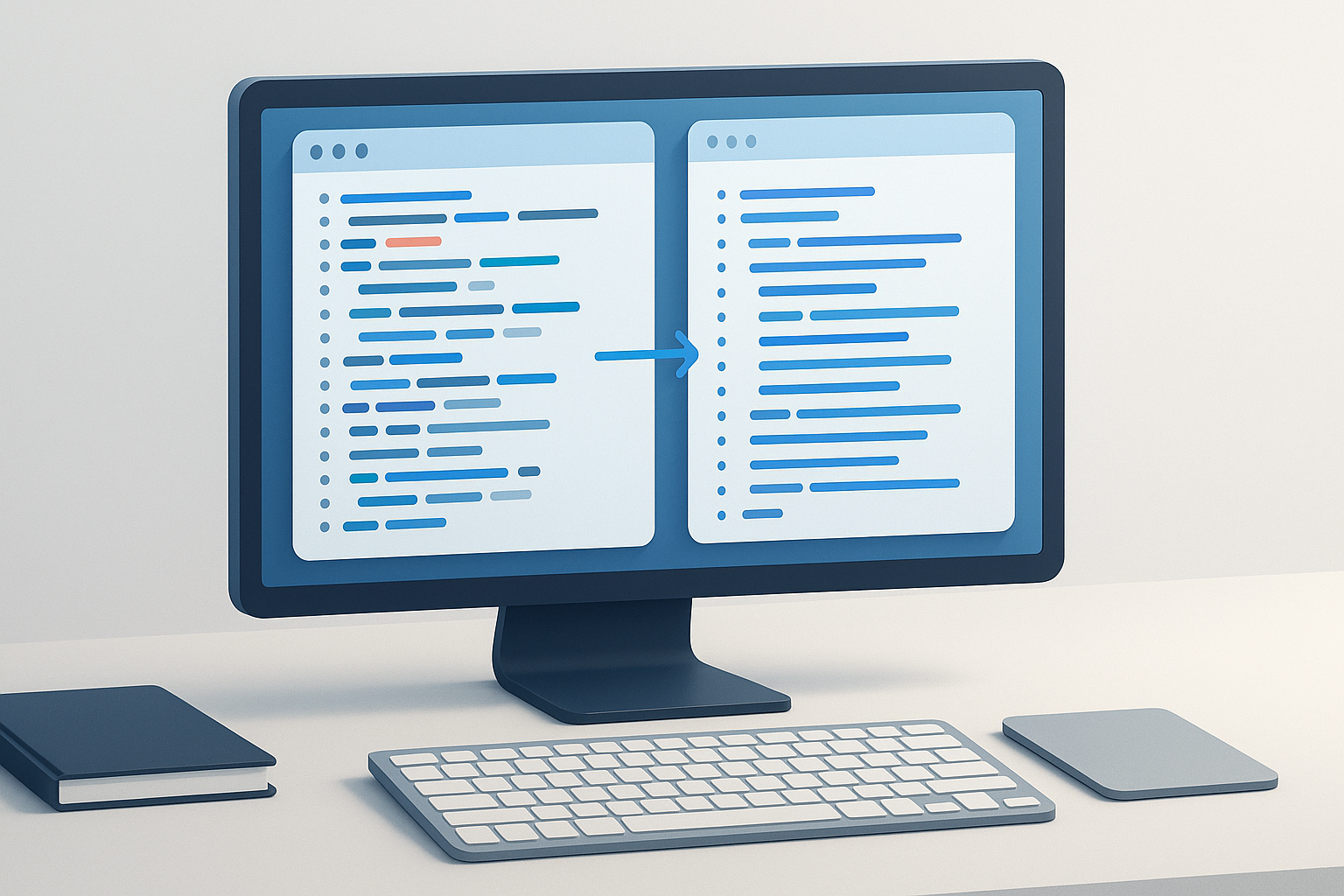
Suggested Image: Modern browser window with multiple tabs opening from a URL list
Why opening multiple URLs at once is useful
The biggest benefit is reducing repetitive browser work. Instead of copying, pasting, and loading each page one by one, you move straight into the task that actually matters: reading, checking, comparing, or researching.
- Research: Open source pages, articles, or reference documents together.
- SEO workflows: Review competitor pages, SERPs, title tags, or landing pages in batches.
- Digital marketing: Check campaign URLs, UTM-tagged links, or regional landing pages.
- E-commerce: Compare product pages, category pages, or marketplace listings.
- Everyday productivity: Open saved reading lists, job listings, learning resources, or class materials.
A good web workflow reduces repetitive work without sacrificing control.
Best ways to open multiple URLs at once
There is no single method that works best for everyone. The right option depends on whether you need a quick one-time solution, a reusable setup, or a more organized research workflow.
1. Use an online bulk URL opener
If you already have a list of links, this is usually the simplest method. You paste each full URL on its own line, then open them together. A free tool like OpenMultiURL is designed for exactly this kind of task.
This approach is useful when:
- you receive a list of links in email, chat, docs, or spreadsheets
- you need a quick one-time session
- you do not want to create bookmark folders first
- you want a lightweight workflow without browser extensions
There is an important limitation to understand: some sites may still behave differently depending on the browser, login status, pop-up settings, or site restrictions.
2. Use browser bookmarks in a folder
Most major browsers let you save several pages into one bookmark folder and open them all together later. This is a good option for repeat tasks, such as opening your daily dashboard, reporting tools, favorite research sources, or project pages.
Depending on the browser version, the exact option may vary, but bookmark folders are commonly available in Chrome, Edge, Firefox, and Safari.
3. Use a spreadsheet to organize and prepare URLs
If your links are scattered or messy, a spreadsheet can help you clean and structure them before opening. This is especially useful for larger website lists, outreach lists, content audits, or product research.
A simple workflow looks like this:
- put one URL per row
- remove duplicates
- check for missing
https:// - separate links by topic or task
- open only the batch you need
4. Use custom scripts or browser automation for advanced workflows
This is usually unnecessary for general users, but technical teams sometimes use scripts or internal tools to launch predefined sets of URLs. If you go this route, be careful. Browser automation can trigger site protections, and it should never be used to bypass security, authentication, or rate limits.
Method comparison: which option should you use?
| Method | Best For | Pros | Limitations |
|---|---|---|---|
| Online bulk URL opener | Quick batches from a pasted list | Fast, simple, no folder setup | Can create too many tabs if list is large |
| Bookmark folder | Recurring daily or weekly workflows | Reusable, built into browser | Less convenient for one-off lists |
| Spreadsheet workflow | Large and organized URL lists | Easy to clean, sort, deduplicate | Extra prep step |
| Automation or scripting | Technical, repeatable internal tasks | Flexible and scalable | Requires technical setup and caution |
How to open multiple URLs at once step by step
If you want the most straightforward workflow, start with a prepared list of valid links and open them in one batch. Here’s the easiest way to handle it.
- Collect your URLs. Put each full URL on a separate line. Include the protocol, such as
https://, so the browser can recognize the address correctly. - Review the list before opening. Remove duplicates, broken lines, and suspicious links. This matters if the URLs come from email, user submissions, or copied documents.
- Separate large lists into smaller batches. Opening 5 to 15 tabs is usually manageable. Opening 100 tabs at once may slow your browser or your device.
- Paste the list into a bulk URL opener. A tool such as OpenMultiURL can help when you need to launch a clean list of links quickly.
- Open the URLs and monitor browser behavior. If some tabs do not load, the issue may be the site itself, your connection, authentication requirements, or browser restrictions.
- Work through the tabs with a plan. Review, compare, bookmark, or close pages as you go so your session stays manageable.
How to prepare a clean list of URLs
Here’s where many beginners get confused. The problem is often not opening the URLs. It is preparing a clean list first. A well-formatted list reduces errors and saves time.
What a clean URL list should include
- one full address per line
- no extra words before or after the URL
- consistent protocol, usually
https:// - no duplicate entries unless intentionally repeated
- working, current pages rather than outdated links
Example of a good list
https://example.com/
https://example.com/pricing
https://example.com/blog
Example of a messy list that causes problems
Homepage - example.com
pricing page: https://example.com/pricing click here
www.example.com blog
In practice, this means you should strip away notes and keep only the actual web addresses in the input list.
Common use cases for bulk URL opening
Opening many links together is helpful across simple and advanced workflows. The main difference is how organized your lists are.
SEO and website research
An SEO specialist might open category pages, blog posts, product pages, or competitor landing pages in one batch. This makes it easier to compare title tags, content structure, internal linking, or page intent without manually clicking through each site.
For SEO context, it helps to understand how search engines handle URLs, canonicals, and crawlable pages. Google’s documentation on canonicalization and Google crawlers is useful if you are reviewing lots of URLs for indexing or duplication issues.
Campaign and landing page checks
Marketers often need to verify multiple ad destinations, regional pages, or UTM-tagged campaign URLs. Opening them as a batch speeds up QA work before launch.
If you use tracking parameters, Google’s guide to UTM parameters in Analytics can help you understand how tagged URLs are interpreted.
Academic or content research
Students, writers, and editors frequently collect links from search results, citations, or resource lists. Opening them together makes it easier to compare sources and keep the research session focused.
Routine browser workflows
If you always begin work with the same set of pages, a bookmark folder may be better than repeatedly rebuilding the list. For one-time sessions, a simple bulk opener is usually faster.
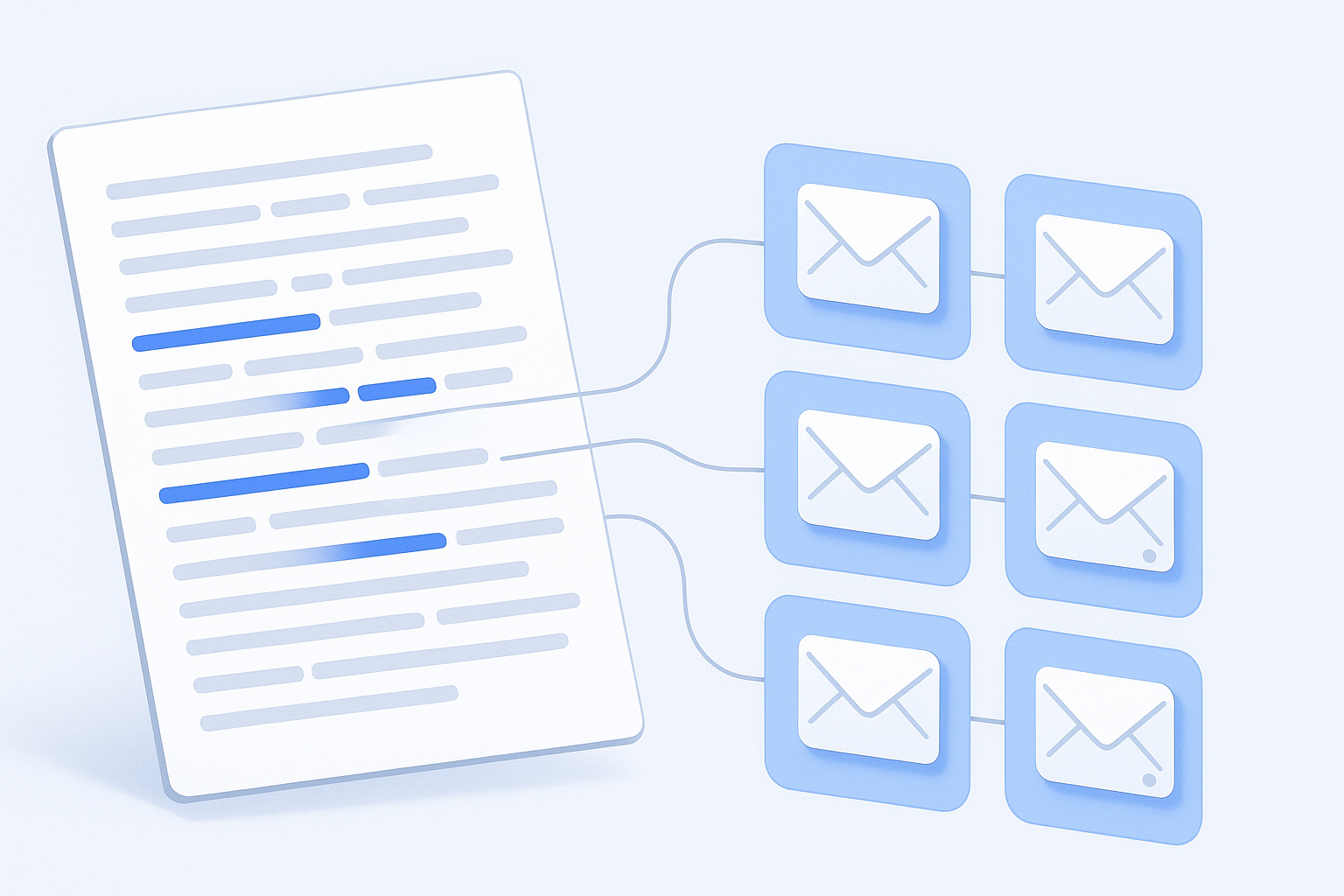
Suggested Illustration: Manual link-by-link workflow versus grouped URL-opening workflow
Browser and website limitations you should expect
Opening multiple URLs at once is simple in principle, but several factors can affect the result. Knowing the limitations upfront helps you avoid confusion.
- Browser safeguards: Some browsers restrict aggressive tab opening or treat it similarly to pop-up behavior.
- Device performance: Opening too many tabs can use a lot of memory and slow down older devices.
- Authentication: Some pages require a login and may redirect you to a sign-in page.
- Website restrictions: A site may throttle requests, block unusual behavior, or rely heavily on JavaScript.
- Redirects: A URL may open, but redirect to a different page than you expected.
- Temporary outages: A page may fail because the site is down, not because your method is wrong.
For technical background on how URLs are structured, MDN provides a helpful explanation of what a URL is. For broader standards, the WHATWG URL Standard outlines how browsers interpret URLs.
Best practices when you open multiple URLs at once
The goal is not just to open more tabs. It is to open the right tabs in a way that stays manageable.
- Open in batches. Start with a smaller group, especially on slower devices.
- Verify unfamiliar links first. Do not bulk-open suspicious URLs from untrusted sources.
- Group by task. Separate research, QA, reading, and comparison lists.
- Remove duplicates. Duplicate URLs waste time and make review harder.
- Keep notes outside the URL field. Use a spreadsheet or document for comments.
- Watch for redirects. The page that opens may not be the page you intended to review.
- Use bookmark folders for recurring sets. This is often better than rebuilding the same list every day.
The goal is not to open more tabs. It is to make research easier to manage.
Common mistakes and how to avoid them
Most problems come from formatting issues, poor list management, or unrealistic expectations about what browsers and websites will allow.
Opening too many URLs at once
This happens because users try to save time by launching everything in one go. The result is often the opposite: browser slowdown, lost context, and too many tabs to review properly.
How to avoid it: open URLs in smaller groups based on priority or topic.
Using incomplete URLs
Some lists include plain text like example.com without the full protocol. Many tools and browsers can still interpret it, but not always consistently.
How to avoid it: use full URLs whenever possible, especially https://.
Not checking for redirects
You may think you are opening five unique pages, but several could redirect to the same destination.
How to avoid it: verify final landing pages during audits or campaign checks.
Opening untrusted links blindly
This is a security risk. Bulk workflows make it easier to accidentally launch harmful or misleading pages.
How to avoid it: inspect suspicious domains before opening them, especially if the list came from an unknown sender.
Confusing domains with URLs
A domain is only part of a URL. A full URL may include a path, query string, and fragment.
How to avoid it: treat each page address as a separate URL, even when the domain is the same.
Troubleshooting: what to do if some URLs do not open
If a few links fail, the cause is usually easy to identify. Start with the simplest checks first.
- Check the formatting. Make sure each URL is on its own line and includes the correct address.
- Test one problem URL manually. If it fails on its own, the issue is likely the site or the link itself.
- Confirm your login status. Some pages only work after authentication.
- Look for redirects or expired pages. A URL may point to an old destination.
- Reduce the batch size. If the browser struggles, open fewer tabs at a time.
- Try another browser. Browser behavior can vary, especially with tab opening and session handling.
When to use OpenMultiURL instead of built-in browser options
If you need to open a one-time list copied from a document, spreadsheet, email, or chat, a dedicated tool is often more convenient than creating bookmarks. This is where OpenMultiURL is useful: it provides a simple way to paste and open multiple URLs at once without extra setup.
Bookmark folders are still a strong choice for recurring sets of pages. The best approach depends on whether your workflow is temporary or repeatable.
Frequently asked questions
Is it safe to open multiple URLs at once?
It can be safe if you trust the source of the links and review the list before opening it. The main risk is bulk-opening unfamiliar or suspicious URLs from unknown emails, spreadsheets, or messages. If a link looks unusual, verify the domain first. Safe workflows start with trusted sources, clean formatting, and smaller batches.
Can all browsers open multiple URLs at once?
Most modern browsers can handle multiple tabs, and many support opening saved bookmark folders in one action. However, exact behavior varies by browser version, settings, and device performance. Some browsers may limit aggressive tab opening or show prompts depending on how the links are launched. If one approach does not work smoothly, try a smaller batch or another browser.
Why do some links open the login page instead of the page I expected?
This usually means the destination requires authentication. The URL itself may be correct, but the website checks whether you are signed in before showing the content. If you are not logged in, the site redirects you to a login screen. This is normal behavior and not something a multi-URL tool should or can bypass.
How many URLs should I open at once?
There is no universal number because it depends on your browser, computer memory, and the type of pages being opened. As a practical rule, smaller batches are easier to manage and less likely to slow down your device. For many users, 5 to 15 tabs is a comfortable range for review work. Larger audits are best split into topic-based groups.
Can I open URLs from a spreadsheet?
Yes. In fact, spreadsheets are one of the easiest ways to organize bulk URL lists. You can keep one URL per row, remove duplicates, sort by category, and then copy the final batch into your preferred opening method. This is especially helpful for SEO audits, outreach campaigns, content research, and page review tasks.
Will opening multiple URLs at once help with SEO?
Not directly. Opening many pages together does not improve rankings by itself. What it can do is save time during SEO tasks such as reviewing title tags, comparing landing pages, checking internal linking, or inspecting canonical patterns. It supports the workflow, not the ranking outcome.
What is the difference between a domain and a URL?
A domain is the main website name, such as example.com. A URL is the full address that points to a specific resource or page, such as https://example.com/blog/post-1. When you open multiple URLs at once, you are usually opening individual pages, not just domains.
What should I do if a large set of tabs crashes my browser?
First, reduce the number of URLs you open in one batch. Then separate the list by purpose or priority. You can also close heavy pages, such as media-rich sites, before opening the next group. If this is a recurring workflow, use bookmark folders or smaller curated lists instead of trying to launch everything at once.
Conclusion
If you regularly review lists of pages, learning how to open multiple URLs at once is one of the simplest ways to reduce repetitive browser work. The best method depends on your task: bookmark folders work well for recurring routines, while a pasted-list workflow is often easier for one-time research, audits, or link checks.
Keep your URL lists clean, open links in manageable batches, and verify unfamiliar addresses before launching them. If you often work from copied lists, OpenMultiURL can be a practical way to open multiple URLs at once without the extra setup of bookmarking every page first.