Have you ever received a report in several PDF files and needed to submit it as one document? Combining the files is usually simple, but the final result can still contain pages in the wrong order, oversized images, broken bookmarks, or sensitive information that should not have been uploaded to an online service.
Learning how to merge PDF files online is useful for students, researchers, office teams, freelancers, and anyone who needs to organize digital documents quickly. This guide explains a practical workflow: prepare the files, choose a trustworthy online merger, arrange the pages, download the combined PDF, and check the result before sharing it. You will also learn when online merging is appropriate, when an offline method is safer, and how to troubleshoot common problems.
Quick answer: How to merge PDF files online
To merge PDF files online, open a reputable PDF merger, upload the documents, arrange them in the required order, select the combine or merge option, and download the finished file. Open the result and check the page sequence, formatting, links, file size, and sensitive information before sending or storing it.
What does merging PDF files mean?
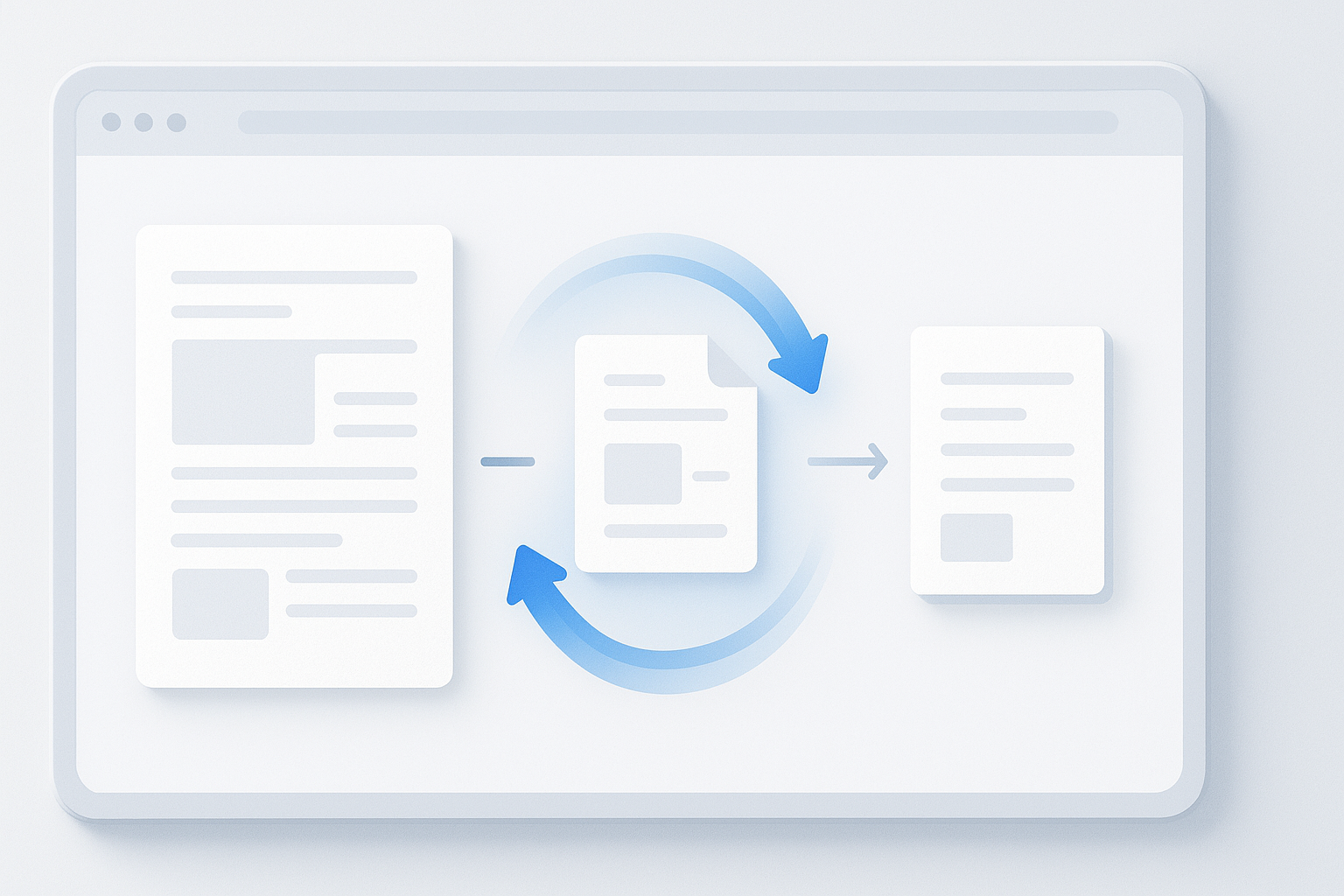
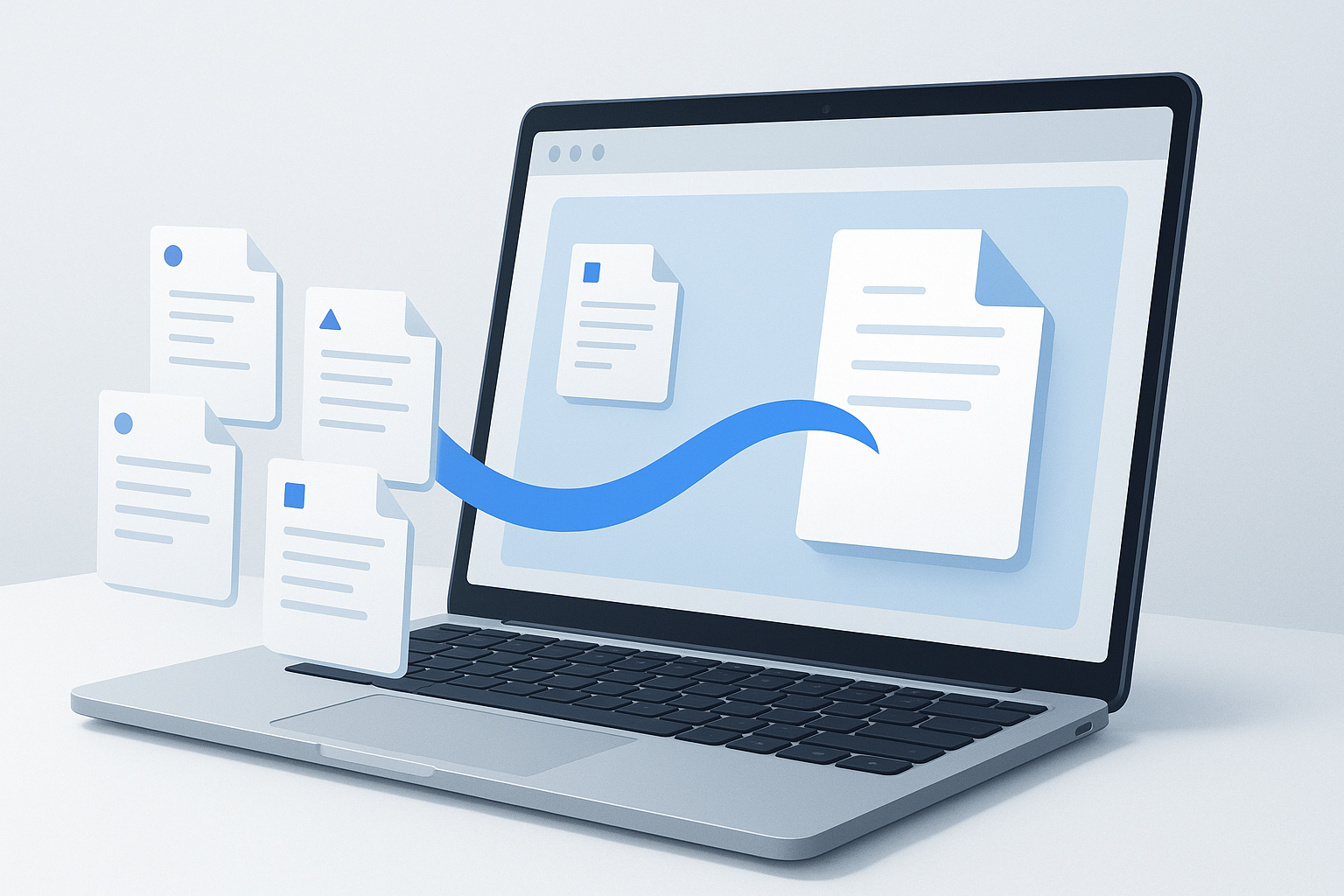
Merging PDFs means combining two or more separate PDF documents into one file. The original pages are placed into a single continuous document, usually in the order you choose.
For example, you might combine a cover letter, résumé, portfolio, and references into one application file. A business may merge an invoice, terms and conditions, and delivery receipt into a single customer record. The process normally changes the document container rather than rewriting the text on every page.
It is important to distinguish merging from editing. Merging joins files together. It does not automatically correct typos, remove unwanted pages, extract text, or make a scanned document searchable. Those tasks may require a PDF editor or optical character recognition, commonly called OCR.
When is merging PDFs useful?
Combining PDF files can make documents easier to submit, archive, review, and share. A single well-organized file is often easier for another person to download and understand than a folder containing many separate attachments.
- Job applications: Combine a résumé, cover letter, certificates, and portfolio pages.
- School and university work: Join a title page, assignment, references, and appendices.
- Business records: Store invoices, receipts, contracts, or project documents together.
- Research: Assemble selected reports or notes into a review document for personal use.
- Client deliverables: Package a proposal, supporting evidence, and terms into one file.
- Administrative work: Prepare a complete submission when a website accepts only one PDF upload.
For a simple collection of unrelated documents, merging may not always be the best choice. If recipients need to use each file separately, keeping the original PDFs in a clearly named folder may be more practical.
What to prepare before combining PDF files
A few minutes of preparation can prevent most merging errors. Before uploading anything, identify the final purpose of the document and decide exactly how the pages should be arranged.
Check the files
- Confirm that every required PDF is present.
- Open each file and make sure it displays correctly.
- Remove duplicate, outdated, or blank documents.
- Check whether pages are portrait or landscape and whether the sizes look consistent.
- Rename files with clear labels if the merger uses filenames to determine order.
A useful naming pattern is 01-cover.pdf, 02-report.pdf, and 03-appendix.pdf. Numbering is especially helpful when you are handling many documents or returning to the task later.
Decide whether the files contain sensitive information
An online PDF tool requires you to upload files to a third-party service. Do not upload confidential documents until you understand the service’s privacy, retention, and deletion practices. Sensitive material can include identity documents, financial records, medical information, private contracts, passwords, and unpublished business data.
If the files are confidential, use an offline PDF application approved by your organization when possible. If you must use an online service, verify that the website address is correct, use a secure connection, review its privacy information, and delete the uploaded and downloaded copies when the work is complete.
How to merge PDF files online step by step
The exact labels vary between services, but the general workflow is similar. The following method works for most browser-based PDF merging tools.
- Choose a reputable PDF merger. Check that the website uses HTTPS and read its privacy information, file limits, and deletion policy. Avoid unfamiliar links received in unexpected messages.
- Open the merge or combine function. Look for wording such as “Merge PDF,” “Combine files,” or “Join PDFs.” Make sure you are using the merging feature rather than a tool that only compresses or converts files.
- Select the PDF files. Upload the documents from your device. Some services allow drag-and-drop, while others provide a file selection button. Select only the files needed for the final document.
- Arrange the documents. Drag the file cards or use the available move controls to place them in the correct sequence. Do not assume the upload order is the final order.
- Review the file list. Check filenames, page counts, and thumbnails if the service provides them. Remove accidental duplicates before continuing.
- Start the merge. Select the button that creates the combined PDF. Processing time may depend on the number of files, page count, image quality, and internet connection.
- Download the result. Save the finished document with a descriptive name, such as
project-submission-final.pdf. Avoid vague names such asdocument.pdfif you manage many files. - Inspect the downloaded PDF. Open it in a PDF viewer and check the page order, text, images, page orientation, links, bookmarks, and file size.
The final inspection is not optional for important documents. A merger may successfully create a file while still producing an order or formatting problem that is only visible when you open the result.
How to put PDF pages in the correct order
The order of the source files determines the reading flow of the merged document. A common mistake is to upload files without checking how the tool sorts them. Some services preserve selection order, while others may display files alphabetically or according to the order in which they were added.
Use this simple planning method:
- Write down the intended sequence before uploading.
- Place the introductory or cover page first.
- Follow with the main content.
- Put supporting evidence, references, or appendices at the end.
- Review the first and last page of every source document.
If a source PDF contains pages that should not be included, merging alone may not remove them. You may need to delete or extract pages first, depending on the capabilities of the service you use.
The goal of a merged PDF is not simply to create one file. It is to create one file that another person can read without having to repair your organization.
How to check a merged PDF before sharing it
After downloading the combined document, perform a short quality check. This is particularly important for applications, legal records, financial documents, and files submitted to a portal with strict requirements.
- Page sequence: Confirm that the pages follow the intended story or process.
- Completeness: Make sure no source file or page was omitted.
- Page orientation: Check for pages that appear sideways or use an unexpected layout.
- Text quality: Zoom in on small text, tables, and footnotes.
- Images: Confirm that diagrams, signatures, and scanned pages are visible.
- Links: Test important hyperlinks if the document depends on them.
- Bookmarks: Check whether navigation bookmarks were preserved or removed.
- File size: Compare the result with the upload limit of the destination website.
- Privacy: Look for pages or metadata that reveal information you did not intend to share.
- Filename: Use a clear final name that identifies the document and version.
Do not rely only on the thumbnail view in the browser. Open the downloaded PDF in a proper viewer and inspect several pages at normal and enlarged sizes.
Online PDF merger versus offline PDF software
The best method depends on the sensitivity of the files, the number of documents, and whether you need advanced controls. Online tools are convenient for occasional tasks, while offline software may provide greater control over privacy and document features.
| Method | Best for | Advantages | Considerations |
|---|---|---|---|
| Online PDF merger | Quick, occasional combining | No installation and usually simple to use | Requires uploading files and may have size or page limits |
| Desktop PDF application | Sensitive or recurring work | More local control and often more editing options | May require installation, licensing, or administrator approval |
| Command-line or scripted workflow | Repeatable technical processes | Useful for automation and large batches | Requires technical knowledge and testing |
For background on PDF capabilities and document handling, you can consult Adobe’s guide to combining PDF files online. The exact limits and interface of any service can change, so always check the current information on the provider’s website.
Common problems when merging PDFs
Most PDF merging problems are caused by file restrictions, source-document differences, or insufficient checking after the download. Here are practical ways to diagnose them.
The upload fails
The file may be too large, damaged, password-protected, or in a format the service does not accept. Open the source PDF locally first. If it works, check the online tool’s file-size and page limits. For a confidential or unusually large document, an offline method may be more appropriate.
The pages are in the wrong order
The service may have sorted the files by name or uploaded them in a different sequence than expected. Rename the files with numbers, upload them again, and manually check the order before merging.
A password-protected PDF cannot be combined
Some PDFs have restrictions that prevent editing or page extraction. If you own the document or have permission to modify it, use the authorized password or ask the document owner for an unrestricted copy. Do not attempt to bypass protections on documents you are not authorized to alter.
The final file is too large
Scanned pages and high-resolution images often create large PDFs. Remove unnecessary pages, reduce image resolution where appropriate, or use a trusted compression function. Be careful: excessive compression can make text, signatures, or diagrams difficult to read.
Some pages look different
Source files may use different page dimensions, orientations, fonts, or scan qualities. A merged PDF can preserve those differences. If a uniform appearance is required, standardize the source documents before combining them rather than expecting the merger to redesign every page.
Links, bookmarks, or forms do not work as expected
Interactive features are not always preserved in the same way when PDFs are joined. Check links and form fields in the final document. If the file is a fillable form or contains digital signatures, verify the result carefully because merging can affect how those features behave.
Best practices for safer PDF merging
A reliable workflow balances convenience with privacy, accuracy, and future usability. These habits reduce avoidable mistakes:
- Verify the website address before uploading documents.
- Use HTTPS, but remember that a secure connection does not by itself explain how a service stores files.
- Read the provider’s privacy and file-deletion information for confidential work.
- Keep an untouched copy of the original PDFs until the final document has been checked.
- Use numbered filenames when page order matters.
- Do not upload documents containing passwords, payment details, or personal identification unless the service and your organization’s policy allow it.
- Scan downloaded files with your normal security tools if the source or website was unfamiliar.
- Delete temporary uploads and downloaded copies when they are no longer needed.
- Test the final document on the device or portal where it will be used.
When gathering source PDFs from the web, verify unfamiliar URLs before opening them. A PDF link can be legitimate, outdated, redirected, or malicious. Avoid downloading files from unexpected messages or websites that use deceptive addresses.
For guidance on recognizing suspicious links and online threats, review the CISA guidance on recognizing and reporting phishing.
Practical PDF merging examples
Example 1: Preparing a job application
A candidate has a cover letter, résumé, professional certificate, and portfolio. They arrange the files in that order, merge them, open the final PDF, and confirm that the pages are readable. They then check the employer’s upload limit before submitting the document.
Example 2: Combining research material
A researcher has several public reports saved as individual PDFs. They create a working copy, remove documents that are not relevant, and merge the remaining files for personal review. They keep the original files separately so that citations and source references remain easy to verify.
Example 3: Sending a project handover
A freelancer combines a project summary, final deliverables list, invoice, and usage instructions. Instead of naming the output “final.pdf,” they use a descriptive filename containing the project and date. Before sending it, they check that private notes and draft pages were not included.
How PDF merging fits into a broader web workflow
PDF work often begins with online research. You may collect reports, documentation, product pages, or reference material from several URLs before organizing the files into a final document. In that situation, a multi-URL browser tool such as OpenMultiURL can help you open a list of source links at once, reducing repetitive tab-by-tab navigation.
OpenMultiURL is designed for opening multiple URLs at once, not for merging or editing PDF files. Some websites may require authentication, block access, redirect visitors, or behave differently depending on the browser. Opening several links does not bypass those restrictions, so review each source responsibly and verify that you have permission to access or use the material.
Frequently asked questions about merging PDF files online
Can I merge PDF files online for free?
Many online PDF services offer a free merging option, but limits may apply to file size, page count, daily use, or additional features. Check the current terms before uploading important documents. “Free” also does not automatically mean private, so review how the service handles uploaded files and whether temporary files are deleted.
Will merging PDFs reduce their quality?
Merging alone does not necessarily reduce the visual quality of a PDF. However, some services may process, convert, or compress files during the workflow. Scanned pages and images can be affected if compression is applied. Open the final document and inspect small text, photographs, signatures, and diagrams before sharing it.
Can I merge scanned PDF documents?
Yes, scanned PDFs can usually be combined as pages in one file. The result may still be image-based, which means you may not be able to search or copy its text. If searchable text is needed, use OCR after confirming that the document contains no sensitive information that should be uploaded to an online service.
Can I merge password-protected PDFs?
It depends on the type of protection and the permissions set by the document owner. Some protected files cannot be edited or have pages extracted. If you are authorized to modify the document, obtain the correct password or an approved unrestricted copy. Do not try to defeat security controls on someone else’s file.
Does merging PDFs preserve digital signatures?
Not always. A digital signature is connected to the content and structure of a document. Changing that document, including combining it with other files, may invalidate the signature or change how it is displayed. If a signature matters legally or operationally, merge the files before signing when possible, or follow the signing platform’s instructions.
Why is my merged PDF larger than the original files combined?
The service may reprocess images, add document data, or preserve high-resolution content from scanned pages. Different source PDFs may also use different compression settings. Remove unnecessary pages and use a reputable compression step only if the final document remains readable. Always keep an original copy before compressing.
Can I merge PDFs on a phone?
Many browser-based services work on mobile devices, but the exact experience depends on the operating system, browser, connection, and file storage permissions. For a large set of files, a computer is usually easier because you can see filenames and reorder documents more clearly. Avoid uploading sensitive files from a shared or unmanaged device.
What should I do if an online PDF merger does not work?
Open the source files individually, confirm that they are valid PDFs, check the service’s file limits, and try a smaller batch. Remove damaged or password-protected files and verify the browser connection. If the documents are confidential, unusually large, or contain complex interactive features, use an approved offline PDF application instead.
Final checklist before sending a merged PDF
- All required source files are included.
- The pages appear in the correct order.
- Unwanted drafts, blank pages, and private notes are removed.
- Text, images, tables, links, and signatures display correctly.
- The file meets the recipient’s size and format requirements.
- The filename is clear and appropriate.
- The document does not expose unnecessary personal or confidential information.
- You have retained the original files if further changes may be needed.
Conclusion
Learning how to merge PDF files online is straightforward when you treat it as a document workflow rather than a single upload-and-download action. Prepare the files, choose a trustworthy service, arrange them carefully, download the result, and inspect every important detail before sharing it. For sensitive documents, large files, or advanced PDF features, an offline application may be the safer option.
If your PDF task begins with collecting information from several websites, OpenMultiURL can help you open multiple source URLs at once while you organize your research. Use it alongside careful URL verification and a final document-quality check so that your workflow is faster without sacrificing accuracy or security.