Pretty-printed JSON is great for reading, but it is not ideal when you need a smaller payload for an API request, a configuration export, or a production workflow. If you’re searching for how to minify JSON online, you usually want one thing: remove unnecessary spaces, tabs, and line breaks without changing the data itself.
This guide explains what JSON minification actually does, when it helps, how to do it safely in a browser, and what mistakes to avoid. Whether you’re a developer checking API payloads, a marketer handling structured data snippets, or a site owner working with web tools, you’ll learn a simple process that keeps your JSON compact and valid.
Quick answer: how to minify JSON online
To minify JSON online, paste valid JSON into a trusted JSON minifier, run the minify or compress action, and copy the output. A proper JSON minifier removes whitespace and formatting only, so the data structure stays the same. Always validate the result if the JSON will be used in APIs, applications, or schema markup.
What JSON minification means
JSON minification means removing characters that make JSON easier for humans to read but are not required for machines to parse it. That usually includes spaces, indentation, tabs, and line breaks outside string values.
The important part is this: minifying JSON does not change the keys, values, arrays, objects, or overall meaning of the data. It only changes the formatting.
For example, this formatted JSON:
{ "name": "Alex", "roles": [ "admin", "editor" ] }
and this minified JSON:
{"name":"Alex","roles":["admin","editor"]}
contain the same data. One is easier to read. The other is more compact.
Why minifying JSON is useful
Minification is useful when readability is no longer the priority. Once you’ve finished editing or debugging, smaller JSON is often better for transfer, storage, or embedding.
Common reasons to minify JSON
- Reduce payload size: Smaller API request or response bodies can be more efficient to send and store.
- Clean up exports: Some systems expect compact JSON in form fields or import tools.
- Embed data in scripts or templates: Minified JSON takes less space inside code or configuration files.
- Prepare production assets: Teams often keep formatted JSON for development and minified JSON for deployment.
- Simplify copy-paste workflows: Compact JSON is easier to place into one-line fields, query builders, or dev tools.
In practice, this matters most when JSON is moving between tools. If a system has a small input area, strips line breaks, or expects a compact string, minification helps avoid formatting issues.
When you should and should not minify JSON
The best approach depends on what you’re trying to accomplish. Minified JSON is efficient, but formatted JSON is much easier to inspect manually.
| Situation | Better Choice | Why |
|---|---|---|
| Debugging API data | Formatted JSON | Easier to read nested objects and arrays |
| Sending data to production systems | Minified JSON | Removes unnecessary characters |
| Sharing examples in docs | Formatted JSON | More readable for humans |
| Embedding JSON into a single-line field | Minified JSON | Avoids line-break and spacing issues |
A good rule is simple: edit and review JSON in formatted form, then minify it when you need a compact final version.
How to minify JSON online step by step
If you want to know how to minify JSON online safely, the workflow is straightforward. The main thing is to start with valid JSON.
- Copy the JSON you want to minify. Make sure you copy the complete object or array, including opening and closing braces or brackets.
- Paste it into an online JSON minifier. Use a trusted browser-based tool designed specifically for JSON formatting and compression.
- Run the minify action. The tool should remove whitespace and line breaks while preserving the JSON structure.
- Check for errors. If the tool reports invalid JSON, fix the syntax before using the output.
- Copy the minified result. Use it in your API request, config file, schema field, or other workflow.
- Validate when needed. If the JSON is going into a production system, one final validation step helps catch copy-paste mistakes.
Here’s where many beginners get confused: a JSON minifier cannot repair badly broken JSON in every case. It can only minify valid JSON or show you where the structure is invalid.
How JSON minifiers work without breaking the data
A proper JSON minifier parses the JSON structure, then recreates it in a compact form. It removes only insignificant whitespace outside values. It does not remove spaces inside string content.
That distinction matters. In this example:
{"message":"hello world"}
the space inside "hello world" is part of the actual value, so it must stay. A correct tool will preserve it.
This behavior aligns with the JSON format defined in official standards such as RFC 8259. If you’re working with JavaScript environments, MDN’s JSON reference is also a useful source for structure and parsing behavior.
What counts as valid JSON before minification
Before minifying, it helps to know what valid JSON looks like. JSON has stricter rules than JavaScript object literals, which is why copied snippets sometimes fail.
Basic JSON rules to remember
- Keys must use double quotes:
{"name":"Sam"} - Strings must use double quotes, not single quotes
- No trailing commas after the last item
- Objects use
{ }and arrays use[ ] - Values can be strings, numbers, booleans, arrays, objects, or
null - Comments are not allowed in standard JSON
For broader syntax and data format background, the MDN guide to working with JSON is a reliable primer.
Practical examples of minifying JSON online
The easiest way to understand this is through common real-world tasks.
API testing
A developer is preparing a request body for an API client. During testing, the body is formatted to make nested fields easier to read. Once everything works, the request is minified before being saved into an environment variable or automation script.
Schema markup cleanup
A site owner creates structured data in JSON-LD for a webpage. Formatted JSON-LD is useful during editing, but a minified version can be easier to paste into a CMS code field, especially if the editor handles line breaks badly. If you’re using structured data for search visibility, review Google’s official guidance in Google Search Central’s structured data documentation.
Configuration sharing
A team shares app settings in JSON format through chat, tickets, or internal tools. A minified version reduces scrolling and makes it easier to include the config in a single message or form field.
Embedded tool inputs
Some web tools accept JSON in a compact text box with limited formatting support. In that case, minifying the JSON first often reduces paste problems.
Best practices when you minify JSON online
If you’re doing this regularly, there are a few habits that make the workflow more reliable.
- Keep a readable original copy. Minified JSON is not pleasant to troubleshoot later.
- Validate before and after if the data is important. This matters for production apps, analytics setups, and schema markup.
- Use trusted tools for sensitive data. If the JSON contains credentials, tokens, personal data, or private business details, avoid pasting it into unknown online tools.
- Watch for accidental character changes. Copy-paste can introduce smart quotes or remove escape characters in some editors.
- Use minification late in the workflow. Readability is more useful during editing; compactness is more useful during delivery.
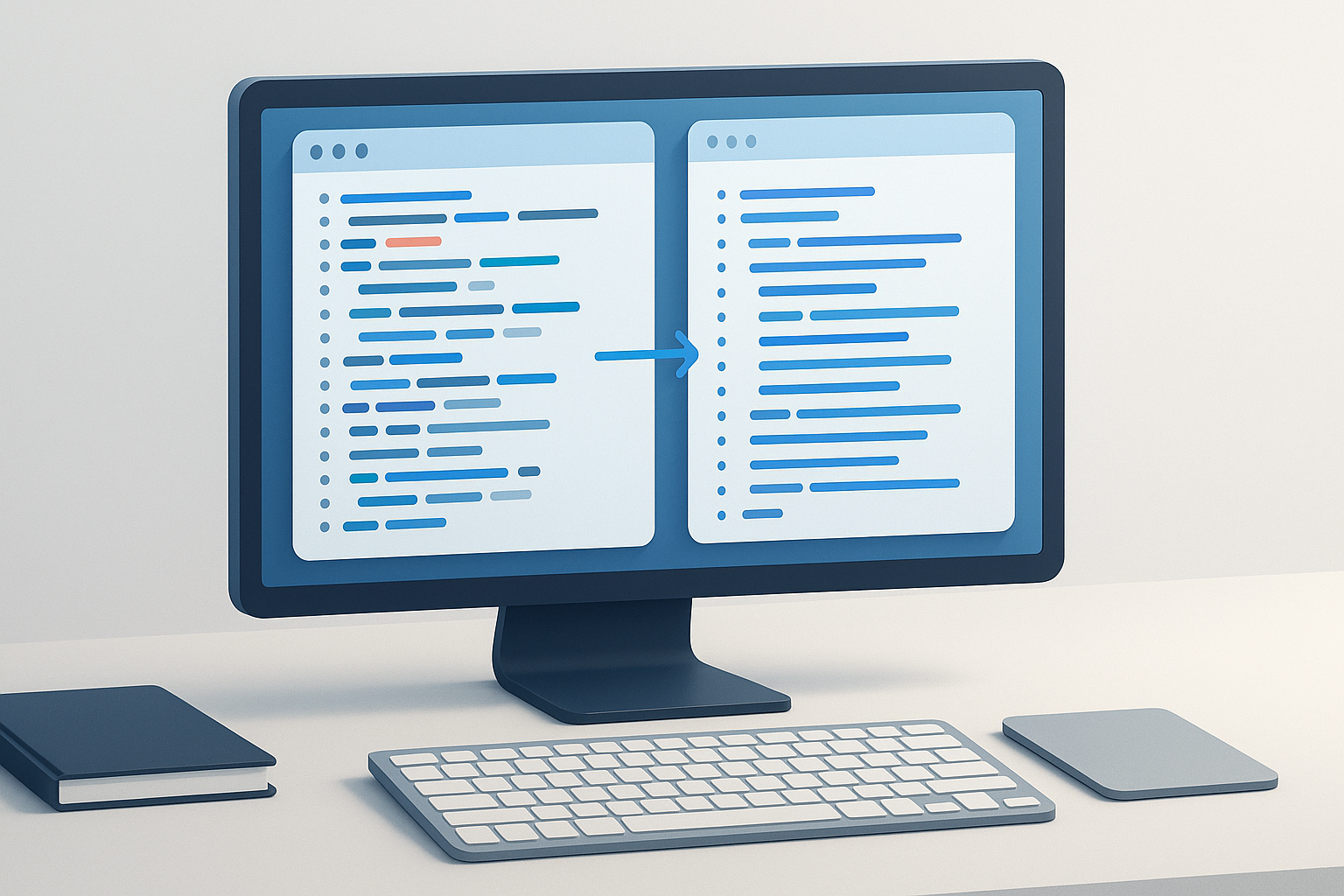
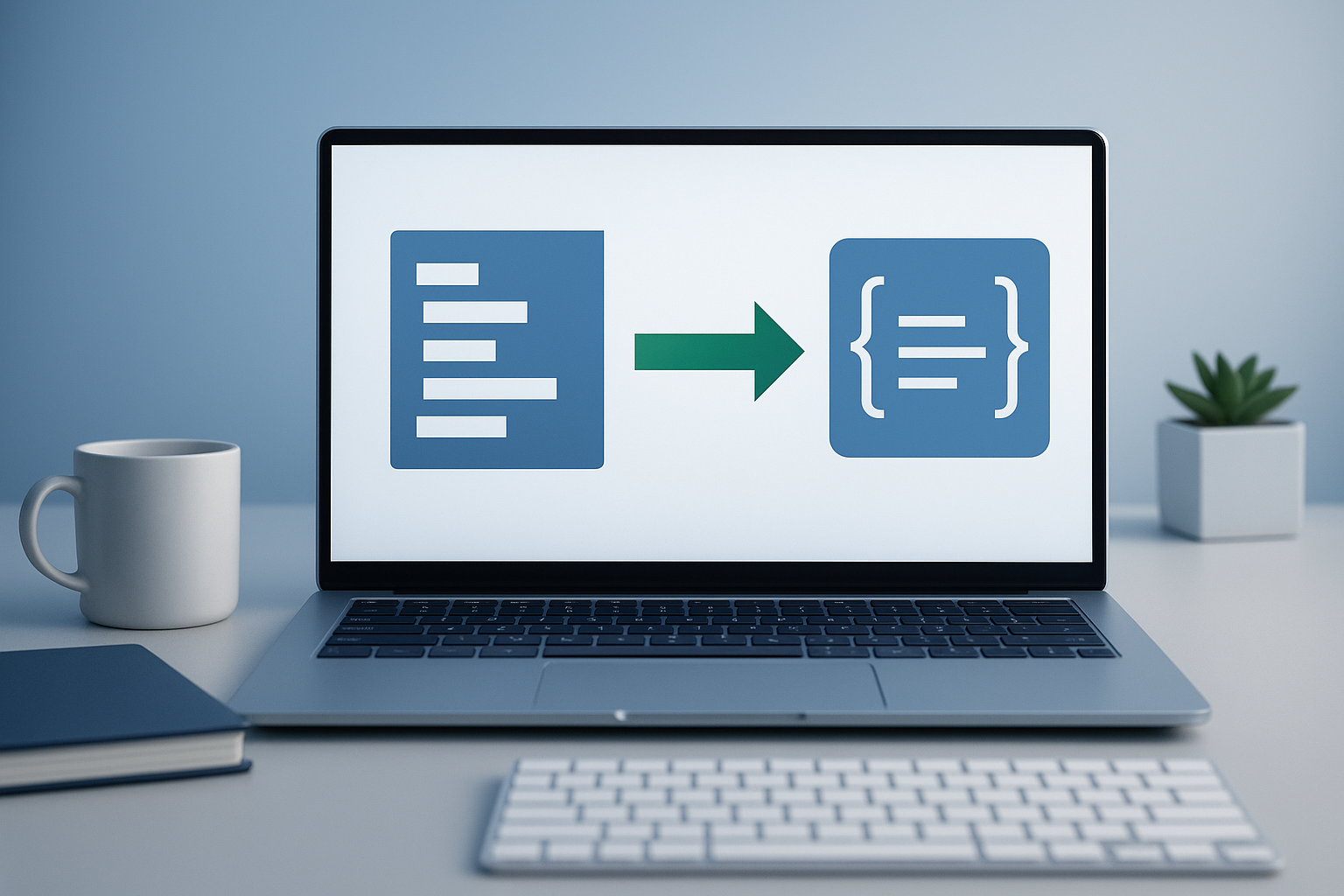
Suggested Image: Modern Developer Workflow Illustration Showing Formatted JSON Turning Into Minified JSON
Common mistakes that break JSON during minification workflows
Most problems do not come from minification itself. They come from invalid JSON, bad copying, or confusion between JSON and JavaScript syntax.
Using single quotes
This happens because JavaScript examples often use object-like syntax casually. Standard JSON requires double quotes for keys and string values. If single quotes are present, the minifier may reject the input.
Leaving trailing commas
Some editors tolerate trailing commas. Strict JSON does not. A single extra comma at the end of an object or array can stop the entire parse.
Confusing escaped characters with formatting
Characters like \n, \t, or escaped quotes inside strings are part of the value. They should not be removed unless you intentionally want different content.
Pasting incomplete JSON
It is easy to copy only part of a nested object. If the opening and closing brackets do not match, the minifier cannot produce valid output.
Using online tools for private data without checking trust
This is a security issue, not just a formatting issue. If your JSON contains secrets, customer information, or internal configs, use extra care. Browser tools can be convenient, but sensitive data should be handled responsibly.
Limitations of online JSON minifiers
There is an important limitation to understand: online tools are convenient, but they are not always the right choice for every dataset or workflow.
- Sensitive data risk: Anything pasted into a browser tool should be treated carefully unless you fully trust the tool and understand how it processes data.
- Very large files: Huge JSON documents may slow down the browser or exceed input limits.
- No semantic cleanup: Minification removes formatting, but it does not fix poor naming, unnecessary fields, or bad structure.
- Validation depends on the tool: Some tools only compress. Others also validate or prettify. Features vary.
- Not a substitute for schema or API testing: JSON can be valid but still incorrect for the system receiving it.
In other words, a minifier tells you whether the syntax can be compacted. It does not guarantee the receiving application will accept the data as intended.
Troubleshooting: if the JSON will not minify
If an online minifier fails, the cause is usually a syntax problem or a copy issue. A quick review often solves it.
Problem: the tool says the JSON is invalid
- Check for single quotes instead of double quotes
- Look for missing commas or extra commas
- Confirm that brackets and braces are balanced
- Remove comments if they were copied from code
Problem: the output looks different than expected
- Check whether your editor changed line endings or quotation marks
- Make sure escape characters were preserved
- Compare the original and minified structures, not just the formatting
Problem: the JSON is valid but the receiving tool rejects it
- Review that system’s schema or field requirements
- Confirm expected data types such as string, number, boolean, or array
- Check whether the tool expects plain JSON, JSON-LD, or a wrapped request body
For web-facing implementations, especially structured data, Google’s documentation can help confirm whether valid JSON is also valid for search-related use cases.
Online minifying vs local minifying
If you minify JSON often, you may wonder whether a browser tool is enough or if local tooling is better. Both are useful depending on context.
| Method | Best For | Main Tradeoff |
|---|---|---|
| Online JSON minifier | Quick one-off tasks in a browser | Less suitable for sensitive or very large data |
| Editor or IDE extension | Frequent developer workflows | Requires local setup |
| Command-line tools or scripts | Automation and repeatable builds | Less beginner-friendly |
If your work involves repeated browser-based tasks, keeping lightweight web utilities organized can save time. That is especially true when you switch frequently between validators, developer tools, and reference pages.
How this fits into broader web productivity workflows
Minifying JSON is a small task, but it often sits inside a larger browser workflow. A developer might validate JSON, check API docs, open staging pages, test endpoints, and compare implementation notes in one session.
If you regularly work with lists of documentation pages, dashboards, staging environments, or research sources, a tool like OpenMultiURL can help open multiple URLs at once instead of clicking through them individually. That will not minify JSON for you, but it can reduce repetitive browser work around the task.
Suggested Illustration: Browser Workflow for JSON Validation, API Docs, and Testing Tabs
Frequently asked questions
1. Does minifying JSON change the data?
No. Proper JSON minification only removes unnecessary whitespace such as spaces, tabs, and line breaks outside string values. The keys, values, nesting, arrays, and objects stay the same. If the actual data changes, the tool is not just minifying. That is why it is important to use a proper JSON-specific tool rather than a generic text replacer.
2. Is minified JSON faster?
It can be more efficient to transfer because the payload is smaller, especially over networks or in repeated requests. That said, the performance gain depends on context. For small snippets, the difference may be minor. For large payloads, compact JSON can help reduce unnecessary bytes. It is best viewed as an efficiency improvement, not a guaranteed performance breakthrough.
3. Can I minify invalid JSON?
Usually no. Most tools first parse the input as valid JSON. If the syntax is broken, the tool should return an error instead of guessing what you meant. Some editors can help repair simple mistakes, but minification itself is not the same as fixing malformed data. Start by correcting quotes, commas, brackets, and unsupported comments.
4. Is it safe to minify JSON online?
It can be safe for non-sensitive data when using a trustworthy tool, but caution matters. Avoid pasting secrets, API tokens, customer records, login-related data, or internal business details into tools you do not trust. For confidential material, local processing is the safer choice. Convenience should not override data handling standards.
5. What is the difference between minifying and compressing JSON?
Minifying removes unnecessary formatting characters while keeping the JSON as plain text. Compression usually means applying an algorithm such as gzip or Brotli during storage or transfer. A minified file can also be compressed later. They are related, but they are not the same thing and happen at different stages of a workflow.
6. Should I minify JSON-LD for SEO?
You can, because JSON-LD is still JSON. Search engines care about valid structured data, not whether it is pretty-printed or minified. However, formatted JSON-LD is easier to review and maintain. Many teams write it in readable form first, then minify only if their CMS or deployment workflow benefits from compact code.
7. Why does my valid JavaScript object fail as JSON?
Because JSON is stricter than JavaScript object notation. Common reasons include single quotes, unquoted keys, trailing commas, comments, or values that are acceptable in JavaScript but not in JSON. If something works in code but fails in a JSON minifier, check whether the input is truly JSON and not just a JavaScript object literal.
8. What should I do before pasting minified JSON into another tool?
Confirm that the destination accepts raw JSON in the format you are using. Then check the data type requirements, especially for booleans, numbers, arrays, and nested objects. If the JSON will affect a live website, app, or API integration, keep a readable backup and validate once more after pasting to catch accidental edits.
Conclusion
Knowing how to minify JSON online is mostly about doing one simple job safely: removing formatting without changing the data. Start with valid JSON, use a trusted tool, verify the output when it matters, and keep a readable copy for editing and debugging.
For one-off browser tasks, online minification is quick and practical. For sensitive or repeated workflows, local validation and automation may be the better choice. And if your broader process involves opening documentation, staging pages, validators, or multiple research links at once, OpenMultiURL can help streamline the browser side of that workflow without adding unnecessary complexity.