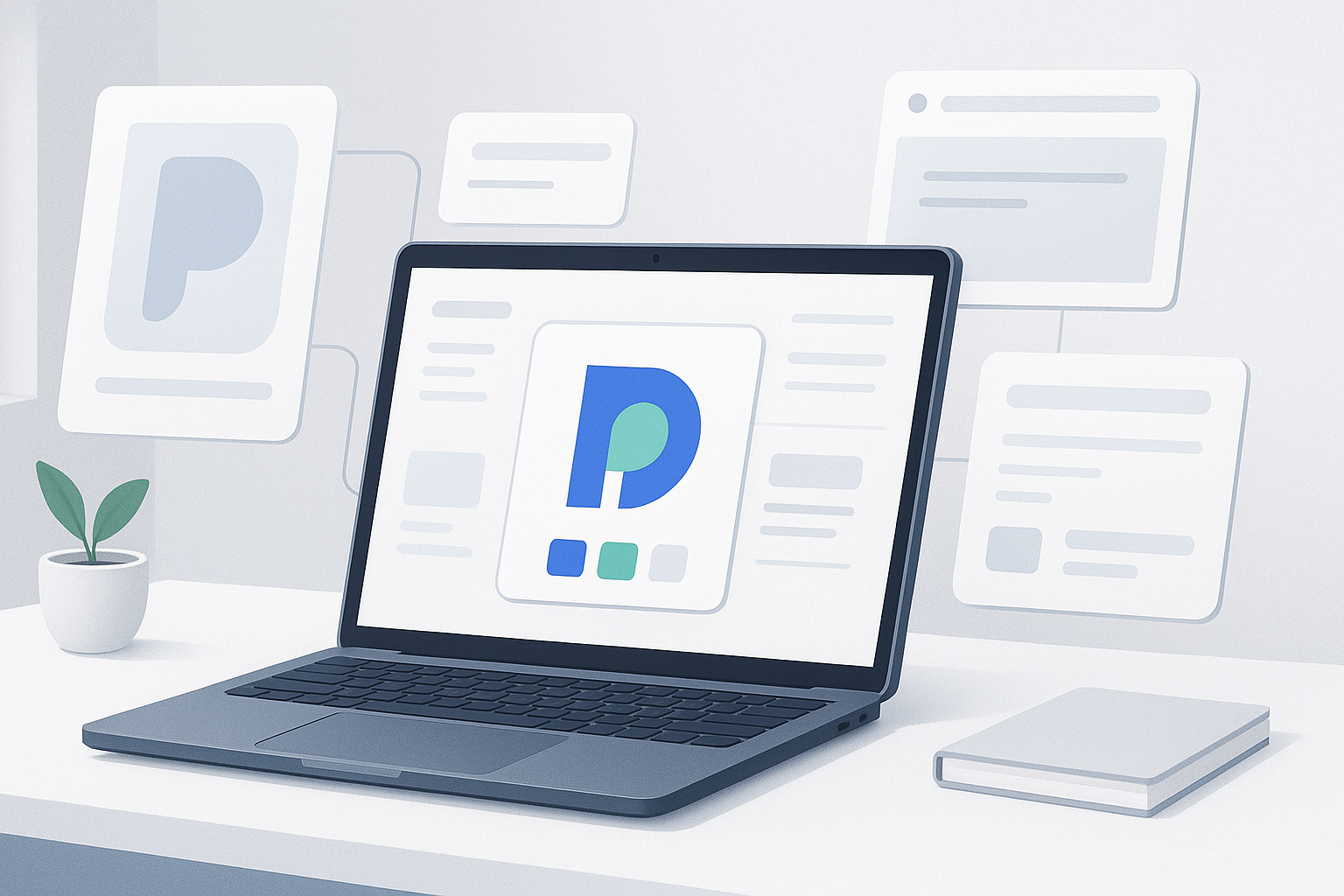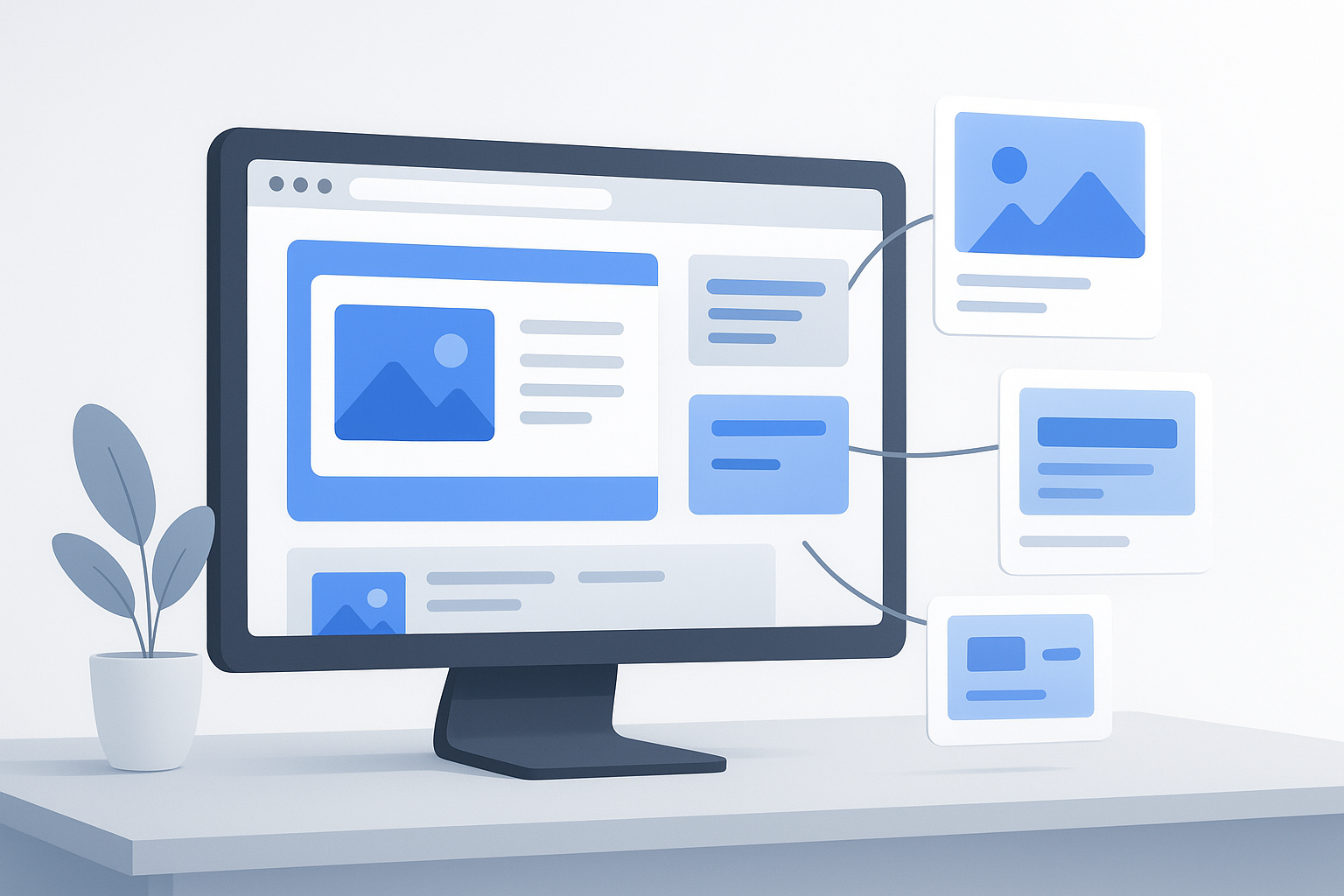
When a shared link shows the wrong image, a missing title, or a messy snippet, the problem is often not the URL itself. It is usually the page metadata behind it. If you have been wondering how to create Open Graph tags, you are really trying to control how your pages appear when people share them on platforms like Facebook, LinkedIn, Slack, and many messaging apps.
For website owners, this matters more than it seems. Better link previews make your content look more trustworthy, easier to understand, and more likely to earn clicks. The good news is that Open Graph tags are straightforward once you know which ones matter and where to place them. This guide explains what Open Graph tags are, how they work, how to add them correctly, common mistakes to avoid, and how to test your setup before you publish.
Quick answer: how to create Open Graph tags
To create Open Graph tags, add <meta> tags in the <head> section of your page HTML for the title, description, URL, image, and content type. At minimum, use og:title, og:description, og:url, og:image, and og:type. Then test the page with a social preview validator to confirm the tags are being read correctly.
What Open Graph tags are
Open Graph tags are pieces of metadata that tell social platforms and other apps how to display a webpage when someone shares its link. They do not change the visible content on the page itself. Instead, they provide the page title, preview text, image, and other details used in link previews.
The easiest way to understand this is to think of Open Graph as a label for sharing. Without it, platforms may guess which headline, image, or description to use. With it, you give clearer instructions.
Open Graph was originally introduced by Facebook, and many other platforms recognize it as well. Meta’s official documentation explains the system in more detail at The Open Graph protocol.
Why Open Graph tags matter
Open Graph tags help your links appear consistently across social networks, messaging tools, and collaboration apps. That consistency improves presentation, reduces confusion, and can increase click-through rate because users can immediately see what the page is about.
- Cleaner previews: Your preferred title, description, and image appear instead of whatever a platform guesses.
- Stronger branding: You can use a relevant, high-quality preview image that matches your page and brand.
- Better shareability: Links that look polished are more likely to be clicked and reshared.
- Fewer mismatches: You reduce the chance of random images, wrong headlines, or stale metadata appearing in shares.
- Support for SEO-adjacent goals: Open Graph tags are not direct ranking factors for Google Search, but they improve how your content is presented when discovered and shared.
A good Open Graph setup does not change what your page says. It changes how clearly that page is introduced before someone clicks.
How Open Graph tags work
When a platform crawls a shared URL, it reads metadata from the page’s <head> section. If Open Graph tags are present, the platform can use those values to build the preview card. If those tags are missing, it may fall back to the HTML title tag, visible page text, or images found in the content.
In practice, this means your page should include explicit metadata for the preview you want. That metadata needs to be accessible to crawlers, use a valid public image URL, and match the final canonical page users should land on.
Google’s documentation on how metadata works can also help you understand the broader concept of page-level descriptive data: Google Search Central documentation on snippets and metadata.
The essential Open Graph tags to include
If you only add a few tags, start with the core set below. These cover the information most platforms need to generate a good preview.
Required or strongly recommended tags
og:title— the share title of the pageog:description— the summary shown below the titleog:url— the preferred canonical URL for the shared pageog:image— the preview image URLog:type— the content type, such aswebsiteorarticle
Optional but useful tags
og:site_name— the name of your website or brandog:locale— the language and regional setting, such asen_USog:image:widthandog:image:height— image dimensionsog:image:alt— alt text describing the preview image
How to create Open Graph tags step by step
Here is a simple workflow that works for most websites, whether you edit raw HTML, use a CMS, or rely on an SEO plugin.
- Choose the exact page URL. Use the final version of the page you want people to share. If your site uses HTTPS, the
og:urlvalue should use the secure version. - Write a clear share title. This should be specific, readable, and consistent with the page content. Avoid clickbait or titles that differ too much from the actual page headline.
- Create a short description. Explain what the page offers in one or two concise sentences. Keep it useful rather than overly promotional.
- Select a preview image. Use a publicly accessible image that represents the page well. Make sure the file is not blocked and loads correctly in a browser.
- Set the content type. For most standard pages,
websiteworks well. Blog posts and news-style pages often usearticle. - Add the tags inside the HTML head. Place your Open Graph
<meta>tags between<head>and</head>. - Publish or update the page. After saving the page, confirm that the source code contains the tags.
- Test the preview. Use a validator or inspector from the platform you care about most to make sure the tags are being read properly.
Basic Open Graph tag example
This is a standard example you can adapt for your own page:
<meta property="og:title" content="How to Create Open Graph Tags for Better Link Previews">
<meta property="og:description" content="Learn how to add Open Graph tags so your pages display better titles, descriptions, and images when shared online.">
<meta property="og:url" content="https://example.com/open-graph-tags-guide/">
<meta property="og:type" content="article">
<meta property="og:image" content="https://example.com/images/open-graph-preview.jpg">
<meta property="og:site_name" content="Example Site">
<meta property="og:image:alt" content="Illustration showing a webpage preview card with title, description, and image">
Before you begin, keep this in mind: the content values should use plain text, accurate URLs, and image files that are accessible without login restrictions.
Where to add Open Graph tags
The correct location is the HTML <head> section of each page. How you do that depends on your website setup.
On a custom HTML site
Add the tags directly into each page template or the shared head include file if your site uses template parts.
On WordPress
Many SEO plugins and theme frameworks let you define Open Graph settings without editing code manually. The exact menus vary by plugin and can change over time, but the core fields are usually title, description, social image, and page type.
On other CMS platforms
Shopify, Webflow, Squarespace, and similar platforms often include social sharing fields in page settings, SEO settings, or social preview panels. If not, you may need theme-level customization.
Best practices for Open Graph titles, descriptions, and images
Creating the tags is only half the job. The quality of the content inside them affects how useful the final preview will be.
Title best practices
- Keep it specific and easy to scan.
- Match the page topic closely.
- Avoid stuffing keywords.
- Do not use vague labels like “Home” or “Untitled Page”.
Description best practices
- Summarize the page in natural language.
- Use one focused message.
- Avoid repeating the title word for word.
- Do not promise something the page does not deliver.
Image best practices
- Use a clear, relevant image with good contrast.
- Make sure the image URL is absolute, not relative.
- Avoid tiny files, awkward crops, or text-heavy graphics.
- Use an image that still makes sense when seen at small sizes.
- Add
og:image:altwhere possible for better accessibility context.
Mozilla’s metadata reference is also useful if you want to understand how meta tags fit into standard HTML structure: MDN documentation for the HTML meta element.
Open Graph vs standard SEO metadata
Here is where many beginners get confused. Open Graph tags are not the same thing as your normal SEO title tag and meta description, even though they often contain similar information.
| Metadata Type | Main Use | Where It Usually Appears | Example |
|---|---|---|---|
| HTML title tag | Search and browser title | Search results, browser tabs | <title>Page Title</title> |
| Meta description | Page summary for search engines | May appear in search snippets | <meta name="description" ...> |
| Open Graph tags | Social and app preview control | Social networks, chat apps, collaboration tools | <meta property="og:title" ...> |
In practice, many site owners use similar wording across all three, but they do not have to be identical. You can tailor Open Graph metadata for sharing while keeping your search metadata optimized for search visibility.
Practical example for website owners
Imagine you publish a blog post called “Beginner’s Guide to Email Deliverability.” Your visible article headline is fine, but your page has no Open Graph tags. A social platform may pull an old logo, sidebar image, or the first line of text it finds.
If you add proper Open Graph metadata, the shared preview becomes much clearer:
- Title: Beginner’s Guide to Email Deliverability
- Description: Learn what affects inbox placement, sender reputation, and email performance.
- Image: A branded, readable header graphic related to email marketing
- Type: article
This does not guarantee more traffic, but it gives the shared link a better chance of being understood and clicked.
Common mistakes when creating Open Graph tags
Most Open Graph problems come from small implementation errors rather than complicated technical issues. These are the ones to watch for.
- Using the wrong URL format: Relative image URLs can fail. Use full absolute URLs such as
https://example.com/image.jpg. - Forgetting the image: Pages without a defined
og:imageoften end up with weak or inconsistent previews. - Pointing to a blocked image: If the image requires login, blocks crawlers, or is disallowed by server rules, preview generation may fail.
- Mismatching content: If the Open Graph title says one thing but the page itself is about something else, users may distrust the link.
- Leaving duplicate defaults sitewide: Some themes or plugins accidentally apply the same metadata to every page.
- Ignoring redirects: If your page redirects, make sure the final destination, canonical URL, and
og:urlalign. - Not retesting after an update: Platforms sometimes cache old metadata, so changes may not appear immediately.
How to test whether your Open Graph tags work
After adding the tags, test them. Do not assume they are correct just because they exist in the source code.
- Open the live page in a browser. Confirm it loads normally and the final page URL is correct.
- View page source. Search for
og:to verify the tags are present in the HTML head. - Check the image URL directly. Open the image in a browser tab to make sure it loads without signing in.
- Use a platform validator. For example, Facebook provides a sharing debugger and LinkedIn provides a post inspector. These tools can reveal missing tags, crawl issues, or cached metadata.
- Rescrape if needed. If a platform cached an older version, its testing tool may offer a way to fetch the page again.
For technical validation and page inspection, official documentation from platforms and standards bodies is the safest reference point. You may also find the metadata guidance in the HTML Standard’s meta element documentation useful for understanding how metadata belongs in the document head.
Troubleshooting Open Graph preview problems
If your preview still looks wrong after adding the tags, the issue is usually one of the following.
The wrong image appears
This often happens when the platform cached an older image, could not access the new one, or found multiple competing metadata signals. Make sure the image URL is correct, public, and associated with the current page version.
No description appears
Check whether og:description exists and contains actual text. Also confirm the page is not returning an error or redirecting in a way that prevents the crawler from reading the metadata.
The old title keeps showing
Many social platforms cache metadata. Even after you update the page, the old preview may remain until the platform recrawls the link or you manually trigger a refresh using its debugging tool.
The crawler cannot read the page
If the page is blocked by login requirements, firewall restrictions, crawler controls, or temporary server issues, Open Graph tags may never be retrieved. The page needs to be publicly accessible to the sharing platform.
Important limitations to understand
Open Graph tags are useful, but they are not a guarantee of identical previews everywhere. Different platforms handle shared links differently.
- Platform behavior varies: One app may use your full description while another shortens it heavily.
- Caching can delay updates: Changes are not always instant.
- Some platforms prefer their own metadata: Certain networks may use additional tags beyond Open Graph.
- Image rendering differs: Cropping, scaling, and truncation vary by interface.
- Private pages will not preview reliably: Crawlers generally need public access.
There is an important limitation to understand: Open Graph helps control link previews, but it does not control every aspect of how every platform displays shared content.
How Open Graph supports a better content workflow
If you manage many pages, Open Graph becomes part of a repeatable publishing checklist. Instead of fixing previews one share at a time, you set a standard pattern for every new page.
A simple workflow looks like this:
- Create the page title and search description
- Create a share-specific title and summary if needed
- Design or choose a social preview image
- Add the Open Graph tags to the page template or CMS fields
- Publish and test the live URL
- Store the final page link for future promotion
If you’re managing many landing pages, blog posts, or campaign URLs, keeping those links organized is just as important as setting the metadata. For bulk browsing or checking multiple pages, OpenMultiURL can be useful because it lets you open multiple links at once from one list, which is helpful when reviewing page titles, previews, or metadata across a group of URLs.
Suggested Illustration: Open Graph metadata flow from webpage HTML to social preview card
Best practices for teams publishing lots of pages
If you’re doing this regularly, there is a simpler workflow. Document your Open Graph standards once, then reuse them consistently.
- Create a page template checklist: Include title, description, image, URL, and content type.
- Use shared naming conventions: Keep social images easy to identify and avoid random filenames.
- Review staging vs production URLs carefully: Do not let test URLs appear in
og:url. - Audit old pages in batches: Legacy content often has missing or duplicated metadata.
- Align with canonical URLs: Open Graph and canonical signals should point to the preferred page version when possible.
If you routinely review multiple pages during audits, a bulk-link workflow can save time. Opening a prepared list of URLs at once can make metadata spot checks much faster than searching for each page individually.
Frequently asked questions
1. Are Open Graph tags important for SEO?
Open Graph tags are not a direct Google ranking factor in the usual sense. However, they still matter because they improve how your pages look when shared on social platforms, messaging tools, and collaboration apps. Better previews can lead to clearer communication, stronger trust, and more clicks from shared links. So while they are not core search ranking signals, they support discoverability and content presentation.
2. What is the minimum set of Open Graph tags I should add?
For most pages, start with og:title, og:description, og:url, og:image, and og:type. That gives platforms enough information to build a useful preview card. You can also add og:site_name and og:image:alt for better clarity and accessibility context. If you publish articles regularly, using a consistent template for these tags is a practical approach.
3. Can I use the same text for my title tag, meta description, and Open Graph tags?
Yes, you can, and many websites do. But you do not have to. Search results, browser tabs, and social previews serve slightly different purposes. Sometimes a shorter, more share-focused Open Graph title works better than your default SEO title. The key is consistency. Your preview should accurately reflect the page rather than trying to say something completely different for each channel.
4. Why is my Open Graph image not showing correctly?
The most common causes are a broken image URL, a private image that requires login, cached old metadata, or a platform-specific rendering issue. First, open the image URL directly in a browser to confirm it loads. Then check that your page source contains the correct og:image tag. If everything looks right, use the platform’s official debugger or inspector to refresh the preview data.
5. Do Open Graph tags work on every social platform?
Many major platforms and apps support Open Graph tags, but not all of them handle metadata the same way. Some platforms may use Open Graph as the main source, while others may combine it with their own metadata systems or apply their own truncation and image cropping rules. That is why testing matters. A preview that looks perfect in one app may look slightly different in another.
6. Should every page on my website have Open Graph tags?
In most cases, yes. Any page that might be shared publicly should ideally have its own Open Graph metadata. This includes homepage URLs, blog posts, product pages, service pages, campaign landing pages, and resource guides. If large parts of your site are missing these tags, shared links may show inconsistent previews, duplicate branding, or irrelevant images pulled automatically by the platform.
7. Can Open Graph tags help with internal marketing workflows?
Yes. They are useful beyond public social sharing. Teams often share links internally in Slack, Teams, Notion, CRMs, editorial calendars, and project management tools. Good Open Graph tags make those previews clearer, which helps people identify pages quickly without opening every link. When combined with organized link lists and efficient browsing habits, this can make content reviews and campaign checks much smoother.
8. How do I safely review many URLs for metadata issues?
Start by verifying that your URL list contains only trusted pages you intend to review. Then open and inspect them in manageable batches rather than creating dozens of tabs at once. If you regularly audit titles, metadata, or previews across many pages, keeping links grouped by site section or campaign helps. For opening approved URL lists faster, OpenMultiURL can simplify the process by opening multiple URLs at once, though site behavior may still vary by browser and page restrictions.
Conclusion
Learning how to create Open Graph tags is really about gaining control over your link previews. When you define the title, description, URL, image, and content type clearly, your pages become easier to share and easier to trust. That helps website owners present content more consistently across social platforms, messaging apps, and internal collaboration tools.
The best next step is simple: choose one important page, add the core Open Graph tags, and test the result. Then build the same process into your normal publishing workflow. If you regularly review large groups of pages, keeping your URLs organized and opening them in batches can make audits much easier, and OpenMultiURL can help with that practical part of the workflow.