Messy spreadsheet exports are a common source of friction for developers. You get a CSV file from a form, CRM, analytics tool, or database export, but your app, API, or script needs JSON. At that point, many people start cleaning commas, fixing headers, or debugging broken output by hand.
If you want to convert CSV to JSON online, the good news is that the workflow is usually simple once you understand how CSV structure maps to JSON fields. The important part is knowing what a reliable conversion should preserve, which formatting issues to check first, and how to avoid bad data entering your development workflow.
This guide explains what CSV and JSON are, when online conversion makes sense, how to do it step by step, common formatting problems, and how to validate the result before using it in an API, app, or automation process.
Quick answer: how to convert CSV to JSON online
To convert CSV to JSON online, paste or upload your CSV data into a CSV-to-JSON converter, confirm the delimiter and header row are correct, run the conversion, then review the JSON output for field names, missing values, and formatting issues before copying or downloading it. Clean input usually produces usable JSON in seconds.
What CSV and JSON mean in practice
CSV stands for Comma-Separated Values. It stores tabular data in plain text, where each line is a row and each value is separated by a delimiter, usually a comma. JSON stands for JavaScript Object Notation. It stores structured data using key-value pairs and arrays, which makes it much easier for applications and APIs to read programmatically.
The easiest way to understand this is to compare how the same data looks in each format.
| Format | Example | Best for |
|---|---|---|
| CSV | name,email,role |
Spreadsheets, exports, simple tables |
| JSON | {"name":"Ava","email":"[email protected]","role":"admin"} |
APIs, apps, scripts, configuration |
In most online converters, each CSV row becomes one JSON object, and each column header becomes a key in that object.
Why developers convert CSV to JSON online
Online conversion is useful when you need a fast, browser-based workflow without writing a script first. For small to medium-sized files, it can save time during prototyping, debugging, internal testing, and one-off data transformations.
- API preparation: Convert spreadsheet-style data into a format ready for API requests or fixtures.
- Frontend development: Turn sample datasets into JSON for testing UI components.
- Automation workflows: Prepare data for low-code tools, scripts, or import pipelines.
- Content operations: Transform exported records from forms or CMS tools into structured objects.
- Quick validation: See whether your source data is clean before using it elsewhere.
A clean conversion is not just about changing formats. It is about preserving the meaning of the data.
How CSV maps to JSON
Before you convert anything, it helps to know what the tool is doing. A standard CSV file has a header row and data rows. A converter reads the first row as field names, then assigns each value in the following rows to its matching field.
For example, this CSV:
name,email,role
Ava,[email protected],admin
Liam,[email protected],editor
typically becomes JSON like this:
[
{"name":"Ava","email":"[email protected]","role":"admin"},
{"name":"Liam","email":"[email protected]","role":"editor"}
]
In practice, this means:
- Column names become JSON keys.
- Rows become objects.
- The full dataset usually becomes an array of objects.
- Empty cells may become empty strings,
null, or be preserved exactly as blank values, depending on the tool.
How to convert CSV to JSON online step by step
If your CSV is reasonably clean, the process is straightforward. The key is reviewing the structure before you trust the output.
- Prepare the CSV file. Make sure the data has a clear header row, consistent columns, and no accidental merged cells or spreadsheet formatting artifacts.
- Open an online CSV-to-JSON converter. Use a browser-based tool that lets you paste text or upload a file.
- Paste or upload the CSV data. If you copied from a spreadsheet, check that line breaks and delimiters were preserved correctly.
- Confirm the delimiter. Most files use commas, but some use semicolons or tabs. If the wrong delimiter is selected, your JSON keys and values will be incorrect.
- Check whether the first row is treated as headers. This matters because headers usually become object keys in the JSON output.
- Run the conversion. The tool should generate an array of JSON objects based on your rows.
- Review the output carefully. Look for broken keys, shifted values, missing fields, unexpected quotes, or malformed rows.
- Copy, download, or validate the JSON. If the data will be used in an app or API, validate it before deployment or import.
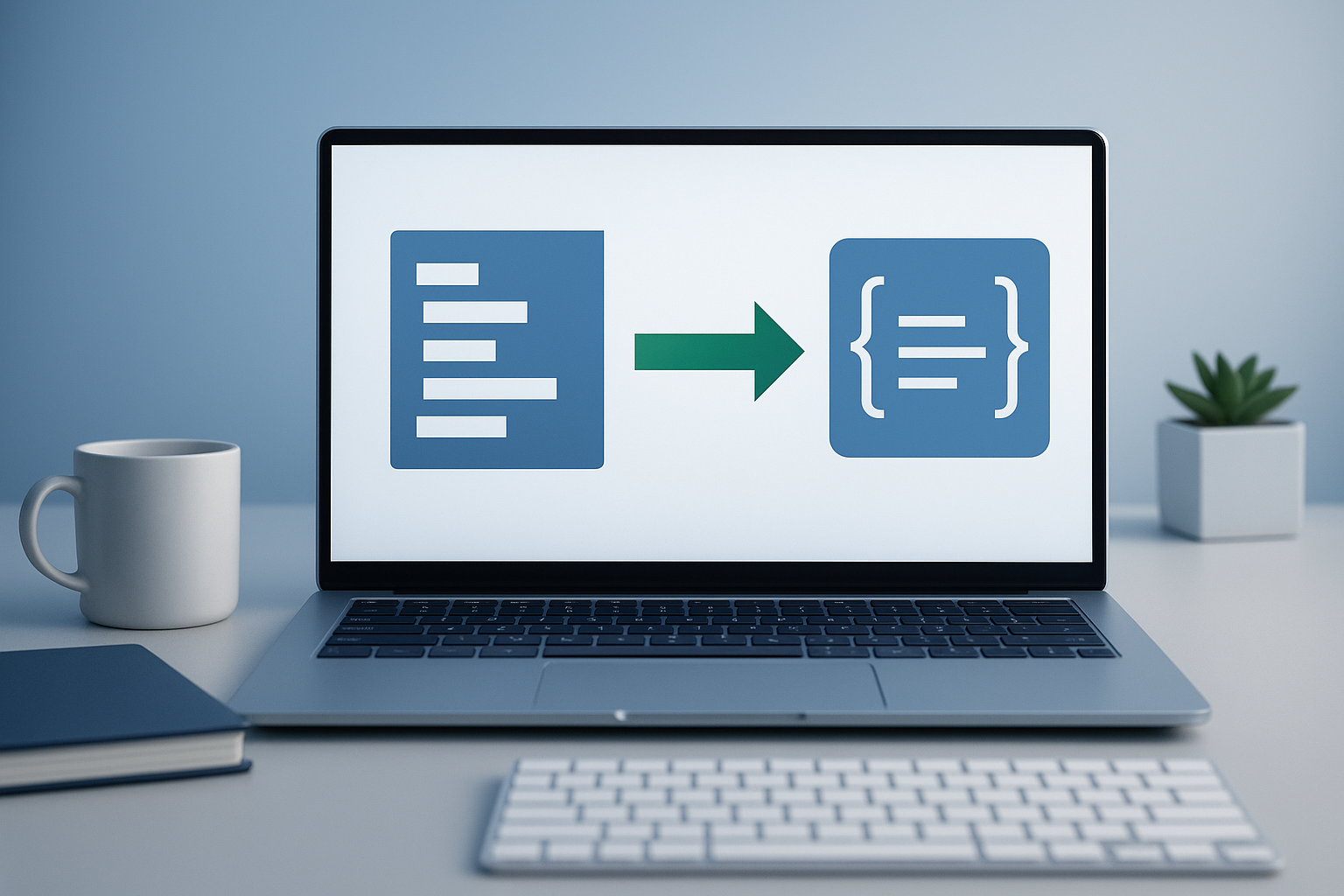
Suggested Image: Modern developer workflow showing CSV input, conversion step, and JSON output in a browser interface
What a good CSV file should look like before conversion
The quality of the JSON output depends heavily on the quality of the CSV input. Most problems come from inconsistent source formatting rather than the conversion itself.
Basic structure checklist
- One header row only
- Consistent number of columns in every row
- No accidental blank rows in the middle of the dataset
- Correct delimiter usage across the whole file
- Quoted values where commas appear inside a field
- Predictable encoding, ideally UTF-8
Example of clean CSV
id,name,email,status
1,Ava,[email protected],active
2,Liam,[email protected],inactive
Example of problematic CSV
id,name,email,status
1,Ava,[email protected],active
2,Liam,"[email protected]
3,Noah,[email protected],inactive
In the broken example above, an unclosed quote can shift parsing and produce invalid or misleading JSON.
Common CSV formatting issues that break JSON output
Here’s where many beginners get confused. They assume conversion errors mean the tool failed, when the real issue is often hidden inside the CSV file itself.
1. Wrong delimiter
Some CSV exports use semicolons instead of commas, especially in certain regional spreadsheet settings. If the converter expects commas, it may treat the whole row as one value.
Tip: If every row appears as a single long string, check the delimiter first.
2. Missing or inconsistent headers
Without clear headers, JSON keys may be generic, duplicated, or missing. Duplicate column names can also create confusing output.
Tip: Use short, unique, predictable field names such as first_name, email, or created_at.
3. Embedded commas without quotes
If a field contains a comma, such as a company name or address, it should usually be wrapped in quotes. Otherwise, the row can split into extra columns.
4. Uneven row lengths
When one row contains fewer or more values than the others, the generated JSON may shift data into the wrong fields.
5. Encoding problems
Special characters, accents, or non-Latin text can display incorrectly if the file encoding is wrong. UTF-8 is typically the safest choice for web workflows.
6. Blank values and null handling
Some tools preserve empty cells as empty strings, while others may output null or omit the field entirely. That difference matters in data validation and API behavior.
CSV to JSON example for a real development workflow
Let’s look at a practical case. Suppose a developer receives a spreadsheet export of users from a non-technical team and needs to seed a staging environment.
The CSV might look like this:
user_id,name,email,plan
101,Ava,[email protected],pro
102,Liam,[email protected],free
103,Noah,[email protected],pro
After conversion, the JSON becomes:
[
{"user_id":"101","name":"Ava","email":"[email protected]","plan":"pro"},
{"user_id":"102","name":"Liam","email":"[email protected]","plan":"free"},
{"user_id":"103","name":"Noah","email":"[email protected]","plan":"pro"}
]
That output can then be:
- loaded into a frontend mock dataset
- used in a test fixture
- submitted to an API endpoint
- stored as seed data for local development
Before using it, the developer may still want to convert numeric IDs from strings to numbers if the application expects typed values.
Online conversion vs writing your own script
The best approach depends on what you’re trying to accomplish. Online tools are convenient for quick jobs. Scripts are better for automation, repeatability, and sensitive datasets.
| Method | Best for | Main advantage | Main limitation |
|---|---|---|---|
| Online converter | Quick, one-off conversions | Fast and no coding required | Less control over validation and privacy |
| Custom script | Repeatable workflows and large datasets | Full control over parsing and data cleanup | Requires setup and coding time |
If you’re doing this regularly, a script may be worth the effort. But for troubleshooting, demos, and internal testing, browser-based conversion is often the fastest path.
Best practices when you convert CSV to JSON online
A few simple habits make your conversions more reliable and reduce downstream debugging.
- Keep headers clean: Avoid spaces, duplicates, and ambiguous labels if the JSON will be used in code.
- Standardize the delimiter: Confirm whether your source tool exported comma-, tab-, or semicolon-separated values.
- Validate sample rows first: Test a few rows before converting a large file.
- Watch data types: Online converters often output everything as strings unless configured otherwise.
- Handle empty values intentionally: Decide whether blanks should remain empty strings, become
null, or be removed later. - Avoid uploading sensitive data casually: If the CSV contains personal, financial, or private business information, a local conversion method may be safer.
- Check line endings and quotes: Especially when data came from multiple systems or manual edits.
The more structured your CSV is before conversion, the less cleanup your JSON will need afterward.
When online conversion may not be the right choice
There is an important limitation to understand. Browser-based tools are excellent for convenience, but they are not the best fit for every dataset or workflow.
- Sensitive data: Personally identifiable information, credentials, medical data, or financial records should be handled with extra caution.
- Very large files: Browser performance may degrade with large datasets.
- Complex nested structures: Basic converters usually turn rows into flat objects, not deeply nested JSON models.
- Strict typing requirements: If numbers, dates, booleans, and null values need exact transformation rules, a script may be more dependable.
- Recurring automation: Manual online conversion does not scale well for daily or repeated processing.
How to validate the JSON after conversion
Converting the file is only part of the job. You should also confirm that the JSON is valid and structurally useful for the system that will consume it.
- Check syntax. Make sure brackets, braces, quotes, and commas are correctly placed.
- Inspect field names. Confirm the keys match what your app, API, or schema expects.
- Review a few sample records. Spot-check values for shifted columns or missing content.
- Confirm data types. IDs, prices, booleans, and dates may need further transformation.
- Validate against your schema if you have one. This is especially useful in production workflows.
For JSON syntax details, the MDN guide to JSON is a reliable reference. If you also work with JavaScript parsing directly, MDN’s JSON.parse documentation explains how strict valid JSON needs to be.
Troubleshooting CSV-to-JSON conversion problems
If the output looks wrong, the fix is usually straightforward once you isolate the source issue.
The JSON output is empty
This often happens when the upload failed, the file is blank, or the parser did not detect rows correctly.
- Open the CSV in a plain text editor and confirm it contains data.
- Check whether line breaks were preserved.
- Try pasting a smaller sample first.
All data appears in one field
This usually points to the wrong delimiter.
- Switch from comma to semicolon or tab parsing.
- Inspect the raw CSV text to see what separator is actually used.
Keys look wrong or generic
The converter may not be treating the first row as headers.
- Enable header-row parsing if the option exists.
- Make sure the first row contains field names, not actual data.
Rows are misaligned
This often means one or more lines contain extra delimiters or broken quotes.
- Search for commas inside text values.
- Check that quoted strings open and close properly.
- Test row by row if needed.
Special characters display incorrectly
The file may use the wrong text encoding.
- Re-export the file as UTF-8 if possible.
- Avoid editing the CSV in tools that silently change encoding.
Security and privacy considerations
Before you convert CSV to JSON online, think about the contents of the file. Not every dataset should be uploaded to a browser-based tool.
- Do not upload passwords, authentication tokens, or secret keys.
- Be careful with customer records, employee information, or regulated data.
- Review internal policies before using any third-party web tool for conversion.
- If the data is sensitive, use a local script or internal approved tooling instead.
For broader web security guidance, the OWASP Top 10 project is a useful starting point for understanding common risks in handling application data.
Useful developer scenarios for CSV-to-JSON conversion
Converting data formats is rarely the final goal. Usually, it supports a larger workflow.
- API testing: Prepare request bodies from spreadsheet exports.
- Frontend prototyping: Feed JSON data into components without building a backend first.
- CMS migration: Restructure exported content records for import processing.
- QA workflows: Create test datasets for forms, filters, or user states.
- Data cleanup: Spot inconsistent values before a larger import.
If your workflow also includes reviewing many links from exported datasets, docs, or audit files, OpenMultiURL can help streamline the browser side of that process by opening multiple URLs at once, which is useful when validating lots of referenced pages manually.
Related technical standards worth knowing
You do not need to memorize specifications to convert data successfully, but knowing the official foundations can help when debugging edge cases.
- RFC 8259 defines the JSON data format.
- RFC 4180 describes the common CSV file format.
- The MDN guide to MIME types helps if you are also working with file uploads, APIs, or content-type handling.
Frequently asked questions
Is it safe to convert CSV to JSON online?
It depends on the data and the tool. For non-sensitive sample data, an online converter is often fine. For private customer records, internal business exports, financial information, or anything regulated, a local script or approved internal tool is usually the safer option. Always review what the file contains before uploading it anywhere, and avoid sending secrets, passwords, or token-based credentials through browser tools.
Does every CSV row become a JSON object?
In most standard conversions, yes. The converter typically reads the first row as field names, then turns each following row into one object inside a JSON array. For example, a CSV with three rows of user data usually becomes an array with three objects. However, the exact output can vary if the file has no header row or if the tool supports alternative structures.
Why are numbers and booleans sometimes converted as strings?
Many online converters preserve raw text exactly as it appears in the CSV. That means 123, true, and date-like values may all come through as strings unless the tool offers type inference or transformation settings. This is common and not necessarily wrong. If your application expects true numeric or boolean types, you may need a second processing step after conversion.
Can I convert CSV with semicolons instead of commas?
Usually, yes. Many files commonly called “CSV” actually use semicolons or tabs as separators, depending on export settings and regional conventions. The important step is selecting the correct delimiter before conversion. If your output looks broken or all values appear in one field, the parser is probably using the wrong separator.
What should I do if the JSON output looks malformed?
Start by checking the CSV source, not just the final JSON. Malformed output often comes from unclosed quotes, embedded commas, uneven row lengths, or bad encoding. Open the CSV as plain text and inspect a few suspicious lines. Then retest with a smaller sample. If the structure is still inconsistent, clean the data first and convert again rather than trying to fix broken JSON manually.
Can I use converted JSON directly in an API?
Sometimes, but not always. A valid JSON file is only one requirement. The receiving API may also expect specific field names, required properties, nested objects, numeric types, date formats, or schema validation rules. After conversion, review the endpoint documentation and compare the generated structure against what the API accepts before sending production data.
What is the difference between valid JSON and useful JSON?
Valid JSON means the syntax is correct: braces, brackets, quotes, commas, and string formatting all follow the JSON rules. Useful JSON means the data is also structured correctly for your actual use case. A file can be perfectly valid JSON but still fail in your app because keys are wrong, data types are inconsistent, or important values are missing.
When should I use a script instead of an online converter?
Use a script when the workflow is repeated, large, sensitive, or requires exact control over data cleanup and typing. Scripts are better for automation pipelines, recurring imports, and production-grade transformations. Online conversion is better for quick checks, prototypes, one-time formatting jobs, and situations where opening a browser is faster than building a parser from scratch.
Conclusion
If you need to convert CSV to JSON online, the process is simple once you understand the structure: headers become keys, rows become objects, and clean input produces much better output. The real skill is not just clicking convert. It is checking delimiters, validating field names, watching for broken quotes, and confirming the JSON fits your app or API.
For quick development tasks, browser-based conversion can save time. For repeated or sensitive workflows, local scripting is often the safer choice. And if your broader workflow includes reviewing many exported links or audit targets, OpenMultiURL can help reduce repetitive browsing by opening multiple URLs at once.
The best next step is practical: test a small CSV sample first, validate the JSON carefully, and only then move it into your development or data pipeline.