Copied text often arrives in rough shape. You paste content from email, PDFs, spreadsheets, chat logs, or web pages, and suddenly your document is full of random gaps. If you need to remove blank lines from text, the goal is usually simple: make the content readable again without editing every line by hand.
This guide explains what blank lines are, why they appear, and how to clean them up quickly. You’ll learn when removing empty lines is helpful, how to do it safely with an online text tool, and what to watch for so you do not break formatting that actually matters. Whether you’re fixing notes, cleaning code snippets, preparing content for a CMS, or formatting lists for research, this article will help you do it faster.
Quick answer: how to remove blank lines from text
To remove blank lines from text, paste your content into a text-cleaning tool that deletes empty lines, then copy the cleaned result back into your document. This is useful for fixing messy pasted text, reducing extra spacing, and preparing content for documents, code editors, spreadsheets, or websites.
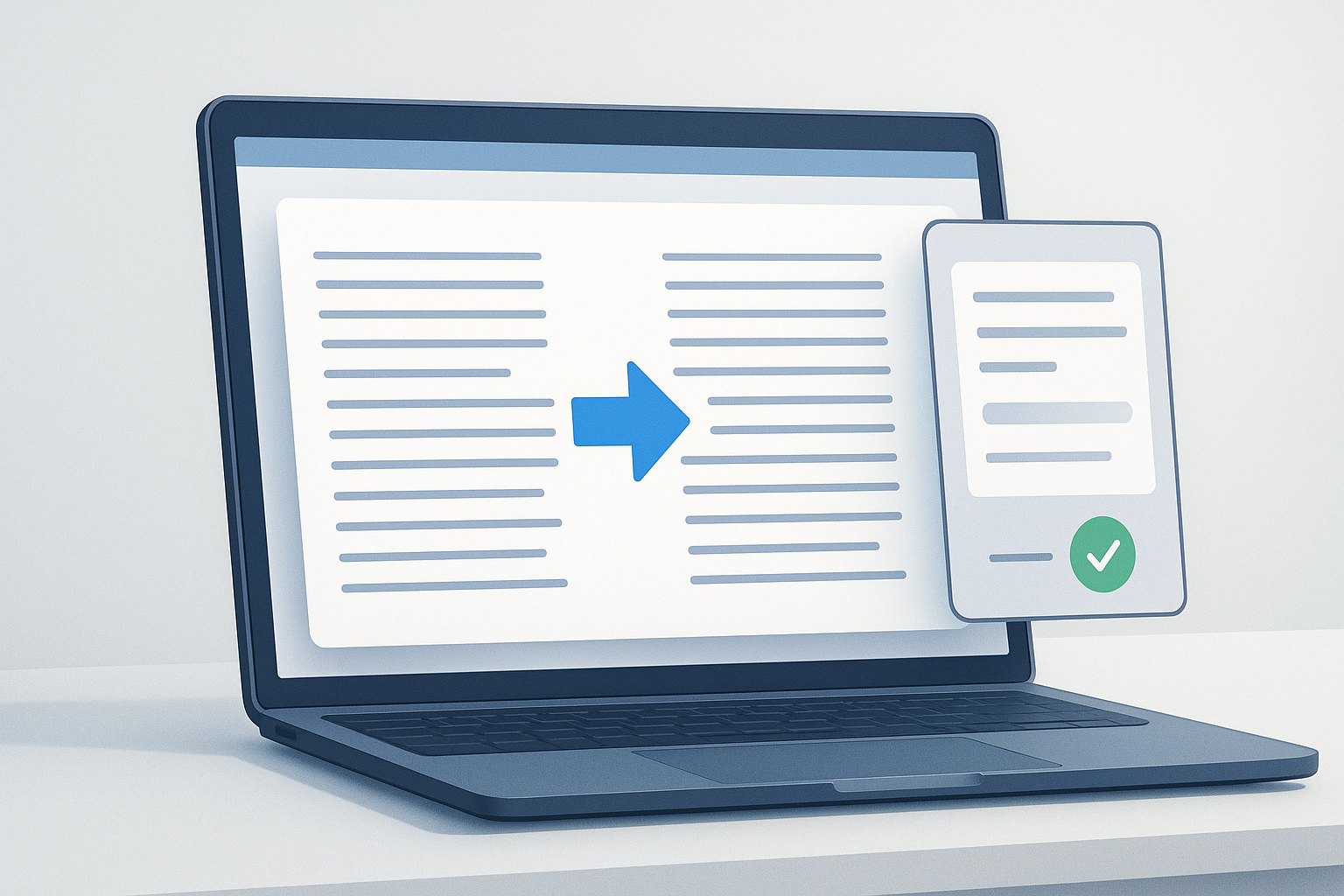
Suggested Image: Clean online text tool interface showing messy text on one side and cleaned text on the other
What does it mean to remove blank lines from text?
Removing blank lines means deleting lines that contain no visible content. These may be truly empty lines or lines that only contain spaces or tabs. After cleanup, the remaining text appears as a continuous list or paragraph structure without unnecessary gaps.
Here is a simple example:
Before:
Item one

Item two

Item three
After:
Item one
Item two
Item three
This sounds minor, but it matters when text needs to be neat, consistent, and easy to reuse elsewhere.
Why blank lines appear in copied text
Blank lines usually show up because text moves between different apps, formats, or editors. A document that looks fine in one place may paste poorly somewhere else. In practice, this is one of the most common formatting issues people run into online.
Common causes
- Copying from PDFs, where line breaks are often inconsistent
- Pasting from email newsletters or rich text editors
- Importing text from spreadsheets or exported reports
- Moving text between Windows, macOS, mobile apps, and web apps
- Copying code or logs that include intentional and unintentional spacing
- Text that contains hidden whitespace such as tabs or spaces
Here’s the important part: not every blank line is accidental. Sometimes spacing separates sections, paragraphs, or data groups. Before removing all empty lines, make sure those gaps are not serving a purpose.
When removing empty lines is useful
You may want to remove blank lines from text whenever extra spacing gets in the way of reading, editing, searching, or reusing content. This is especially helpful for plain-text workflows where clean structure matters more than visual formatting.
- Document cleanup: Fixing pasted notes, drafts, or reports
- Writing workflows: Preparing content for blogs, CMS editors, or email tools
- Code and development: Cleaning logs, config lists, or copied snippets
- Data handling: Tidying exported rows, lists, or text fields
- SEO and content research: Cleaning keyword lists, SERP notes, and URL lists
- Everyday use: Organizing recipes, to-do lists, references, or contact details
A clean text file is easier to scan, easier to search, and less likely to cause formatting problems later.
How to remove blank lines from text online
The easiest method is to use a browser-based text cleanup tool. You paste in the messy content, let the tool remove empty lines, then copy the cleaned output. This saves time and reduces the chance of missing gaps when editing manually.
- Copy the text you want to clean. Select the content from your source, such as a PDF, webpage, email, spreadsheet, or document.
- Paste it into a blank-line remover tool. The tool should process the input and remove empty rows from the text.
- Review the output. Check that the result still keeps the structure you need, especially if your text includes paragraphs, headings, or grouped items.
- Copy the cleaned text. Paste it back into your document, editor, spreadsheet, CMS, or workflow tool.
- Do a quick final check. If some spacing was meaningful, reinsert it intentionally rather than keeping random blank rows.
If you want a simple browser workflow, remove empty lines from text online using a dedicated text tool instead of deleting them one by one.
Manual cleanup vs using a text tool
Both methods work, but they are not equally efficient. Manual cleanup is fine for a few lines. A text tool is better when the content is long, repetitive, or copied from messy sources.
| Method | Best for | Pros | Limitations |
|---|---|---|---|
| Manual editing | Short text | No tool needed, full control | Slow, easy to miss lines |
| Find and replace in an editor | Medium to advanced text cleanup | Fast once configured | Can vary by editor, may confuse beginners |
| Online blank-line remover | Most everyday cleanup tasks | Quick, simple, browser-based | Requires review if spacing had meaning |
Practical examples
The best approach depends on what you are trying to accomplish. Here are a few common situations where a blank-line remover saves time.
Cleaning notes copied from a PDF
PDF text often pastes with inconsistent spacing. You may see a blank row between nearly every line. Removing empty lines makes the text much easier to edit before adding it to a report or study notes.
Preparing content for a CMS
Writers and marketers frequently draft in one tool and publish in another. If a text block has random gaps, it can create awkward spacing on the page. Cleaning the text first gives you more control before final formatting.
Fixing lists from spreadsheets
If you copy a column that includes empty cells, the pasted result may contain blank rows. Removing them creates a tighter list for email outreach, internal notes, or dataset review.
Tidying code snippets or logs
Developers and technical teams often need to review output quickly. Removing unnecessary blank lines can make stack traces, terminal output, or configuration lists easier to scan. If the spacing is part of the logic or readability, review carefully before deleting it.
Cleaning URL lists for browser workflows
If you’re building a list of links for research, blank rows can get in the way. A cleaned list is easier to manage, share, and use in productivity tools. If your next step is opening many links together, OpenMultiURL can help you open multiple URLs at once from a prepared list.
Best practices before you remove blank lines
Blank-line cleanup is simple, but a quick check beforehand prevents mistakes. You do not want to remove spacing that separates sections, records, or ideas.
- Look at the text structure first. Are blank rows random, or are they marking sections?
- Keep a copy of the original. This is useful when formatting matters.
- Check for hidden whitespace. Some “empty” lines contain spaces or tabs.
- Decide whether you want all blank lines removed. In some cases, reducing multiple blank lines to one is better than deleting every gap.
- Review the output after cleanup. Fast cleanup should still be accurate cleanup.
For formal web content, it also helps to understand how plain text differs from HTML formatting. MDN’s documentation on HTML structure and elements is a good reference if you are moving text into a webpage.
Important limitations to understand
There is an important limitation to understand: removing empty lines changes structure. That is helpful when the spacing is accidental, but not when those gaps carry meaning.
- Paragraph separation may disappear. Long-form writing can become harder to read if all spacing is removed.
- Grouped records can merge together. Lists of addresses, product details, or notes may lose their visual separation.
- Code readability can suffer. Some developers use blank lines intentionally to separate logic blocks.
- Different tools treat line breaks differently. A cleaned result in one editor may still look different in another.
Line break behavior can vary depending on format and platform. If you work with structured web content, the MDN guide to whitespace explains how software and markup can treat spaces and line breaks differently.
Common mistakes when removing blank lines from text
Most mistakes happen because people clean too aggressively or assume all extra space is accidental. A little review goes a long way.
Deleting useful spacing
This happens when section breaks, paragraph gaps, or grouped records are treated as clutter. The fix is simple: check the purpose of the spacing before removing it.
Ignoring lines with only spaces
Some “blank” lines are not truly empty. They contain tabs or spaces, which still affect formatting. A good cleanup method should account for whitespace-only lines.
Pasting cleaned text into a rich editor without checking it
Some editors add formatting back in automatically. If the result still looks odd, switch to plain text mode first if your editor supports it.
Using the wrong workflow for repeated tasks
If you clean lists regularly, doing it manually each time wastes effort. A repeatable browser-based workflow is easier and more consistent.
Troubleshooting messy text after cleanup
If your text still does not look right after removing blank lines, the issue may not be empty rows alone. Other formatting artifacts can remain in the content.
- Problem: Text still has odd spacing
Possible reason: the content contains tabs, multiple spaces, or non-breaking spaces.
Solution: use a text tool that can normalize whitespace, or paste into a plain-text editor first. - Problem: Paragraphs became one large block
Possible reason: all line separation was removed.
Solution: restore intentional paragraph breaks manually. - Problem: The text looks different after pasting into a website editor
Possible reason: the editor is applying HTML or visual formatting rules.
Solution: check whether the tool is in plain-text mode or rich-text mode. - Problem: Code formatting became harder to read
Possible reason: blank lines that helped readability were removed.
Solution: keep structural spacing in code and only remove clearly unnecessary gaps.
If you publish content online, Google also recommends making pages easy for users to read and navigate. That broader principle appears throughout Google’s helpful content guidance.
Related workflows where clean text matters
Removing blank lines is often one small step in a larger productivity process. Clean text is easier to reuse in other tools and tasks.
- Creating keyword or topic lists for SEO research
- Preparing references for outreach or content planning
- Building clean URL lists for browser tasks
- Formatting notes before sharing with a team
- Cleaning exported content from reports or dashboards
- Preparing raw text for spreadsheets, documents, or CMS uploads
If you often work with link lists after cleaning text, OpenMultiURL can be a practical next step for opening multiple URLs at once from a prepared list. Just remember to verify unfamiliar links before opening them.
How this fits into web productivity
Text cleanup may seem small, but it removes friction from everyday browser work. A few seconds spent cleaning a list, note set, or copied block can save much more time later when editing, searching, publishing, or sharing.
The most useful productivity tools do not add complexity. They remove repetitive cleanup work so you can focus on the task itself.
For people who research many websites, prepare lists, or move data between tools, small text fixes often support larger workflows. For example, if you are collecting web addresses from mixed sources, first cleaning the text makes the list easier to review before using a multi-link workflow.
You can also explore OpenMultiURL’s broader text tools if you regularly clean copied content as part of your online work.
Frequently asked questions
1. What is considered a blank line in text?
A blank line is usually a line with no visible characters. In some cases, it may contain spaces or tabs and still appear empty. That matters because some tools only remove truly empty rows, while others also remove whitespace-only lines. If your text still shows gaps after cleanup, hidden spaces are often the reason.
2. Will removing blank lines affect my paragraphs?
It can. If your paragraphs are separated by empty lines, removing all blank lines may merge them too closely or make the content harder to read. This is why review matters. If the spacing is meaningful, consider reducing multiple blank lines instead of deleting every one.
3. Is it safe to remove blank lines from code?
Usually, yes, if the blank lines are only for visual separation. In many programming languages, empty lines do not change functionality. However, they often improve readability. Also, some structured formats are sensitive to whitespace in specific contexts, so check the syntax before cleaning aggressively.
4. Why does copied text from PDFs have so many empty lines?
PDFs are designed for visual layout, not always for clean text extraction. When text is copied, line breaks and spacing from the original layout may be transferred in awkward ways. That can create extra blank rows, broken sentences, or uneven formatting that needs cleanup.
5. Can I remove blank lines without installing software?
Yes. A browser-based text tool is often the simplest option. You copy the text, paste it into the tool, and copy the cleaned result back out. This is especially useful for quick tasks on shared devices or when you do not want to configure a desktop editor.
6. Should I remove empty lines from lists of URLs?
In most cases, yes. A clean URL list is easier to scan, share, and process. Blank rows can make a list harder to manage and may create confusion in later steps. If you plan to use those links in a browser workflow, reviewing and cleaning the list first is a good habit.
7. What is the difference between blank lines and extra spaces?
Blank lines are empty rows between lines of text. Extra spaces are additional space characters within a line or on a line by themselves. Both can make text messy, but they are different formatting problems. Some tools handle both, while others focus only on line breaks.
8. Can removing blank lines help with SEO or publishing workflows?
Indirectly, yes. It does not improve rankings by itself, but it can make content easier to edit, format, and publish correctly. Clean text helps writers and marketers avoid messy page layouts, inconsistent spacing, and copy-paste issues when moving content into a CMS or web editor.
Conclusion
If you need to remove blank lines from text, the fastest solution is usually a simple text-cleaning workflow: paste, clean, review, and copy back. It helps with copied notes, web content, spreadsheets, code snippets, and everyday formatting problems without requiring manual line-by-line edits.
Start with the text itself, decide whether the extra spacing is actually unnecessary, and then clean it carefully. If you regularly prepare lists for browser tasks, using clean text also makes follow-up workflows easier. And if those lists contain links, OpenMultiURL can help you open multiple URLs at once after your text is properly organized.