Have you ever had to open 10, 20, or 50 links one by one just to start a research session, compare pages, or review a list of websites? That small task becomes slow surprisingly fast. It also increases mistakes, especially when you are copying links from a spreadsheet, document, email, or audit file.
If you want to open multiple URLs at once, there are much easier ways than manual clicking. This guide explains what bulk URL opening means, when it is useful, how it works in practice, and how to do it safely without creating unnecessary browser chaos. You’ll also learn the limitations to expect, common mistakes to avoid, and simple workflows for research, SEO, marketing, and everyday browsing.
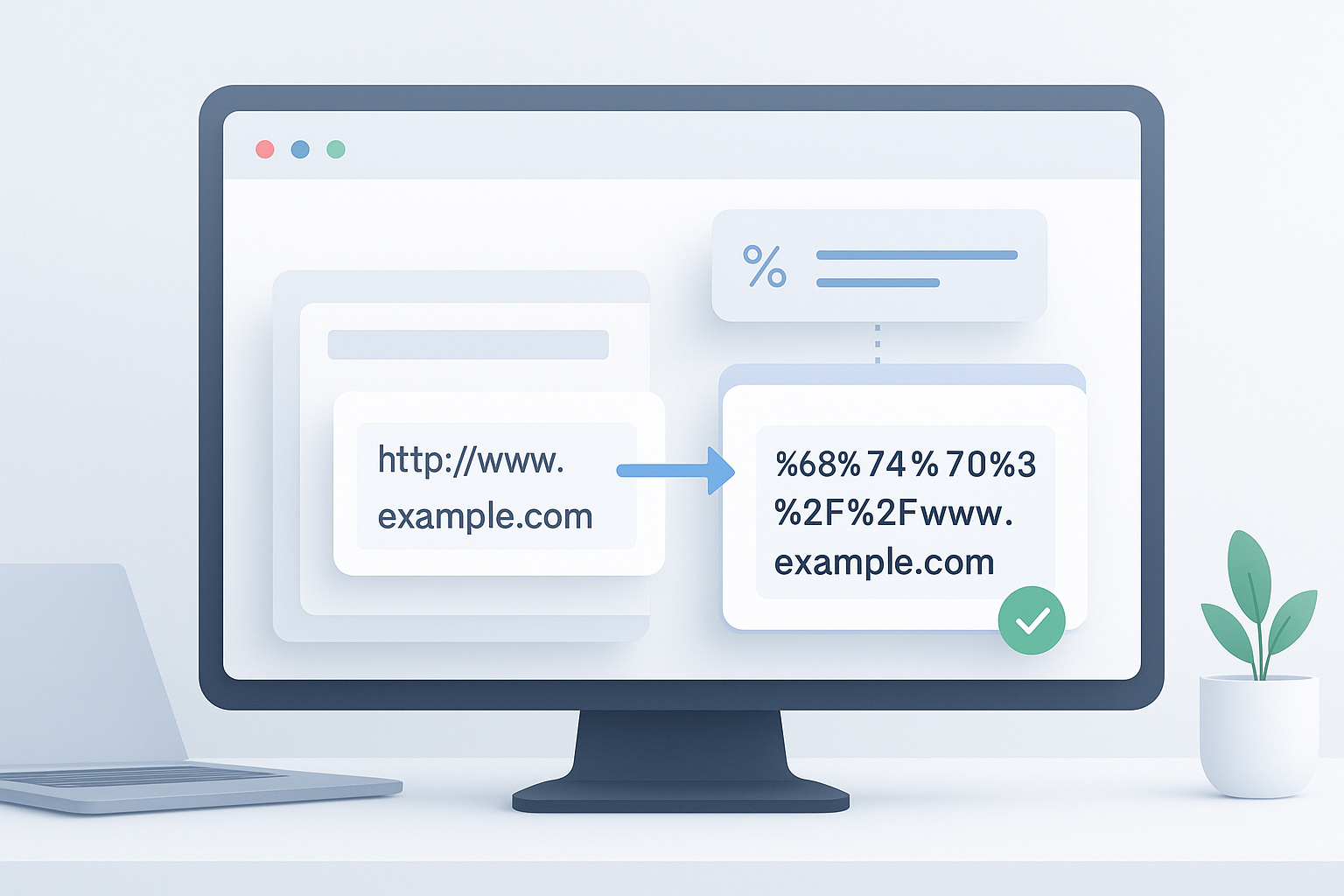
Suggested Image: Modern browser productivity illustration showing a list of links opening into organized tabs
Quick answer: how do you open multiple URLs at once?
To open multiple URLs at once, place each full web address on a separate line, then use a bulk URL opener such as OpenMultiURL to launch them together in your browser. This is useful for research, tab setup, competitor review, link checking, and repetitive browsing tasks. Always verify unfamiliar links before opening them.
What does it mean to open multiple URLs at once?
Opening multiple URLs at once means launching several web addresses in a single action instead of clicking or pasting each one individually. A URL is the full address of a webpage, such as https://example.com/page. When handled in bulk, those URLs open as separate browser tabs or windows depending on browser behavior and your setup.
The easiest way to understand this is to think of it as batch tab opening. Instead of repeating the same action over and over, you prepare a clean list of links and open them together.
The goal is not to open more tabs. It is to remove repetitive browser work when multiple pages genuinely need to be reviewed together.
Why people need to open multiple URLs at once
This workflow matters because web tasks are often list-based. Research rarely happens on one page. If you’re comparing search results, reviewing product pages, checking blog posts, or opening saved references, handling links one by one wastes time.
- SEO research: Open ranking pages, category pages, or competitor content together
- Digital marketing: Review landing pages, campaign URLs, or tracked links
- Content work: Open sources, briefs, references, and drafts in one session
- E-commerce checks: Review product pages, collections, and competitor listings
- Education: Open class resources, reading materials, and citation pages
- Everyday use: Launch your regular morning tabs without rebuilding the same session manually
If you’re doing this regularly, there’s a simpler workflow. A prepared URL list reduces friction and helps you start faster.
Who benefits most from this workflow?
Anyone who works from a list of webpages can benefit, but some users will notice the time savings more quickly than others.
Common users
- SEO professionals comparing SERPs, blog structures, title tags, or site sections
- Digital marketers reviewing campaign destinations and partner pages
- Writers and editors opening research sources and competitor articles
- Website owners checking service pages, location pages, or blog archives
- Students and teachers opening references for study sessions
- Recruiters and researchers reviewing profiles, company pages, and resources
- General web users who revisit the same group of sites often
In practice, this means the workflow is not only for technical users. It is useful for anyone who repeatedly starts with a collection of links.
How opening multiple URLs at once works
Most bulk URL workflows are simple. You gather your links, make sure each one is complete and valid, then pass that list into a tool or browser-supported method that opens each URL as a separate tab. The browser still decides how those tabs behave, and some sites may redirect, require login, or fail to load.
There is an important limitation to understand. Opening a list of links does not guarantee that every page will load correctly. A page may be offline, blocked, redirected, restricted to logged-in users, or affected by browser security settings.
For general URL syntax, Mozilla’s documentation on what a URL is and Google’s documentation on how Google handles URLs are useful background references.
How to open multiple URLs at once step by step
If your goal is to launch many links quickly, a clean list is the foundation. Here’s a straightforward process that works for most people.
- Collect the URLs you need. Copy the links from a spreadsheet, text file, document, audit sheet, or notes app. Put each URL on its own line.
- Check that the URLs are complete. Include the full address when possible, such as
https://example.com. This helps avoid malformed links and browser confusion. - Remove duplicates if needed. If the same page appears twice, you’ll just create redundant tabs and clutter.
- Review the list for safety. Before you open unfamiliar pages, verify the domains. Do not bulk-open suspicious links from unknown sources.
- Paste the list into a bulk URL opener. A free online tool like OpenMultiURL can open multiple URLs from a prepared list.
- Launch the URLs. Your browser will usually open each address in a new tab, though exact behavior may vary by browser and settings.
- Manage the session immediately. Pin important tabs, close obvious duplicates, and group pages by task so the session stays useful.
A simple workflow looks like this: collect, clean, verify, open, then organize. That last step matters more than many people expect.
Using OpenMultiURL for bulk tab opening
When you already have a list of links, OpenMultiURL is a practical way to open multiple URLs at once without manual copy-paste for every single page. You paste the URLs into the tool, keep one link per line, and open them together.
This is especially helpful for recurring tasks such as:
- opening a daily research set
- reviewing competitor category pages
- checking multiple landing pages before a campaign goes live
- loading source material for writing or editing
- reopening a saved browser workflow after a break
Before you begin, keep this in mind: the tool helps with opening links, but it does not bypass login requirements, private pages, rate limits, or website restrictions. If a site needs authentication or blocks certain browsing behavior, you will still need proper access.
Best use cases for opening multiple URLs at once
The best approach depends on what you’re trying to accomplish. Bulk URL opening is most valuable when the pages belong to one task and need to be reviewed together.
SEO and competitor research
An SEO specialist might export a list of top-ranking pages for a keyword and open them together to compare headings, content depth, page intent, internal linking, and SERP positioning. This is much faster than revisiting the search results repeatedly.
Content research
A writer can open source documents, publisher guidelines, reference articles, product pages, and draft materials in one batch. That reduces context switching and helps keep the research session focused.
Campaign and landing page review
A marketer may need to test several ad destination URLs, seasonal pages, or localized landing pages before launch. Opening the list together makes it easier to confirm whether the right pages are live and consistent.
Routine browser startup
Some users revisit the same set of pages every day, such as analytics dashboards, email, docs, project trackers, and industry news sites. A prepared list can replace repetitive morning tab setup.
Manual opening vs opening multiple URLs at once
For one or two pages, manual opening is fine. Once you have a real list, the tradeoff changes quickly.
| Method | Best For | Pros | Limitations |
|---|---|---|---|
| Manual clicking or pasting | 1 to 3 links | Simple, no setup | Slow, repetitive, easy to miss links |
| Bookmarks folder | Repeated saved sets | Good for recurring routines | Less flexible for changing lists |
| Bulk URL opener | Dynamic or large lists | Fast, flexible, practical for research | Can create too many tabs if not organized |
Best practices before you open a large list of URLs
A large tab burst can become chaotic if the list is messy. A little preparation makes the workflow much more reliable.
- Use one URL per line. This reduces parsing errors and makes duplicates easier to spot.
- Prefer full URLs. Include
https://when possible. - Group by task. Keep one list for competitor pages, another for product pages, another for research sources.
- Open in smaller batches. If you have 100 URLs, consider opening 10 to 20 at a time.
- Remove tracking clutter only if needed. Long URLs with UTM parameters can still be valid, but they may create duplicates if the base page is identical.
- Verify unfamiliar domains. Do not bulk-open links you do not trust.
- Close or bookmark when finished. A useful workflow includes cleanup.
Google’s documentation about UTM parameters in campaign URLs can help if you’re working with marketing links and want to understand why URLs that look similar may still differ.
Common mistakes that make bulk URL opening less useful
Here’s where many beginners get confused. The problem is usually not the act of opening the URLs. It is the quality of the list and how the tabs are managed afterward.
Opening too many links at the same time
This happens when users treat every saved URL as urgent. It matters because too many tabs reduce focus and can slow some devices. To avoid this, split your list into smaller sessions by goal.
Using incomplete or broken URLs
Sometimes links copied from documents lose part of the address. That can create errors or open the wrong page. Check for missing slashes, missing protocols, or accidental line breaks.
Ignoring redirects
A URL may redirect to a different page than the one you expected. This matters for SEO reviews, migration checks, and campaign validation. Google’s guidance on redirects explains how permanent and temporary redirects can affect page handling.
Opening suspicious links without checking them
This is a safety issue, not just a productivity issue. Always inspect unfamiliar domains before opening them in bulk, especially if the list came from email, user submissions, or third-party exports.
Mixing unrelated tasks in one list
If your research tabs, admin pages, and shopping links are all in one batch, the session becomes harder to review. Keep URL lists organized by purpose.
Limitations you should expect
Bulk URL tools are useful, but they are not magic. Understanding the limits will save you time.
- Browser behavior varies. Chrome, Edge, Firefox, and Safari may handle tab bursts differently depending on version and settings.
- Pop-up and security controls may apply. Some browsers may limit automatic opening behavior.
- Some sites require login. If a page needs authentication, it still needs authentication when opened in bulk.
- Some URLs redirect. The page that opens may not match the original address exactly.
- Some websites may fail temporarily. Server errors, network issues, or rate limits can interrupt results.
- Heavy sessions can use system resources. Large groups of tabs may affect memory usage and browser performance.
For browser and web platform behavior, official references such as the MDN HTTP status documentation can help explain whether a problem is coming from the URL, the server, or the browser response.
Troubleshooting when URLs do not open correctly
If one or more URLs fail, the cause is usually straightforward. Start with the simplest checks first.
Problem: nothing opens
- Check whether the URLs are properly separated, ideally one per line
- Make sure the addresses are complete and not plain text fragments
- Try a smaller batch in case browser controls are interfering
- Confirm your browser is not blocking the action
Problem: the wrong page opens
- The URL may redirect to another location
- The site may send you to a regional or mobile version
- The copied link may include extra parameters or be outdated
Problem: pages say access denied or ask for login
- The pages may require authentication
- Your account may not have permission to view them
- The website may limit session-based access
Problem: the browser becomes slow
- Open fewer tabs at one time
- Close unused windows first
- Separate your list into smaller groups based on task priority
Practical examples of better bulk URL workflows
Examples make this easier to picture. Here are a few realistic ways people use this method.
Example 1: SEO page comparison
You export 15 competitor URLs targeting the same search intent. Instead of clicking each result manually, you open them together, review headings and page structure, then close weak examples. This creates a focused SERP analysis session in minutes.
Example 2: Content writing research
You have eight sources saved in a doc: two official references, three examples, a product page, a glossary page, and a style guide. Opening them together gives you a clean writing workspace without repeated searching.
Example 3: Campaign QA check
A marketer receives a spreadsheet of landing pages for different ad groups. Opening the list in bulk makes it easier to confirm whether each URL loads, redirects correctly, and matches the campaign intent.
Example 4: Daily operations routine
A business owner starts each day by checking webmail, analytics, order pages, support dashboards, and three internal resources. Instead of rebuilding that set manually, they use a prepared URL list.
How to keep bulk-opened tabs manageable
Opening links is only half the job. Good browser hygiene keeps the workflow productive.
- Pin your most important tabs first so they stay visible
- Use tab groups if your browser supports them
- Keep separate lists for separate projects
- Bookmark stable sets if you reopen the same URLs often
- Archive old research lists so you do not repeat outdated work
- Review duplicates before opening to avoid unnecessary tab noise
A good web workflow reduces repetitive work without sacrificing accuracy.
Safety tips before opening multiple links
Because bulk opening speeds up action, it also speeds up risk if the list is untrusted. Responsible browsing matters.
- Verify unfamiliar domains before opening them
- Avoid opening links from suspicious emails or unknown downloads
- Be cautious with shortened URLs if the destination is unclear
- Do not assume similar-looking domains are legitimate
- Use secure networks and updated browsers
- If a link looks unusual, inspect it first rather than opening it in bulk
If you work with customer submissions, scraped public lists, or external datasets, a manual review step is worth the extra minute.
Frequently asked questions
1. Can I open multiple URLs at once in any browser?
Usually yes, but the exact behavior can vary by browser, browser version, and security settings. Chrome, Edge, Firefox, and Safari may handle batch tab opening differently, especially when many tabs launch at once. Some browsers may apply pop-up restrictions or performance limits. If a large list does not behave as expected, try a smaller batch and check whether browser permissions or session settings are affecting the process.
2. Do I need full URLs with https:// to open them correctly?
Using full URLs is the safest option. A complete address such as https://example.com/page reduces ambiguity and helps avoid malformed links. Some browsers may still interpret partial addresses, but that is less reliable, especially in bulk workflows. If you’re preparing a list for research, tab setup, or validation, include the full protocol whenever possible so each line clearly points to the intended destination.
3. What happens if a URL redirects?
If a URL redirects, your browser will usually open the final destination page rather than staying on the original address. This is normal behavior. For everyday use, that may not matter. For SEO audits, campaign checks, or migration reviews, it matters a lot because the destination page may differ from what you intended to review. If redirect accuracy is important, verify the final URL after opening the page.
4. Is opening multiple URLs at once safe?
It can be safe if the links come from trusted sources and you review them first. The main risk is opening suspicious or unfamiliar URLs in bulk without checking the domains. That can expose you to spam, deceptive pages, or malicious destinations. A good rule is simple: if you would not click the link individually, do not open it as part of a batch either. Always verify unknown links before launching them.
5. Why do some URLs fail to open?
Several things can cause this. The URL may be incomplete, typed incorrectly, temporarily unavailable, redirected, restricted to logged-in users, or blocked by browser behavior. In some cases, the site itself is down or responding with an error. Start by checking the URL format, then test the page individually. If it works alone but not in a batch, reduce the number of links and see whether browser controls are involved.
6. Is this useful for SEO work?
Yes, especially for research and review tasks. SEO professionals often need to compare multiple ranking pages, open site sections, review blog categories, inspect landing pages, or validate redirect targets. Opening multiple URLs at once speeds up that initial access step. It does not replace proper SEO analysis, but it removes repetitive browser work and helps create a more efficient review session.
7. Should I use a bookmarks folder instead of a bulk URL opener?
It depends on the workflow. A bookmarks folder is helpful when you open the same stable set of pages repeatedly, such as daily dashboards or team resources. A bulk URL opener is usually better when the list changes often, such as competitor research exports, campaign URLs, or temporary source lists. Many users benefit from using both: bookmarks for fixed routines and a bulk opener for flexible research tasks.
8. How many URLs should I open at once?
There is no universal number because it depends on your device, browser, and the complexity of the pages. In practice, smaller batches are easier to manage. For many users, 10 to 20 tabs is a comfortable starting point for review work. If the pages are heavy or your computer has limited memory, open fewer. The best workflow is the one that saves time without overwhelming your browser or your attention.
Conclusion
If you regularly work from lists of links, learning how to open multiple URLs at once is one of the simplest ways to reduce repetitive browser work. The key is not just opening more tabs faster. It is preparing a clean list, using the right method for the task, and managing the session so the pages stay useful.
For fixed routines, bookmarks may be enough. For changing research lists, campaign URLs, or larger review sessions, OpenMultiURL can be a practical option for opening multiple pages together. Keep your lists organized, verify unfamiliar links, and open in manageable batches. That gives you a workflow that is faster, cleaner, and easier to repeat.