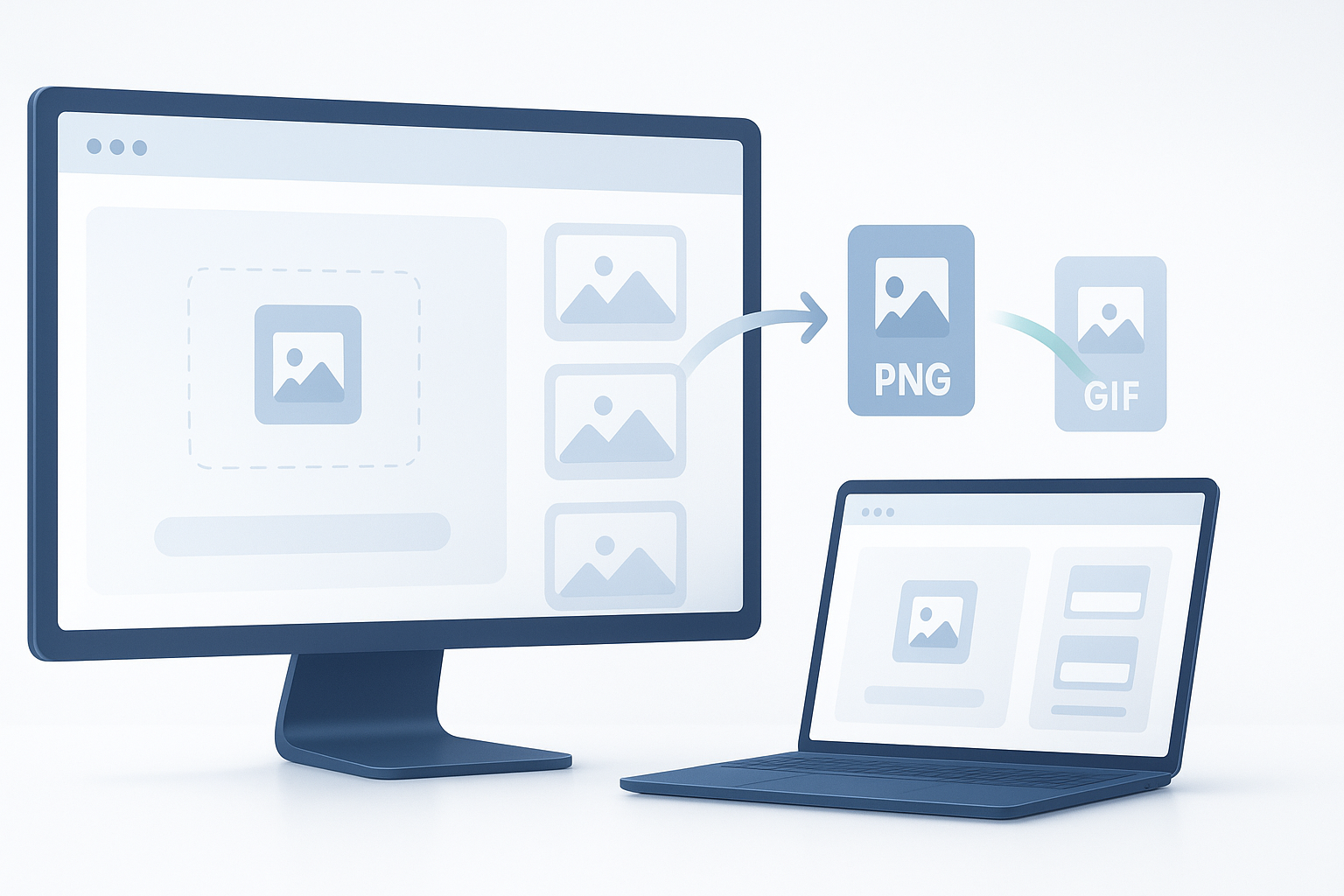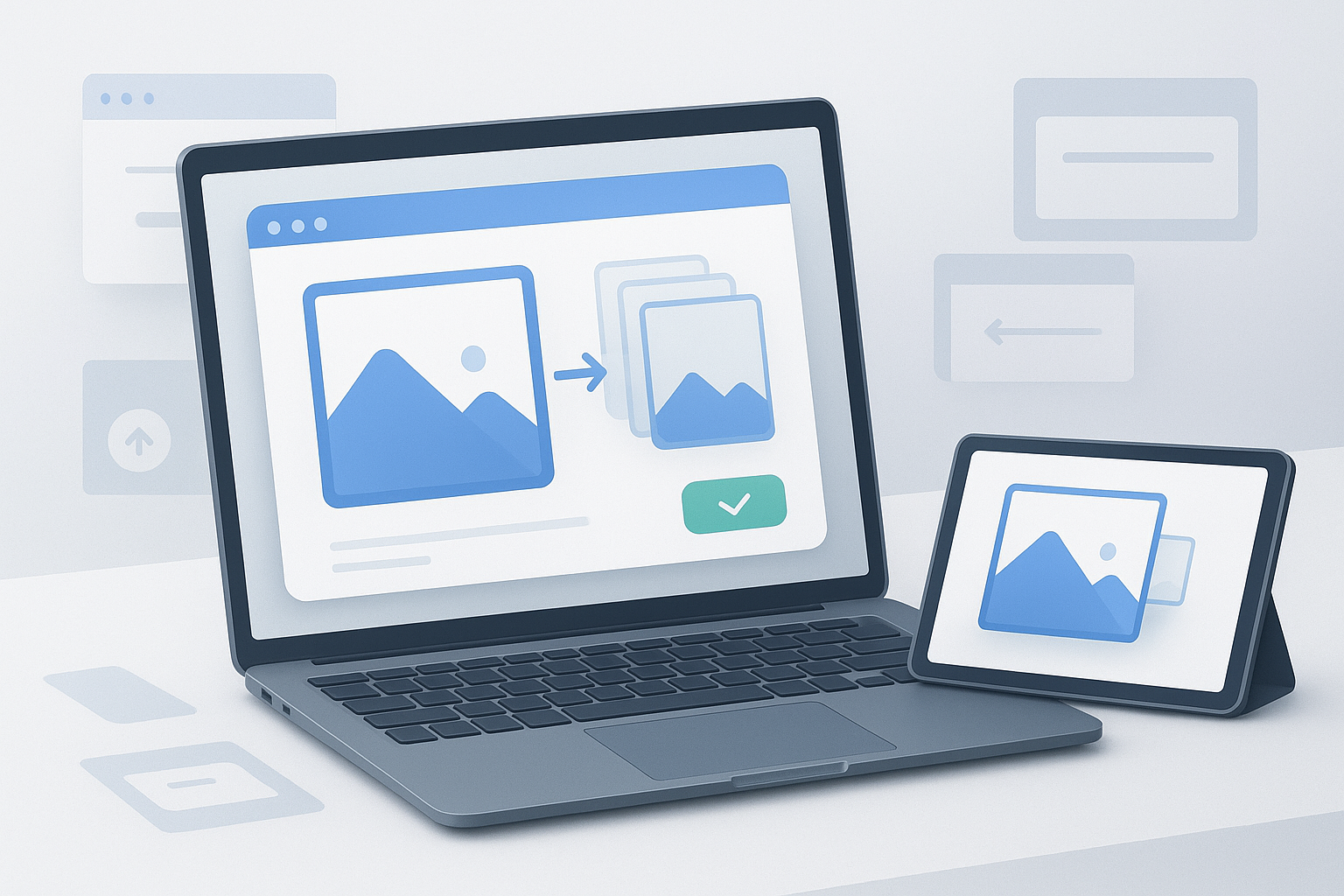
Blurry profile photos, oversized email attachments, rejected upload forms, and stretched website images usually come down to one simple issue: the image was resized the wrong way. If you are trying to figure out how to resize an image online, the goal is not just to make it smaller or larger. You also want the image to stay clear, keep the right proportions, and load well on the web.
This guide is for general web users who need a practical, reliable way to resize images in a browser without installing software. You will learn what image resizing actually changes, how to choose the right dimensions, how to avoid common quality problems, and when file compression matters just as much as size. Whether you are updating a website, sending documents, posting on social media, or preparing product photos, the steps are straightforward once you know what to check.
Quick answer
To resize an image online without losing quality, upload the image to a trusted browser-based tool, enter the new width or height, keep the aspect ratio locked, choose the right file format, and export at an appropriate quality setting. For best results, avoid enlarging small images too much, and match the final dimensions to where the image will actually be used.
What image resizing means
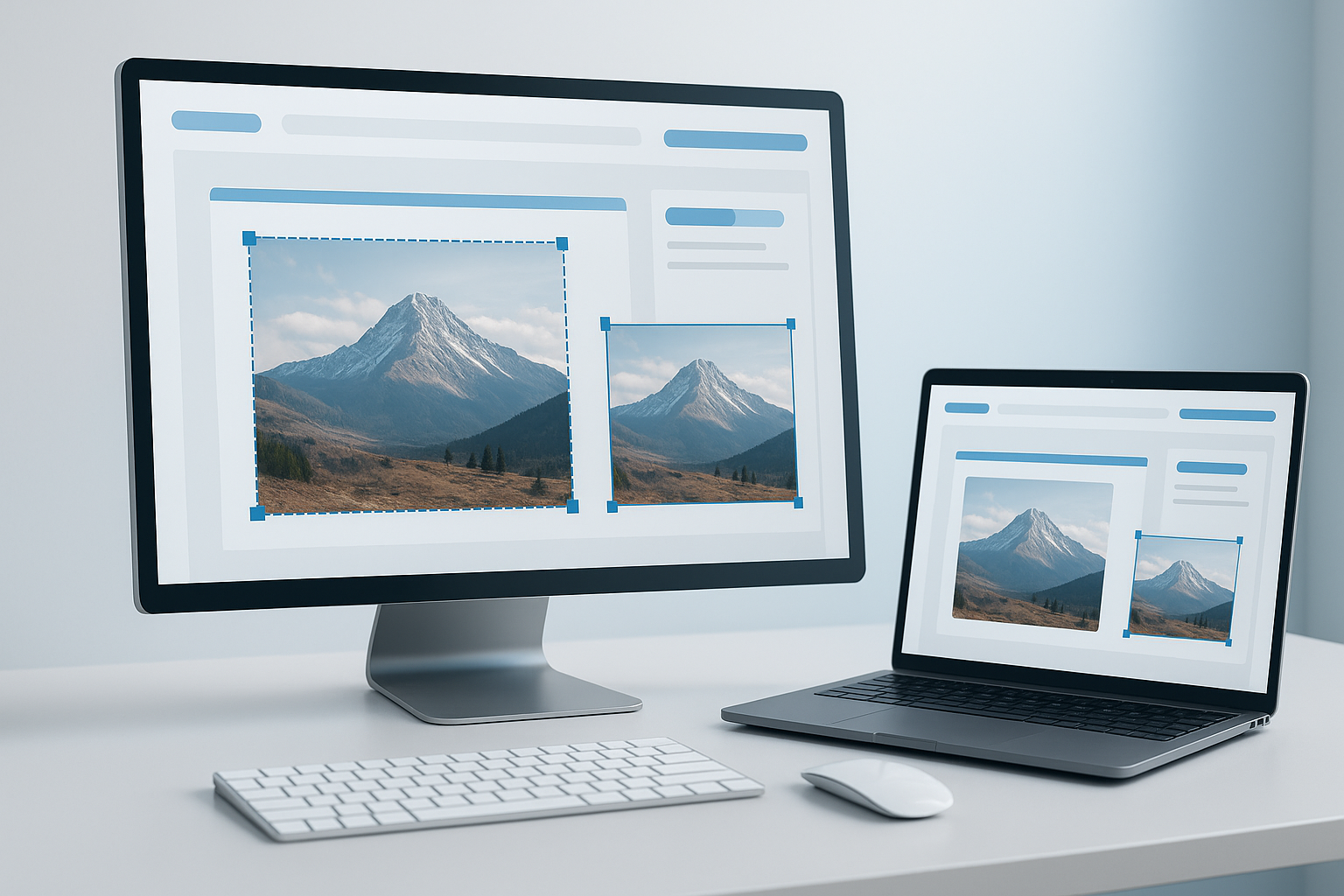
Image resizing changes an image’s dimensions, usually measured in pixels. For example, an image might be reduced from 4000 × 3000 pixels to 1600 × 1200 pixels. This affects how large the image appears on screen and often changes the file size too.
Here is where many beginners get confused: resizing is not the same as compressing. Resizing changes pixel dimensions. Compression reduces file size by removing data or storing it more efficiently. In practice, you often need both.
Suggested Image: Illustration showing original image dimensions, resized dimensions, and reduced file size
Why resizing an image online is useful
Resizing images in your browser is helpful when you need a quick result on any device. You do not need to install software, and most tasks only take a minute or two.
- Website uploads: Large images can slow pages down and may exceed CMS upload limits.
- Email attachments: Smaller images are easier to send and receive.
- Social media: Correct dimensions reduce awkward cropping or blurry previews.
- Forms and documents: Some portals require specific image sizes or file limits.
- Storage management: Lower-resolution copies take up less space.
Google’s guidance on image optimization also highlights the importance of appropriately sized images for web performance and usability. See Google Search Central documentation for images.
How to resize an image online without losing quality
The best approach depends on what you are trying to accomplish. If you want a faster-loading website image, reducing dimensions and using the right format usually works best. If you need a passport photo, marketplace listing image, or document upload, exact dimensions may matter more than file size.
Step-by-step guide
- Choose a trusted online image resizer. Use a reputable browser-based tool that clearly lets you control width, height, and output format. If the image contains personal or sensitive information, check the tool’s privacy approach before uploading.
- Upload your image. Most tools accept common formats such as JPG, PNG, and sometimes WebP. Wait for the preview to load fully before making changes.
- Set the new dimensions. Enter a new width or height in pixels. If there is a lock icon or “keep proportions” option, leave it enabled unless you intentionally want to stretch the image.
- Keep the aspect ratio the same. The aspect ratio is the shape of the image, such as 4:3, 16:9, or square. Keeping it locked prevents distortion.
- Choose the right format. Use JPG for photos, PNG for graphics that need transparency, and WebP when supported for efficient web delivery. According to MDN’s image format guide, each format has different strengths.
- Adjust quality if the tool allows it. Lower quality reduces file size, but too much reduction creates visible artifacts. Start with moderate compression and compare the preview if possible.
- Download and inspect the result. Open the new image at normal viewing size and full size. Check sharpness, text readability, edges, and color consistency.
- Test the image where it will be used. An image that looks fine in isolation may appear too soft, too large, or incorrectly cropped when uploaded to a site, form, or social platform.
How to choose the right dimensions
Picking the correct pixel size is the most important decision. If you resize too aggressively, the image looks soft. If you keep it too large, you waste bandwidth and storage.
A simple workflow looks like this: first identify where the image will appear, then resize it only as large as necessary for that use.
| Use case | What matters most | Practical sizing approach |
|---|---|---|
| Website blog image | Fast loading and clear display | Resize close to the maximum display width on the page |
| Social media post | Platform-friendly aspect ratio | Use the platform’s recommended dimensions |
| Profile photo | Square crop and facial clarity | Use a square image with enough resolution for the largest display version |
| Email attachment | Smaller file size | Reduce both dimensions and quality moderately |
| Online form upload | Meeting exact limits | Check both pixel requirements and file size cap |
Best file formats for resized images
The file format affects image quality, transparency support, compatibility, and final file size. Resizing alone does not guarantee a good result if you export in the wrong format.
JPG or JPEG
Best for photographs and complex images with many colors. JPG usually produces smaller files, but it uses lossy compression, which means some image data is discarded. That is usually fine for photos, but repeated editing and re-saving can reduce quality.
PNG
Best for graphics, screenshots, logos, and images that need transparency. PNG often preserves sharp edges better than JPG, especially for text or interface screenshots, but the file size can be larger.
WebP
Useful for websites because it can deliver strong quality at smaller file sizes. Browser support is now broad, but exact workflow compatibility can still depend on the site, app, or CMS where you upload the image. Google provides more background in its WebP documentation.
What causes quality loss when resizing
Most quality problems happen for predictable reasons. Once you understand them, they are easier to avoid.
- Upscaling too much: Enlarging a small image forces the tool to invent pixels, which often creates blur.
- Wrong aspect ratio: Changing width and height independently can stretch faces, text, or objects.
- Too much compression: Very low JPG quality creates blocky artifacts and smudged detail.
- Repeated exports: Saving a JPG multiple times can compound quality loss.
- Using a screenshot instead of the original: Screenshots are often lower quality than the source file.
A clear resized image starts with the right source file. Good output cannot fully recover detail that was never there.
Resize vs compress: what is the difference?
If your main problem is file size, resizing may help, but compression might be the bigger factor. The two work together, not against each other.
| Task | What it changes | Best for |
|---|---|---|
| Resizing | Pixel dimensions | Making images fit a layout or upload requirement |
| Compression | File size and stored data | Speeding up uploads, downloads, and web pages |
| Format conversion | Encoding method and compatibility | Balancing quality, transparency, and efficiency |
Practical examples
The easiest way to understand this is to look at common real-world tasks.
Example 1: Uploading a product photo
A seller has a 5000-pixel-wide camera image but only needs a product image that displays at around 1200 pixels wide on a marketplace listing. Resizing it down to a more reasonable width keeps the product clear while reducing upload time and storage use.
Practical tip: Keep a high-quality original copy and create a separate web-ready version.
Example 2: Sending a document image by email
A phone photo of a receipt may be several megabytes. If the recipient only needs it for review, reducing the dimensions and lightly compressing the file usually makes it much easier to send without making the text unreadable.
Practical tip: Zoom in on the exported image to confirm small text remains sharp enough.
Example 3: Preparing a website image
A blogger uploads huge images straight from a phone or camera. The page becomes slower than necessary. Resizing images to fit the blog’s content area helps page speed and user experience. For site owners interested in broader optimization and workflow efficiency, browser-based utilities can reduce repetitive web tasks alongside image preparation.
Best practices for resizing images online
If you want consistently good results, follow a few habits rather than relying on default settings every time.
- Start with the original file whenever possible. It gives you more detail and better editing flexibility.
- Resize to the final use case. Do not upload much larger images than needed.
- Keep aspect ratio locked. This avoids visible distortion.
- Choose format based on content. Photos, graphics, and transparent images behave differently.
- Check file size after export. A good-looking image can still be unnecessarily large.
- Preview on desktop and mobile if the image is for the web. Layout and readability can change across screens.
- Use descriptive filenames. This helps organization and can support a cleaner publishing workflow.
Common mistakes to avoid
Most resizing issues are not technical failures. They are simple workflow mistakes.
Making the image larger than the original
This happens when someone assumes higher dimensions automatically mean better quality. They do not. Enlarging a low-resolution image usually adds blur, not detail.
Ignoring the aspect ratio
People often type in a width and height manually without checking proportions. The result is a stretched or squashed image. Always look for a lock setting.
Using the wrong format
Saving a transparent logo as JPG can add an unwanted background. Saving a large photo as PNG can create a much larger file than necessary.
Optimizing only for appearance
An image may look fine but still be too large in file size for web use. Quality and performance both matter.
Uploading sensitive images to untrusted tools
This is an important safety issue. If an image contains IDs, contracts, financial records, or private content, use a service you trust and review its handling of uploaded files.
Limitations of online image resizing tools
Online tools are convenient, but they are not perfect for every situation.
- Privacy concerns: Uploaded images may pass through third-party servers.
- File size limits: Some tools restrict large uploads.
- Format support varies: Not every tool supports every image type.
- Browser performance: Very large images can be slow to process on older devices.
- Quality controls differ: Some tools offer only basic resizing without advanced export options.
Browser behavior can also vary depending on the device and version. For broader browser handling details, official resources such as Mozilla Developer Network are useful references.
Troubleshooting common image resizing problems
If the result does not look right, the cause is usually easy to identify.
The image looks blurry
This often means the image was enlarged or compressed too heavily. Go back to the original file, reduce the amount of upscaling, or export with a higher quality setting.
The file is still too large
Try a smaller pixel dimension, change from PNG to JPG for photos, or lower the quality slightly. If the image is for a website, WebP may also help where supported.
The image looks stretched
The aspect ratio was likely changed. Restore the original proportions and resize using only one dimension while keeping the ratio locked.
The upload form rejects the file
Check both pixel dimensions and file size. Some forms require one, some require both. Also verify the allowed format.
The exported image has a background you did not want
If transparency matters, PNG or another transparency-supporting format is usually the safer choice than JPG.
Simple quality checklist before you download
Before saving the final file, run through this quick list:
- Does the image match the required width or height?
- Is the aspect ratio correct?
- Is the format appropriate for the image type?
- Is text still readable when zoomed in?
- Is the file size reasonable for its purpose?
- Have you kept an original backup?
How this fits into a wider web workflow
Image resizing is often part of a larger online task, not a standalone job. A marketer might resize screenshots for documentation, then review multiple landing pages. A researcher may resize images for a report while organizing many source links. A content editor might prepare blog images while checking page layouts across several URLs.
If you regularly work with batches of webpages during content, SEO, or research tasks, a tool like OpenMultiURL can help you open multiple URLs at once instead of loading each one manually. That does not resize images, but it can simplify the surrounding browser workflow when you need to review many pages quickly.
Frequently asked questions
Can I resize an image online for free?
Yes, many browser-based image tools let you resize images for free. The main differences are file size limits, supported formats, privacy handling, and whether the tool also lets you control quality or compression. If you are working with personal or confidential images, free should not be the only factor. Check whether the service is trustworthy before uploading anything sensitive.
Will resizing an image reduce quality?
Not always, but it can. Reducing an image to sensible dimensions usually preserves visual quality well, especially for web use. The biggest quality problems happen when you enlarge a small image, save with very low quality settings, or export in the wrong format. If you resize carefully and keep the aspect ratio intact, quality loss is often minimal.
What is the best format after resizing an image?
The best format depends on the image. JPG is usually best for photos because it balances quality and file size well. PNG is better for logos, graphics, screenshots, or transparent backgrounds. WebP is often a strong choice for websites because it can produce smaller files at good quality, but support depends on the site or platform where you use it.
How do I resize an image without stretching it?
Use a tool that keeps the aspect ratio locked. This means when you change the width, the height adjusts automatically, or the other way around. Stretching happens when width and height are changed independently. If you need a different shape, crop the image first or use a canvas-based editing option instead of forcing the existing image into the wrong proportions.
Is resizing enough to make an image load faster on a website?
Sometimes, but not always. Resizing reduces dimensions, which often lowers file size. Still, format choice and compression have a major impact too. A correctly sized image saved with poor settings can remain unnecessarily heavy. For better web performance, combine sensible dimensions with an efficient format and moderate compression, then test the actual uploaded result.
Can I make a small image bigger without losing quality?
Usually not completely. When you enlarge a small image, the tool has to estimate missing detail. Some modern tools can make enlarged images look smoother, but they cannot restore original detail that is not present. For the best result, start with a higher-resolution source file. If quality matters, avoid heavy upscaling whenever possible.
Is it safe to resize personal images online?
It can be, but caution matters. If the image contains personal documents, IDs, signatures, financial information, or private photos, be selective about which tool you use. Review the provider’s privacy information and avoid uploading sensitive files to services you do not trust. When privacy is critical, offline software is often the safer option.
What dimensions should I use for social media or profile pictures?
There is no one universal size because each platform uses its own layout and can change recommendations over time. The safest approach is to check the latest help documentation for the platform you are using, then resize your image to match that guidance. In general, use a square image for profile pictures unless the platform specifies a different shape.
Conclusion
If you were wondering how to resize an image online, the key is simple: choose the right dimensions for the job, keep the aspect ratio intact, export in the correct format, and check the final image before you use it. Most quality problems come from enlarging small images, using the wrong format, or over-compressing the file.
Once you build that habit, resizing images becomes a quick and reliable part of your normal web workflow. And if your work also involves reviewing many pages, sources, or assets across the web, OpenMultiURL can help reduce repetitive browsing by opening multiple URLs at once in a cleaner research process.