Messy JSON is easy to misread. One missing comma, an extra bracket, or inconsistent indentation can turn a simple API response into something that is hard to debug, review, or share. If you need to format JSON online, the goal is not just to make it look nicer. It is to make the structure clear without accidentally changing the data.
This guide is for developers, technical marketers, analysts, and anyone who works with API responses, configuration files, or exported web data. You will learn what JSON formatting actually does, how to format JSON online safely, how to catch common syntax problems, and when an online formatter is the fastest option. We will also cover limitations, troubleshooting, and a few workflow tips that can save time when you are comparing data across multiple pages or developer tools.
Quick answer: how do you format JSON online?
To format JSON online, paste valid JSON into a trusted formatter, run the formatting or beautify action, and review the output for proper indentation, brackets, commas, and key-value structure. If the JSON is invalid, the tool should highlight the syntax error so you can fix it before copying or sharing the result.
What it means to format JSON online
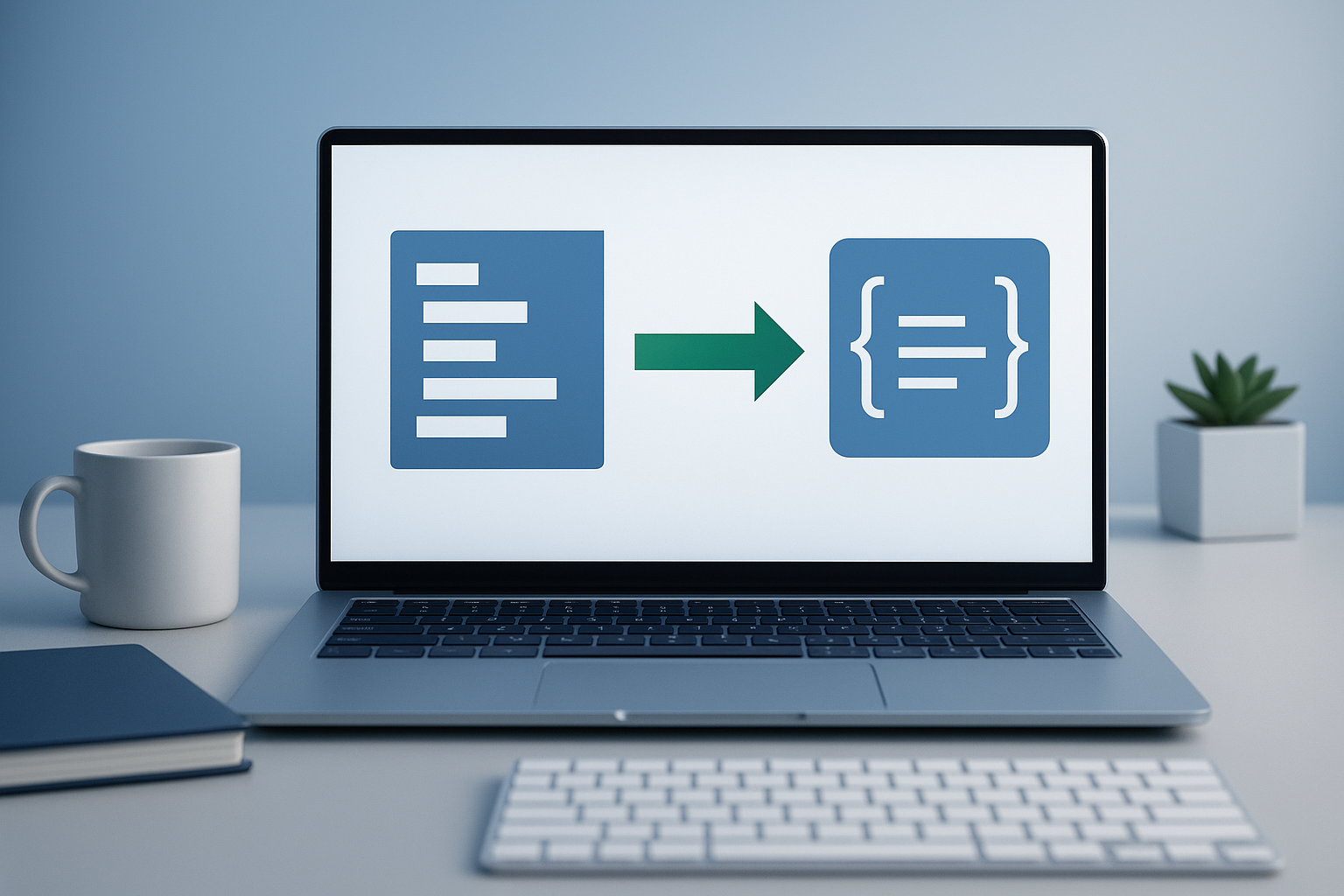
Formatting JSON online means taking raw JSON data and converting it into a cleaner, easier-to-read layout in a browser-based tool. The data itself should stay the same. What changes is the presentation, such as line breaks, spacing, and indentation.
JSON stands for JavaScript Object Notation. It is a text-based format commonly used for APIs, configuration files, browser tools, and data exchange between systems. According to MDN’s JSON documentation, JSON is designed to be lightweight and readable, but in practice many responses are compressed into a single line for transmission efficiency. That is why formatting matters.
The easiest way to understand this is simple: minified JSON is optimized for machines, while formatted JSON is optimized for humans.
Why developers format JSON online
Developers usually format JSON online when they need a quick way to inspect data without opening a local editor or setting up a full development environment. It is especially useful during debugging, API testing, data validation, and reviewing exported objects.
- Readability: Nested arrays and objects become much easier to scan.
- Debugging: Syntax mistakes stand out faster when the structure is visible.
- Sharing: Clean JSON is easier to send in tickets, documentation, or chat.
- Comparison: You can inspect fields, missing values, or structural differences more accurately.
- Learning: Beginners understand JSON objects and arrays much faster when indentation is clear.
A JSON formatter should improve readability without altering the meaning of the data.
When formatting JSON online makes the most sense
The best approach depends on what you are trying to accomplish. A browser-based formatter is ideal when speed matters and the JSON is not sensitive. It is often the quickest option for one-off tasks.
Common situations where it helps
- Checking an API response copied from the browser network panel
- Reviewing webhook payloads
- Inspecting structured data or configuration snippets
- Cleaning exported analytics or app data for troubleshooting
- Validating JSON before using it in a script or request body
If you work with many data sources during research, this can fit into a broader browser workflow. For example, if you are opening multiple documentation pages, tools, or endpoints during debugging, a tool like OpenMultiURL can help you open multiple URLs at once instead of loading each page manually.
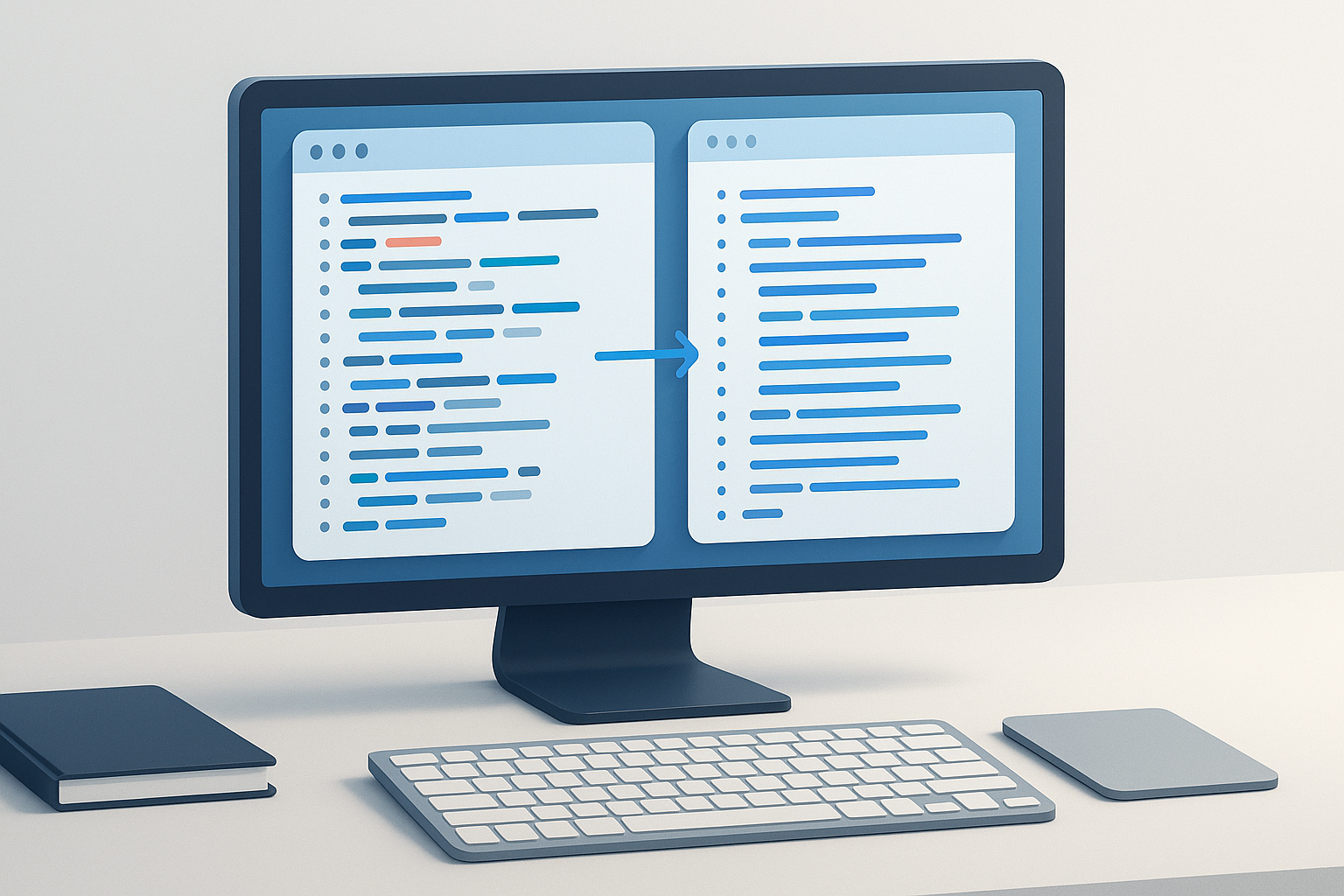
Suggested Image: Modern developer workflow showing API response, browser-based JSON formatting, and code review side by side
How to format JSON online without breaking it
Formatting should not change valid JSON values, object structure, array order, or data types. The safest workflow is to paste the content exactly as copied, let the formatter process it, then review any validation messages before using the output elsewhere.
- Copy the JSON exactly as it is. Avoid manually editing it before formatting unless you already know where the problem is. Small changes can introduce new errors.
- Paste it into a trusted online JSON formatter. A good formatter should separate formatting from validation and clearly show syntax issues.
- Run the format or beautify action. This should add indentation and line breaks while preserving the original data structure.
- Check for error messages. If the content is invalid, look for messages about missing commas, unmatched braces, invalid quotes, or trailing commas.
- Review nested sections carefully. Arrays inside objects and objects inside arrays are where many formatting mistakes become obvious.
- Copy the formatted output for debugging, editing, or sharing. If you plan to send it to an API, make sure you are still sending valid JSON, not a damaged manual edit.
What a JSON formatter changes and what it does not
Here is where many beginners get confused. Formatting changes appearance, not meaning. Validation checks whether the JSON follows the required syntax rules. Those are related, but they are not the same thing.
| Action | What it does | What it does not do |
|---|---|---|
| Formatting / beautifying | Adds indentation, spacing, and line breaks | Does not fix logic errors in your data |
| Validation | Checks whether the JSON syntax is valid | Does not confirm the values are correct for your app |
| Minifying | Removes unnecessary whitespace to reduce size | Does not improve readability |
In practice, this means a JSON document can be perfectly formatted and still contain incorrect field names, wrong values, or missing business-required data.
Basic JSON rules you should know before formatting
If you understand a few core syntax rules, it becomes much easier to fix errors when an online formatter rejects your input.
- Objects use curly braces:
{ } - Arrays use square brackets:
[ ] - Keys must use double quotes:
"name" - Strings must use double quotes:
"value" - Key-value pairs use a colon:
"name": "Sam" - Items are separated by commas
- No trailing commas after the last item in an object or array
The formal syntax rules are defined in RFC 8259, the JSON standard. If you are testing JSON generated by scripts or third-party tools, it helps to know that what “looks right” is not always valid.
Common JSON syntax errors online formatters reveal
Most formatting failures come from a small set of common syntax mistakes. Once the JSON is properly indented, these issues are much easier to spot.
1. Missing commas
This usually happens between object properties or array items. The formatter may stop at the point where the parser expected a comma.
2. Using single quotes instead of double quotes
JavaScript developers often make this mistake when copying object-like data. JSON requires double quotes for keys and string values.
3. Trailing commas
Some code editors tolerate them in other contexts, but strict JSON does not. A trailing comma after the final item causes validation to fail.
4. Unmatched braces or brackets
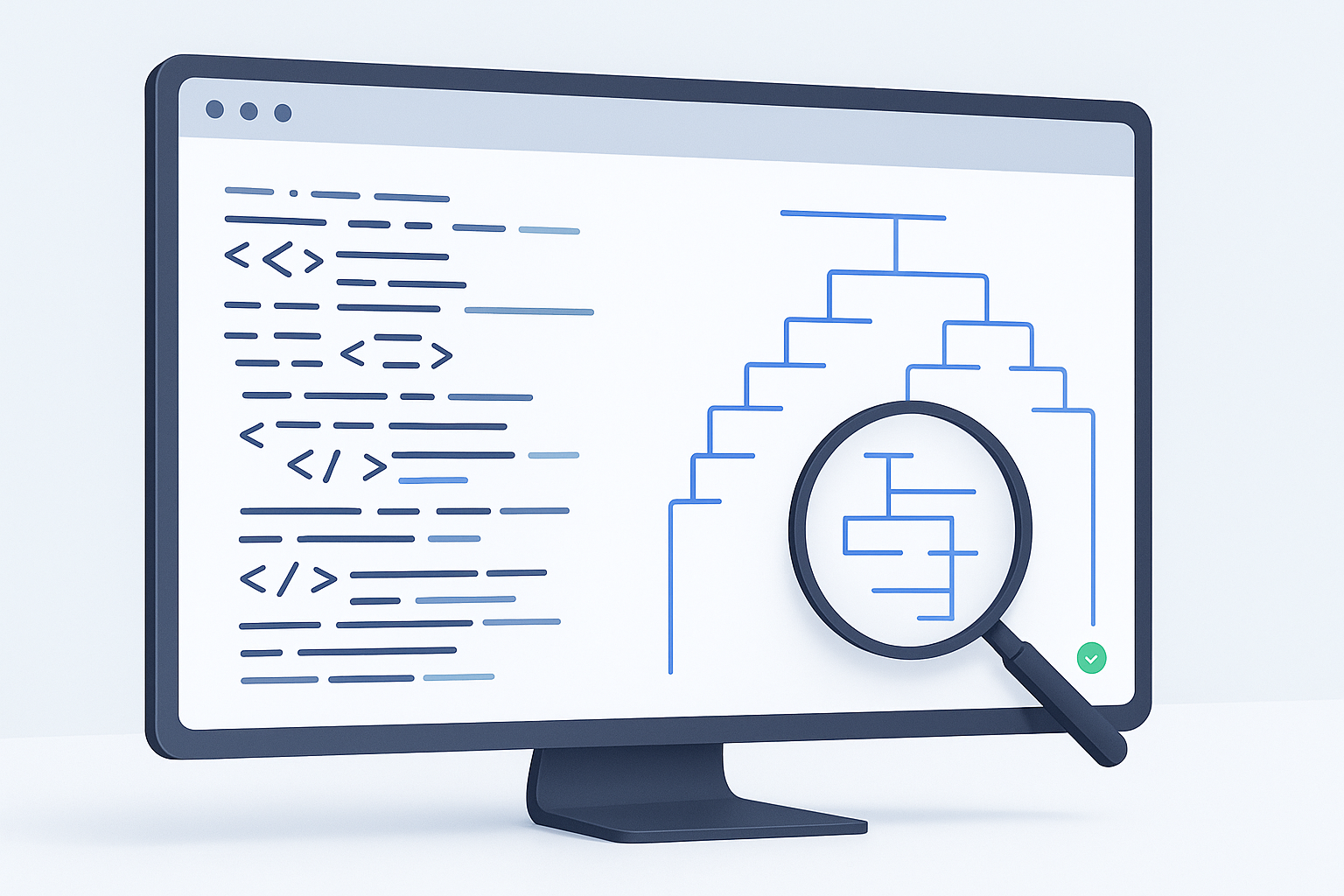
Nested structures become hard to count in minified JSON. Formatting reveals whether opening and closing symbols align correctly.
5. Unescaped characters inside strings
If a string contains quotes, backslashes, or control characters, they may need escaping. Otherwise the parser can treat the string as broken.
6. Invalid values
JSON supports strings, numbers, booleans, arrays, objects, and null. Undefined values or comments are not valid JSON.
Example: turning unreadable JSON into something usable
Here is a simple example of why formatting helps. Suppose you copy this from an API response:
{"user":{"id":42,"name":"Ava","roles":["admin","editor"],"active":true},"meta":{"source":"api","version":1}}
It is valid, but not pleasant to review. After formatting, the relationships become clearer: the top-level object contains user and meta, the roles field is an array, and the data types are easier to identify at a glance.
This is especially useful when you need to verify whether a field is missing, nested differently than expected, or returned as the wrong type.
Online formatter vs code editor: which should you use?
Both options are useful. The right choice depends on sensitivity, complexity, and how often you work with JSON.
| Method | Best for | Limitations |
|---|---|---|
| Online JSON formatter | Quick checks, one-off formatting, browser workflows | Not ideal for sensitive or confidential data |
| Code editor | Frequent dev work, large files, schema-based editing | Requires local setup and is slower for quick review |
| CLI or script | Automation, pipelines, repeated validation tasks | Less beginner-friendly |
A simple workflow looks like this: use an online formatter for fast inspection, then move to a local editor when the file is large, sensitive, or part of active development.
Best practices when you format JSON online
If you are doing this regularly, there is a simpler workflow than copying and guessing. A few habits make the process safer and more reliable.
- Use trusted tools only. Do not paste confidential tokens, credentials, personal data, or private customer payloads into random websites.
- Keep a raw copy. Save the original minified response before making corrections.
- Validate before editing heavily. Find syntax problems first, then make any changes carefully.
- Check data types. A quoted number is not the same as a real numeric value in JSON.
- Watch for hidden whitespace. Copying from emails, PDFs, or chat apps can introduce invisible characters.
- Use structured comparison when possible. If you are checking multiple API endpoints, review one formatted response at a time instead of juggling too many tabs.
If you often compare many endpoints, docs pages, or test environments, organizing those links first can reduce context switching. For broader browser research workflows, OpenMultiURL is useful when you need to open multiple URLs from a prepared list in one go.
Security and privacy considerations
Before you format JSON online, keep this in mind: browser-based tools may not be appropriate for sensitive data. If the JSON contains API keys, session tokens, personal information, payment details, internal URLs, or confidential business data, use a local editor instead.
This is not just a best practice. It is a basic security habit. Review the tool, understand what data you are submitting, and avoid exposing anything that should stay private. Official guidance from OWASP is a good reminder that data exposure often happens through convenience shortcuts, not only through obvious attacks.
Limitations of online JSON formatting tools
Online tools are convenient, but they are not perfect. There is an important limitation to understand: formatting does not guarantee that your JSON is semantically correct for the API, schema, or application using it.
- They may validate syntax only, not business rules.
- Very large JSON files can be slow in the browser.
- Some tools struggle with deeply nested data.
- Browser performance varies by device and tab load.
- Interfaces and features can change over time.
- Private or internal payloads should not be pasted into public tools.
For browser-specific behavior, performance and memory handling can differ. Details may vary depending on the browser version and the size of the data you are working with.
Troubleshooting: if the JSON will not format
When a formatter fails, the issue is usually fixable. Start with syntax rather than assuming the tool is broken.
Possible causes
- Missing comma between fields
- Single quotes instead of double quotes
- Extra trailing comma
- Broken nesting with unmatched brackets
- Comments inside the JSON
- Copied content that includes non-JSON text before or after the payload
Practical fix workflow
- Check the error location reported by the formatter.
- Inspect the few lines immediately before that point.
- Look for commas, quotes, and closing braces first.
- Remove comments or unrelated text that may have been copied with the JSON.
- Try validating again before making additional edits.
If the data came from an HTTP response, you can also review JSON-related details in official references such as MDN’s HTTP status documentation when you suspect the real problem is with the API response rather than the format itself.
How formatted JSON helps in real workflows
Formatting is not just a cosmetic step. It improves practical work across debugging, QA, SEO tooling, and web research.
API development and debugging
A developer testing an endpoint can quickly verify field names, nested properties, and missing values before updating the code that consumes the response.
Technical SEO and structured data review
SEO professionals sometimes work with JSON-based configurations, API exports, or JSON-LD snippets. Clean formatting makes it easier to review object structure and spot misplaced properties. If you want a broader official reference on structured data, Google’s documentation at Google Search Central is useful.
QA and support workflows
A tester or support engineer can paste an error payload into a formatter, identify the failing key, and send a cleaner example to the development team.
Documentation work
Writers and developer advocates often need readable examples for help docs, changelogs, or onboarding guides. Proper formatting prevents confusion for readers.
Common mistakes to avoid
Most JSON problems are not advanced. They come from rushed copying, incorrect assumptions, or editing data without validating it first.
- Editing before validating: This can create new syntax issues and make the original problem harder to trace.
- Assuming JavaScript object syntax equals JSON: It does not. JSON is stricter.
- Pasting sensitive data into public tools: Fast does not always mean safe.
- Confusing formatting with fixing: A beautifier makes structure readable, but it does not know your intended data model.
- Ignoring data types:
"123"and123are different values in many systems.
Readable JSON helps you find mistakes faster, but it does not decide what “correct” means for your application.
FAQ: format JSON online
Is it safe to format JSON online?
It can be safe for non-sensitive data, but you should avoid pasting private payloads, tokens, personal information, or internal system details into public tools. For confidential data, use a local editor or development environment instead. Online formatters are best for public examples, test data, and quick troubleshooting where privacy is not a concern.
Does formatting JSON change the data?
No, proper formatting should only change how the JSON looks, not what it means. It adds indentation, line breaks, and spacing so humans can read it more easily. However, if you manually edit the content while trying to fix errors, you can change values, structure, or data types. That is why keeping a raw copy is smart.
Why does my JSON formatter say the JSON is invalid?
The most common reasons are missing commas, single quotes, trailing commas, unmatched braces, or copied text that is not actually JSON. Some users also paste JavaScript objects with comments or undefined values, which are not valid in standard JSON. Check the reported error position and inspect the lines immediately around it.
Can I format very large JSON files online?
Sometimes, but browser performance can become a problem with very large or deeply nested files. The exact limit depends on the tool, your device, available memory, and browser behavior. For large payloads, a local code editor or command-line tool is usually more reliable and responsive than a browser-based formatter.
What is the difference between minified JSON and formatted JSON?
Minified JSON removes unnecessary whitespace to keep the file compact, which is useful for transmission and storage efficiency. Formatted JSON does the opposite: it adds whitespace and indentation so people can read it more easily. Both can represent the same data. The difference is presentation, not meaning.
Can an online formatter fix broken JSON automatically?
Some tools may point out syntax issues, but you should not assume they can safely repair every problem. A formatter can identify likely errors such as missing commas or invalid quotes, but it does not know your intended structure. Automatic fixes can be risky if the original meaning is unclear. Review every correction carefully.
Should I use an online formatter or a code editor?
Use an online formatter when you need speed and the data is not sensitive. Use a code editor when you work with large JSON files, repeat the task regularly, or need better control over editing and validation. Many developers use both: online for quick inspection and local tools for serious debugging or production work.
How does this relate to broader web productivity workflows?
If you regularly inspect JSON from multiple APIs, docs pages, dashboards, or test environments, reducing browser friction matters. Organizing endpoint lists, research links, and tool pages can save time. In those cases, OpenMultiURL can help by opening multiple URLs at once, which is useful when your debugging process spans several web resources.
Conclusion
If you need to format JSON online, the safest and most useful approach is simple: paste valid JSON into a trusted formatter, use it to improve readability, and treat validation errors as clues rather than annoyances. Clean formatting helps you inspect structure, catch syntax mistakes, and communicate technical data more clearly.
For quick browser-based tasks, online formatting is often enough. For large or sensitive payloads, local tools are the better choice. And if your work involves jumping across many docs pages, endpoints, or research links, OpenMultiURL can help streamline the surrounding browser workflow by opening multiple URLs at once. The main goal is not prettier code. It is faster, clearer, more accurate work.