If a website looks broken, a support agent asks for your browser version, or an online service behaves differently from one device to another, browser information can help explain what is happening. The challenge is knowing which details matter and how much you can trust an online result.
This guide explains how to check browser information online, what common browser details mean, how to use the results for troubleshooting, and which privacy limits to keep in mind. You will also learn how to verify important details inside your browser instead of relying on a single online checker.
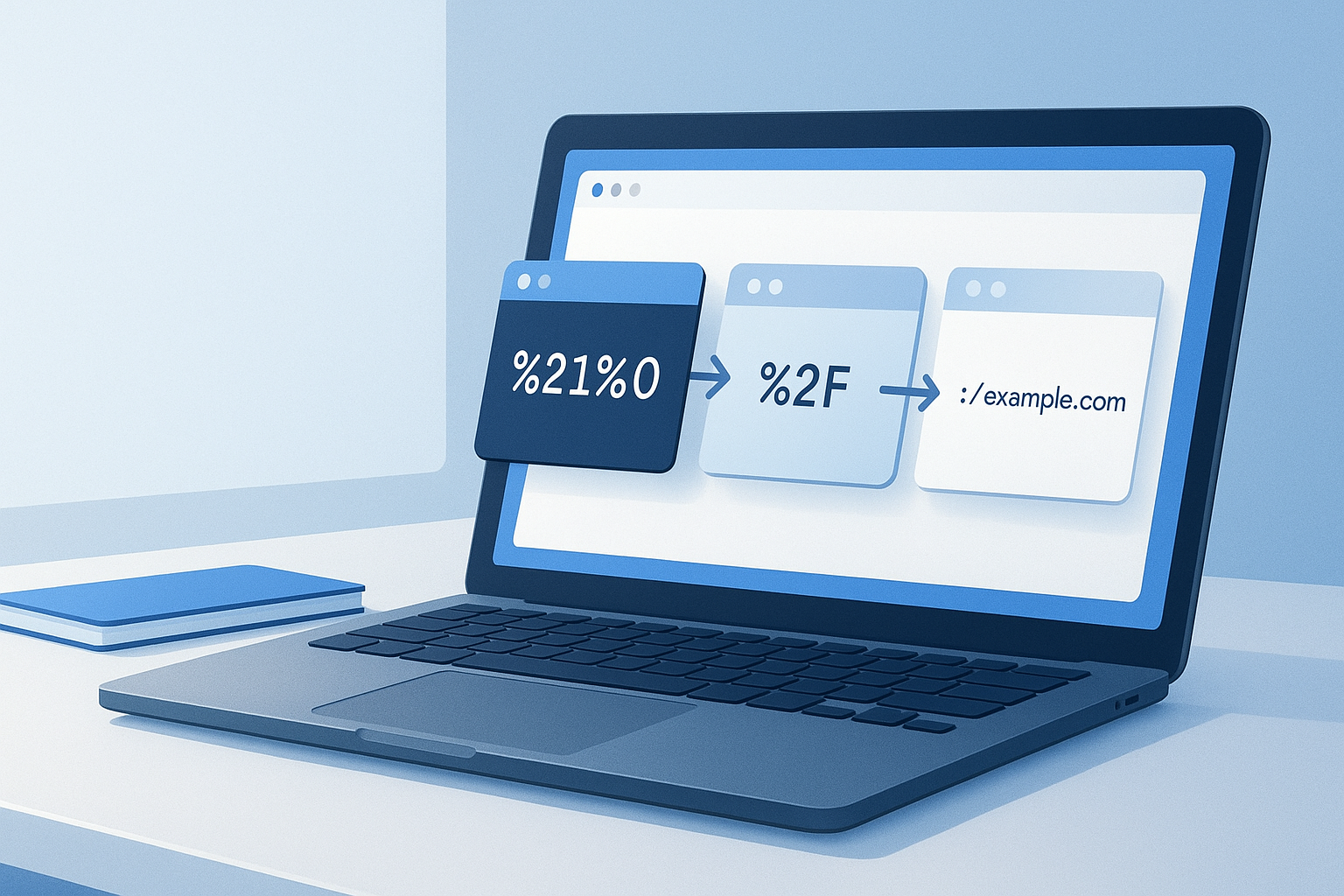
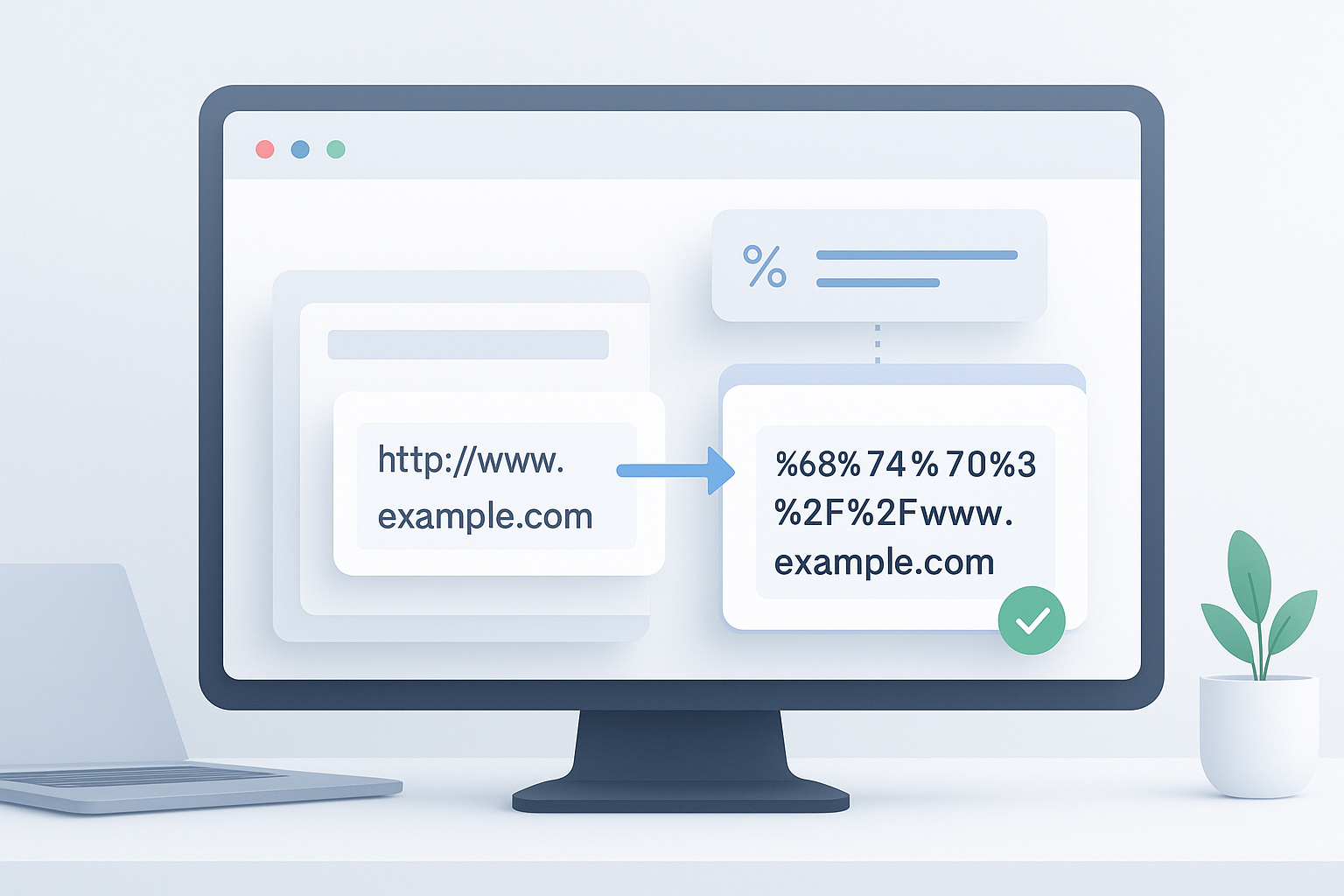
Suggested Image: Professional web research illustration showing browser details, device information, and troubleshooting notes.
Quick Answer: How Do You Check Browser Information Online?
Open a reputable browser-information checker in the browser you want to test. Review the reported browser name, version, operating system, user agent, language, screen size, time zone, and JavaScript status. For important support or development work, compare the online result with your browser’s built-in About page and developer tools.
What Browser Information Can an Online Checker Show?
A browser information page uses details made available by your browser and device to create a technical snapshot. The exact information varies by tool, browser, privacy settings, extensions, and operating system.
Common results include:
- Browser name and version: The browser software and its reported release information.
- Operating system: The platform that appears to be running the browser, such as Windows, macOS, Android, Linux, or iOS.
- User agent: A text string sent or exposed by the browser to help websites handle compatibility.
- Browser engine: The software component responsible for interpreting web pages. Examples include Chromium-based engines, Firefox’s Gecko, and WebKit-based implementations.
- Screen resolution: The dimensions of the display reported by the browser.
- Viewport size: The usable page area inside the browser window. This is usually different from the full screen resolution.
- Language and locale: Preferred language settings and regional formatting information.
- Time zone: The local time zone reported through browser features.
- Cookies and JavaScript status: Whether common browser features appear to be available.
- IP address: Some tools may display the public network address visible to the service, although this is network information rather than a complete browser detail.
For a technical explanation of browser-exposed information, the MDN Navigator API documentation explains several properties and methods that websites can access through JavaScript.
Why Check Browser Details Online?
Checking browser information is useful when you need a quick snapshot of the environment being used to access a website. It can save time during troubleshooting because the same page may behave differently across browsers, operating systems, screen sizes, or privacy configurations.
Typical use cases include:
- Reporting browser details to a website’s support team.
- Investigating why a page layout looks incorrect.
- Checking whether a browser is outdated enough to cause compatibility problems.
- Testing responsive designs at different viewport sizes.
- Confirming language, time zone, or regional settings.
- Comparing behavior between a normal window and a private browsing window.
- Investigating whether cookies or JavaScript are available.
- Reviewing what information a website can detect for privacy research.
For web developers and SEO professionals, browser details can also help reproduce a user-reported issue. However, browser information alone does not explain every website problem. Server configuration, network conditions, extensions, authentication, and the page’s own code may be responsible.
Browser information is a useful starting point for troubleshooting, not a complete diagnosis of every web problem.
How to Check Browser Information Online Step by Step
The simplest method is to use a browser-information page that displays the data your current browser makes available. Use a service you trust, especially if it asks for permissions or attempts to install anything. A basic browser information page should not need your account password, payment details, or access to unrelated files.
- Open the information checker in the browser you want to test. If you are comparing browsers, open the same page separately in each one.
- Record the browser name and version. This is usually the first detail needed by technical support.
- Review the operating system and device information. Check whether the result matches the device you are using.
- Read the user agent carefully. It may contain browser, platform, and compatibility information, but it can be reduced or modified.
- Check screen and viewport measurements. These help explain responsive design or layout differences.
- Review language, locale, and time zone. Incorrect settings can affect dates, currency formats, translations, and scheduling.
- Note the feature results. Look for cookies, JavaScript, WebGL, local storage, or other capabilities if the checker reports them.
- Save or copy only the details that are relevant. Avoid sharing unnecessary network or fingerprinting information publicly.
- Reproduce the problem after recording the details. A browser report is more useful when paired with the page address, error message, and steps that caused the problem.
Browser interfaces change over time, so the exact labels shown by an online checker may vary. If a result seems unusual, confirm it using the browser’s own settings or About page.
Which Browser Details Matter Most?
Not every reported field is equally useful. If you are contacting support, the browser name, version, operating system, page address, and exact problem usually matter more than a long fingerprint report.
| Detail | What it helps explain | Important limitation |
|---|---|---|
| Browser and version | Compatibility, browser-specific bugs, and support requirements | The reported version may be hidden, reduced, or spoofed |
| Operating system | Platform-specific behavior and keyboard or display differences | Websites may receive only a general platform description |
| User agent | Basic compatibility decisions made by websites | It is not a guaranteed identity statement |
| Viewport size | Responsive layouts, visible content, and breakpoint issues | It changes when the window is resized or browser controls appear |
| Language and time zone | Translations, dates, times, and regional formatting | These settings may not reflect the user’s physical location |
| IP address | Basic network and access troubleshooting | It may represent a VPN, proxy, mobile carrier, or shared network |
User Agent, Browser Version, and Browser Engine Explained
These terms are often confused. A browser version identifies a release of the browser application. A user agent is a reported string or set of browser-related signals that a website can use when deciding how to deliver a page. A browser engine processes HTML, CSS, and JavaScript and determines much of how a page is rendered.
The user agent is not a secure identity document. Browsers may reduce the amount of information they expose to limit passive tracking, and some settings, extensions, compatibility modes, or privacy tools can change what a website sees. The MDN guide to browser detection using the user agent explains why user-agent detection should be handled carefully.
For modern websites, feature detection is often more reliable than assuming a browser’s identity. Feature detection asks whether a capability is available instead of relying only on a browser name. This matters because two browsers may support the same feature even if they use different engines.
How to Verify Browser Information Without an Online Checker
An online checker is convenient, but it should not be your only source when accuracy matters. You can verify key details inside the browser itself and use developer tools to investigate how a page behaves.
Check the Browser’s About Page
Open the browser menu and look for an option such as About. The wording and location vary by browser and software version. This area normally provides the installed browser name and version and may also show whether an update is available.
Inspect the Page With Developer Tools
Developer tools can show the current viewport, console errors, network requests, and page resources. They are useful when a website fails to load correctly or displays an unexpected layout. The exact keyboard shortcut and menu location differ between Chrome, Edge, Firefox, Safari, and other browsers.
Compare JavaScript-Reported Values
Web developers can inspect browser APIs such as navigator, screen, and internationalization settings. These APIs expose different categories of information, so their values should be treated as diagnostic signals rather than absolute proof of a user’s device or location.
The MDN Screen API reference provides technical background on screen-related properties, while the MDN Intl.Locale reference explains how locale information can be represented in JavaScript.
Browser Information and Online Privacy
Browser-information pages can reveal more than a browser name. A website may combine browser signals such as language, time zone, display characteristics, installed feature support, and network information to create a recognizable technical profile. This process is commonly discussed as browser fingerprinting.
That does not mean every browser checker is unsafe, but it does mean you should understand what you are disclosing. A privacy-conscious approach includes the following:
- Use reputable services and read their privacy information before testing.
- Do not enter passwords, payment details, or private documents into a browser-information page.
- Share only the technical details needed to solve a specific problem.
- Be cautious if a page asks you to install software, enable unusual permissions, or download an unknown file.
- Remember that private browsing usually limits local history and storage; it does not make you invisible to websites or network providers.
- Do not assume that hiding one browser field prevents all forms of tracking.
The Electronic Frontier Foundation’s Cover Your Tracks project offers privacy education and testing related to online tracking and browser fingerprinting. Its results should be interpreted as an assessment of tracking exposure, not as a complete security audit.
Using Browser Information for SEO and Website Troubleshooting
Browser data can support SEO and web quality work when it is used alongside other testing methods. A website that looks correct in one browser may have layout, JavaScript, accessibility, or interaction problems in another environment.
Useful checks include:
- Open important pages in more than one major browser.
- Resize the browser window to test responsive layouts.
- Check whether menus, forms, search boxes, and checkout elements work without unexpected errors.
- Review pages in both normal and private windows when cookies or stored sessions may affect behavior.
- Compare language and time-zone settings if a site serves localized content.
- Record the browser and viewport when reporting a visual defect.
- Test important pages on both desktop and mobile browsers where relevant.
Browser testing is different from crawling or indexing analysis. Browser information can help you see what a visitor experiences, while SEO tools and search-engine documentation are needed to investigate redirects, canonical URLs, robots directives, structured data, and indexing.
Using Multiple URLs During Browser Research
If you are comparing the same page across several browsers, devices, or testing environments, you may have a list of documentation pages, test URLs, and support resources to open. OpenMultiURL is a free online tool that can help open multiple URLs at once from a list of links.
This can be useful for organizing a browser-testing session, but it does not bypass authentication, website restrictions, security policies, or access controls. Some pages may still fail to load because they require a login, depend on JavaScript, block access, or are temporarily unavailable. Verify every URL before opening it, particularly when links come from an unfamiliar source.
Common Mistakes When Checking Browser Details
Assuming the Online Result Is Perfectly Accurate
Browser information is based on signals exposed to the page. Those signals can be limited, modified, or generalized. Confirm important details in the browser’s About page and reproduce the problem before drawing a conclusion.
Confusing Screen Size With Viewport Size
The screen is the physical or logical display area. The viewport is the part of the browser window available for webpage content. Browser controls, zoom, window size, and display scaling can make the viewport smaller or otherwise different from the screen resolution.
Sharing a Full Fingerprint Report Publicly
A support team may need browser and operating system details, but it rarely needs every available fingerprint signal. Remove unnecessary IP addresses, unique identifiers, or network information before posting a report in a public forum.
Testing Only One Browser State
Extensions, cached files, cookies, permissions, and saved sessions can affect results. If appropriate, compare a normal window with a private window or temporarily test with extensions disabled. Do this carefully and avoid changing security settings permanently just to make one page work.
Trusting an Unknown Browser Checker
A page that claims to show browser information should not ask for sensitive credentials or unrelated permissions. Leave the page if it requests suspicious downloads, browser extensions, or access that is not necessary for a basic technical report.
What to Do If a Browser Information Result Looks Wrong
Unexpected results are often caused by privacy features, a proxy or VPN, browser extensions, remote desktop software, device management, or differences between the browser and operating system settings.
- Refresh the page and check whether the result changes.
- Compare the result with the browser’s About page.
- Test the same page in a private window, if appropriate.
- Check whether a VPN, proxy, or network filter is affecting the visible IP address.
- Temporarily review extensions that modify privacy, headers, scripts, or page content.
- Confirm the device date, time zone, and language settings.
- Record the exact page, error message, browser version, and steps that reproduce the problem.
- Contact the website owner or support team if the issue continues.
Frequently Asked Questions
Can a website tell exactly which browser I use?
A website can often identify or estimate the browser family and platform from browser-exposed information, but the result is not always exact. User-agent reduction, privacy settings, extensions, compatibility modes, and browser changes can limit or alter the details. A website may also identify supported features rather than a precise browser version. For troubleshooting, treat online browser detection as a useful indication and verify the installed version through the browser’s own About page.
Does checking browser information reveal my exact location?
Not necessarily. A browser-information page may display a public IP address and infer a general region from network data, but this can be affected by VPNs, proxies, mobile networks, corporate gateways, and shared connections. Browser language and time zone also do not prove physical location. Do not treat a displayed location as precise, and avoid sharing network details publicly unless they are genuinely needed for support.
Is an online browser checker safe to use?
Many basic browser-information pages only read information that the browser makes available, but safety depends on the website. Use a reputable service, review its privacy policy, and avoid entering credentials or downloading software. A legitimate diagnostic page should not need your email password, banking details, or access to unrelated files. Leave immediately if the page requests suspicious permissions or attempts to install an unknown extension.
Why do two browser-checking websites show different results?
Different checkers may use different browser APIs, detection methods, databases, and definitions. One may report a reduced user agent while another checks additional feature signals. VPNs, extensions, private browsing, browser settings, and changing window dimensions can also produce different results. Compare the fields that matter to your task, such as browser version, viewport, language, and time zone, rather than expecting every report to match exactly.
Can browser information help diagnose a slow website?
It can provide context, but it does not identify every cause of slow performance. Browser version, extensions, device capabilities, network type, cached files, and JavaScript support may affect loading speed. Developer tools can provide more useful evidence, including network timing, console errors, and resource failures. Compare the page in another browser or network and record the conditions under which the slowdown occurs.
Does private browsing hide browser information?
Private browsing mainly limits local storage such as history and session data after the private session ends. Websites can still receive browser-related signals, network information, and details needed to deliver the page. Private windows can be useful for testing whether cookies, saved sessions, or extensions are causing a problem, but they should not be treated as complete anonymity or invisibility.
What browser details should I send to technical support?
Start with the browser name and version, operating system, page address, approximate time of the problem, and a clear description of what happened. Include the exact error message and steps to reproduce it. Add viewport or screen information if the issue involves layout. Avoid sending passwords, session cookies, full fingerprint reports, or unrelated IP information unless the support team specifically explains why it is required.
Can browser information improve SEO rankings?
Checking browser details does not directly improve search rankings. It can support website quality work by helping you find compatibility, responsive-design, JavaScript, or usability problems that affect visitors. SEO still requires separate analysis of content, accessibility, crawling, indexing, performance, links, and search intent. Browser testing is one part of a broader website quality and technical SEO workflow.
Conclusion
Learning how to check browser information online gives you a practical way to identify browser version, operating system, user-agent signals, viewport dimensions, language, time zone, and selected browser capabilities. Use online results as diagnostic clues, verify important details inside the browser, and share only the information needed for the task.
For recurring research or testing workflows, organize the relevant URLs before you begin. OpenMultiURL can help you open multiple URLs at once, while careful verification and privacy-aware reporting keep the process safe and useful.