Markdown is easy to write, but a small missing symbol can change the final result. A heading may appear as plain text, a list may lose its indentation, or a link may not work as expected. That is why knowing how to preview Markdown online is useful before you share documentation, publish a blog post, submit an assignment, or add content to a developer platform.
An online Markdown previewer converts Markdown syntax into a rendered view without requiring you to install a full editor. In this guide, you will learn how Markdown previews work, how to check formatting step by step, how to diagnose common errors, and how to prepare cleaner documents for different publishing platforms.
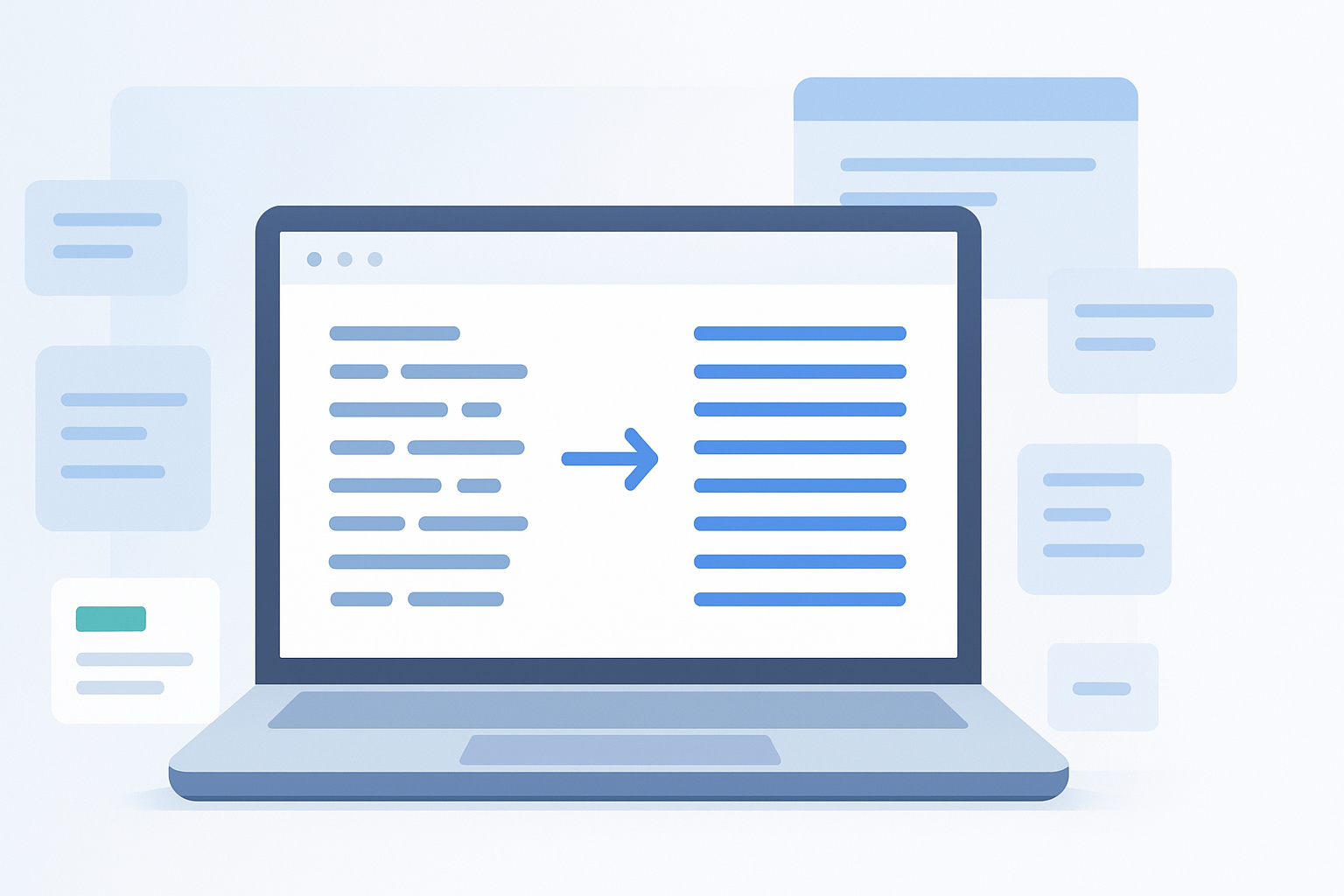
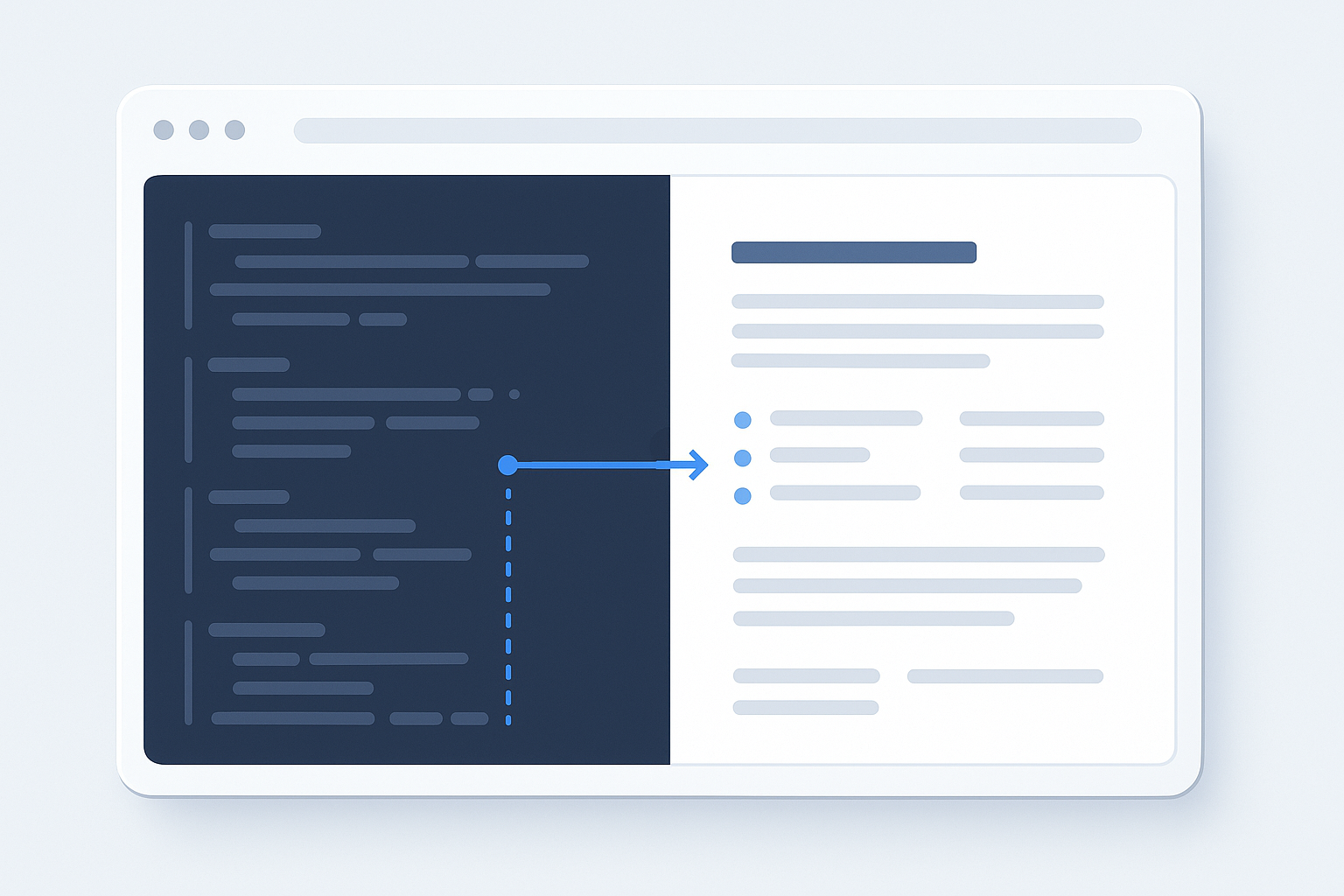
Suggested Image: Clean online tools illustration showing Markdown text on one side and a formatted preview on the other.
Quick answer: How do you preview Markdown online?
To preview Markdown online, open a trusted Markdown previewer, paste or type your Markdown in the editor, and review the rendered output beside it or below it. Check headings, lists, links, images, code blocks, tables, and emphasis. Fix the source text, then preview it again before copying or publishing the final content.
What is a Markdown preview?
A Markdown preview is a rendered version of text written with Markdown syntax. Markdown uses simple characters such as #, *, backticks, brackets, and hyphens to describe formatting. A previewer interprets those characters and displays the result as headings, paragraphs, lists, links, quotations, and other formatted elements.
For example, this Markdown source:
# Project notes
should appear in the preview as a large heading. Likewise, this source:
- First task- Second task
should appear as a bulleted list.
Markdown itself is a lightweight markup language. It is not the same as HTML, although many Markdown tools convert Markdown into HTML or another structured format. The exact result can vary because different platforms support different Markdown features.
The CommonMark specification provides a standardized description of core Markdown behavior. This is useful when you want to understand how common syntax should be interpreted rather than relying only on a particular editor.
Why preview Markdown before publishing?
Previewing lets you inspect the result readers will see instead of judging the source syntax alone. This matters because Markdown is sensitive to characters, spacing, indentation, and line breaks. A document that looks organized in the editor may render differently if the syntax is incomplete.
A preview is especially useful when you are:
- Writing README files or technical documentation
- Preparing content for a content management system
- Drafting release notes or project instructions
- Formatting a forum post or knowledge-base article
- Creating notes that include code, links, and lists
- Checking an article before sending it to an editor
- Converting structured notes into publishable content
Previewing can help you find practical problems such as:
- A heading level that is too high or too low
- A list item that is not indented correctly
- A broken link caused by missing brackets or parentheses
- Code that is not separated from surrounding text
- An image with an incorrect URL
- Unexpected emphasis caused by unmatched asterisks
- Tables that do not align or render on the intended platform
The source tells you how the document is written. The preview shows you how the document communicates.
How to preview Markdown online step by step
The basic process is simple, but a structured review helps you catch more than obvious formatting errors.
- Choose a reputable online Markdown previewer. Use a tool that clearly separates the editable source from the rendered result. Avoid pasting confidential information into an unfamiliar service.
- Enter or paste your Markdown. Start with a short section if you are testing syntax. For a complete document, paste the full content so you can check how different elements work together.
- Review the rendered output. Look at the hierarchy, spacing, links, lists, quotations, images, and code blocks. Do not check only whether the text looks attractive; check whether its structure is logical.
- Compare the preview with the source. When something looks wrong, return to the nearby characters in the Markdown. Most issues are caused by a missing symbol, an extra space, or incorrect line breaks.
- Test important links. Confirm that link text is correct and that the destination URL is complete and trustworthy. A preview can show a link, but it may not prove that the destination is available.
- Check platform compatibility. If the content will be published on GitHub, a documentation system, a forum, or a CMS, compare the preview with that platform’s supported Markdown rules.
- Copy or export the finished content. Preserve the original Markdown separately if you may need to edit the document later.
For platform-specific guidance, review GitHub’s official Markdown formatting documentation. GitHub supports several useful extensions, so its output may not match a basic CommonMark preview exactly.
Common Markdown syntax to check in an online preview
Most previewers support core Markdown elements, but the exact feature set can differ. The examples below cover the formatting problems people most often need to verify.
| Element | Example Markdown | What to check |
|---|---|---|
| Heading | ## Section title |
The heading level follows a logical hierarchy. |
| Bold text | **important** |
Both pairs of asterisks are present. |
| Italic text | *note* |
The intended words are emphasized. |
| Unordered list | - One |
Items appear as separate bullets. |
| Link | [OpenAI](https://openai.com) |
The link text and destination are correct. |
| Inline code | `npm install` |
The command is visually separated from normal text. |
| Code block | ```html |
The block is isolated and the language label is supported. |
| Image |  |
The image URL works and the alternative text is meaningful. |
Headings and document structure
Use one top-level heading for the document when appropriate, followed by lower-level headings for sections and subsections. A heading is not just large text; it communicates the organization of the document to readers and assistive technologies.
For example, # Main topic followed by ## First section and ## Second section creates a clearer structure than using several unrelated heading levels. Preview the document to make sure the visual hierarchy matches the logical hierarchy.
Lists and indentation
Lists can fail when items are separated inconsistently or nested content does not have enough indentation. Keep items aligned and use consistent markers where possible. For nested lists, inspect the preview carefully because different renderers may handle spaces and tabs differently.
Links and images
A Markdown link generally uses this pattern: [descriptive text](https://example.com). The visible text should tell readers where the link leads. Avoid using vague text such as “click here” when a more descriptive phrase is available.
Images use a similar pattern but begin with an exclamation mark: . Alternative text describes the image for people who cannot see it and may also appear if the image fails to load. Previewing helps you check whether the image appears, but it does not replace verifying the file location and usage rights.
Code blocks
Use inline code for a short command or variable, such as --help. Use a fenced code block for multiple lines. If you add a language identifier such as javascript or python, syntax highlighting depends on the destination platform and previewer.
Never assume that a previewer will execute code. Markdown preview tools display code; they should not be treated as code execution environments.
How to fix Markdown formatting problems
When the preview does not look right, avoid rewriting the entire document immediately. Isolate the problem and inspect the smallest section that could be causing it.
Missing or unmatched symbols
Formatting markers usually work in pairs. If you start bold text with ** but do not close it, the renderer may continue applying bold formatting or display the symbols as plain text. The same issue can affect italics, inline code, links, and images.
Practical tip: Place the cursor near the first point where the preview changes unexpectedly, then count the nearby brackets, backticks, or asterisks.
Unexpected line breaks
A single line break may be treated differently from a blank line, depending on the Markdown implementation. If two paragraphs run together, add a blank line between them. If a line break is important within a paragraph, confirm that the target platform supports the syntax you are using.
Broken links
Check that the link has both a closing bracket and a closing parenthesis. Also check for spaces or accidental punctuation inside the URL. A link can look correct in the preview while still leading to the wrong destination, so open important links separately and verify them.
Tables that do not render
Tables are not part of the earliest basic Markdown syntax and are often implemented as an extension. If a table appears as plain text, the destination platform may not support Markdown tables, or the separator row may be malformed.
For content that must work across multiple platforms, consider whether a simple list or paragraph structure would be more portable than a table.
Code that is formatted as normal text
Check that fenced code blocks begin and end with matching backtick sequences. Make sure the closing fence is on its own line. If the code contains backticks, you may need a longer fence or a different presentation method supported by the destination platform.
Markdown preview tools and platform differences
There is no single universal rendering result for every Markdown document. Basic syntax is widely understood, but platforms may add features such as task lists, tables, footnotes, alerts, automatic links, or syntax highlighting.
| Workflow | Best checking method | Main consideration |
|---|---|---|
| General Markdown drafting | Use an online previewer with live rendering. | Confirm which Markdown standard it follows. |
| GitHub documentation | Review the preview and GitHub’s formatting rules. | GitHub includes platform-specific extensions. |
| Developer documentation | Check the destination documentation system. | Plugins and themes may alter the output. |
| Content publishing | Preview in the target CMS after conversion or import. | HTML, styles, images, and links may be transformed. |
For browser-based technical references, MDN’s HTML documentation can help you understand the structure that Markdown is often converted into. This is particularly useful when you need to troubleshoot headings, lists, links, or code blocks after exporting Markdown as HTML.
Important: An online preview is a preparation step, not a guarantee that the final platform will render the document identically. Always perform a final check in the publishing environment when the formatting matters.
Practical ways to use an online Markdown previewer
Technical documentation
Documentation often combines headings, instructions, commands, links, and warnings. Preview the document after each major section so you can confirm that commands stand apart from explanatory text and that readers can scan the page easily.
SEO and content workflows
Content teams may draft structured outlines, comparison notes, or technical explanations in Markdown before moving them into a CMS. Previewing helps editors inspect heading order, internal references, lists, and emphasis before the content is converted or pasted elsewhere.
Markdown previewing does not improve search rankings by itself. Its value is quality control: clearer structure, fewer formatting mistakes, and a more reliable publishing workflow.
Research and reference notes
Researchers can use Markdown to organize sources, observations, and follow-up questions. A preview makes it easier to see whether the notes are grouped logically. If your research also involves opening many reference pages, a multi-URL workflow can reduce repetitive tab-by-tab navigation. OpenMultiURL is a free online tool for opening multiple URLs at once from a list, although each website may still behave differently because of authentication, browser policies, or access restrictions.
Team collaboration
When several people edit the same document, a preview gives everyone a shared view of the intended result. Keep the source file available so another contributor can correct the syntax rather than manually recreating the formatting.
Best practices for previewing Markdown online
A reliable previewing process is more than pasting text into a tool. These habits help you produce content that is easier to read, edit, and transfer.
- Use meaningful headings. Write headings that describe the section rather than using vague labels.
- Keep paragraphs focused. A preview makes long blocks visible, so split paragraphs when the topic changes.
- Use descriptive link text. Readers should understand a destination before opening it.
- Check every external URL. Verify unfamiliar links before opening them, especially when the Markdown came from another person or website.
- Preserve the original source. Keep a copy of the Markdown before converting or pasting it into another system.
- Test unusual features separately. Footnotes, tables, task lists, and embedded content may not work everywhere.
- Review on the final platform. The destination renderer is the final authority for published output.
- Do not paste confidential information into random tools. Remove passwords, private customer data, API keys, and unpublished sensitive material.
Common mistakes when previewing Markdown
Most Markdown problems are small and easy to correct once you know where to look.
- Assuming every previewer supports the same syntax. This happens because Markdown extensions are common. Check the target platform’s documentation before relying on advanced features.
- Checking appearance but not meaning. A document may look attractive while using headings in the wrong order or vague link text. Review structure and accessibility as well as visual formatting.
- Copying rendered text instead of source Markdown. This can remove the syntax needed for future editing. Keep the original source available.
- Ignoring image paths. An image may display in one environment and fail elsewhere if it uses a local file path or temporary URL.
- Opening every link without verifying it. A Markdown document can contain unsafe or misleading destinations. Inspect unfamiliar URLs and avoid entering credentials after following an untrusted link.
- Adding complex formatting unnecessarily. Advanced syntax can make a document harder to maintain. Use the simplest structure that communicates the information clearly.
Limitations of online Markdown previewers
Online previewing is convenient, but it has boundaries. A previewer may not reproduce the destination platform’s theme, plugins, security rules, image handling, or custom extensions. Some services also sanitize HTML or disable embedded content for safety.
Keep these limitations in mind:
- Rendered output can differ between Markdown implementations.
- Remote images may fail because of an incorrect URL, permissions, or server restrictions.
- Links can render correctly even when the destination is unavailable.
- JavaScript widgets and embedded media may not work in a basic preview.
- Private or authenticated content may not be accessible to the previewer.
- Network outages can prevent external resources from loading.
- Some online tools may store submitted text, so sensitive content requires extra caution.
If a document contains confidential information, use an approved local editor or an organizational tool instead of an unknown public service. Convenience should not override privacy or security requirements.
Markdown preview troubleshooting checklist
When formatting still looks wrong, use this short checklist before changing the document extensively.
- Confirm that the source actually uses Markdown syntax rather than plain text.
- Check the first point where the preview differs from your intention.
- Look for missing brackets, parentheses, backticks, or asterisks.
- Check blank lines and indentation around headings, lists, and code blocks.
- Test the problematic section with simpler syntax.
- Compare the previewer’s supported features with the destination platform.
- Verify image and link URLs independently.
- Perform a final preview after copying the content into the publishing system.
Frequently asked questions about previewing Markdown online
Can I preview Markdown without installing software?
Yes. An online Markdown previewer can render Markdown in a web browser without requiring a desktop application. Paste the source into the editor and review the formatted result. For private, regulated, or sensitive content, a local or organization-approved editor may be safer because public tools can have different data-handling practices.
Why does my Markdown look different on another website?
Different websites may use different Markdown parsers and extensions. One platform may support tables, task lists, or alerts while another supports only basic headings, lists, emphasis, and links. Preview the content in a tool that matches the destination when possible, then perform a final check after publishing or importing it.
How can I check whether a Markdown link is correct?
First, confirm that the syntax follows the pattern [link text](URL). Check the closing bracket and parenthesis, remove accidental spaces, and make sure the URL begins with the correct protocol when required. Then open the destination separately and verify that it is trustworthy and leads to the intended page.
Can a Markdown previewer check spelling and grammar?
Some editors include spelling or grammar assistance, but rendering Markdown and proofreading language are separate functions. A previewer primarily shows formatting. Read the rendered document for clarity, then use a suitable proofreading method to check spelling, grammar, terminology, and factual accuracy.
Can I preview Markdown on a phone?
Many browser-based previewers work on mobile devices, but the editing experience depends on screen size, keyboard behavior, and the tool’s responsive design. For short documents, a phone may be sufficient. For long technical files or complex tables, a larger screen usually makes it easier to compare the source and preview.
Is Markdown safer than HTML?
Markdown is often easier to write and can reduce the amount of raw markup a user handles, but it is not automatically safe. A Markdown document can contain external links, images, or embedded HTML depending on the parser. Use trusted sources, avoid inserting sensitive information into public tools, and review how the destination platform sanitizes or displays submitted content.
Should I preview Markdown before converting it to HTML?
Yes. Previewing before conversion helps you identify structural problems while the source is still easy to edit. After conversion, review the resulting HTML or the destination page as well, because conversion can affect links, images, heading levels, tables, whitespace, and code blocks.
Conclusion
Learning how to preview Markdown online gives you a quick way to catch formatting errors before they reach readers. Paste the source into a trusted previewer, inspect the document structure, test links and images, check platform compatibility, and keep the original Markdown for future edits.
The most dependable workflow combines a live preview with a final review in the destination system. If your work also involves collecting and opening many reference links, OpenMultiURL can help you open multiple URLs at once without handling each link individually. Use both workflows carefully: preview the content, verify unfamiliar URLs, and protect private information throughout the process.