How to Convert Image Formats Online
You usually notice image formats only when something breaks. A photo won’t upload, a logo loses its transparent background, a screenshot looks blurry, or a website asks for JPG when you only have PNG. That is when people start searching for the quickest way to convert image formats online without installing software or ruining image quality.
This guide is for everyday web users who want a simple, reliable workflow. Whether you are preparing images for email, social media, web pages, school projects, or online forms, choosing the right format matters more than many people expect. Below, you will learn which image format to choose, how online conversion works, how to avoid common quality problems, and what to check before uploading or sharing your files.
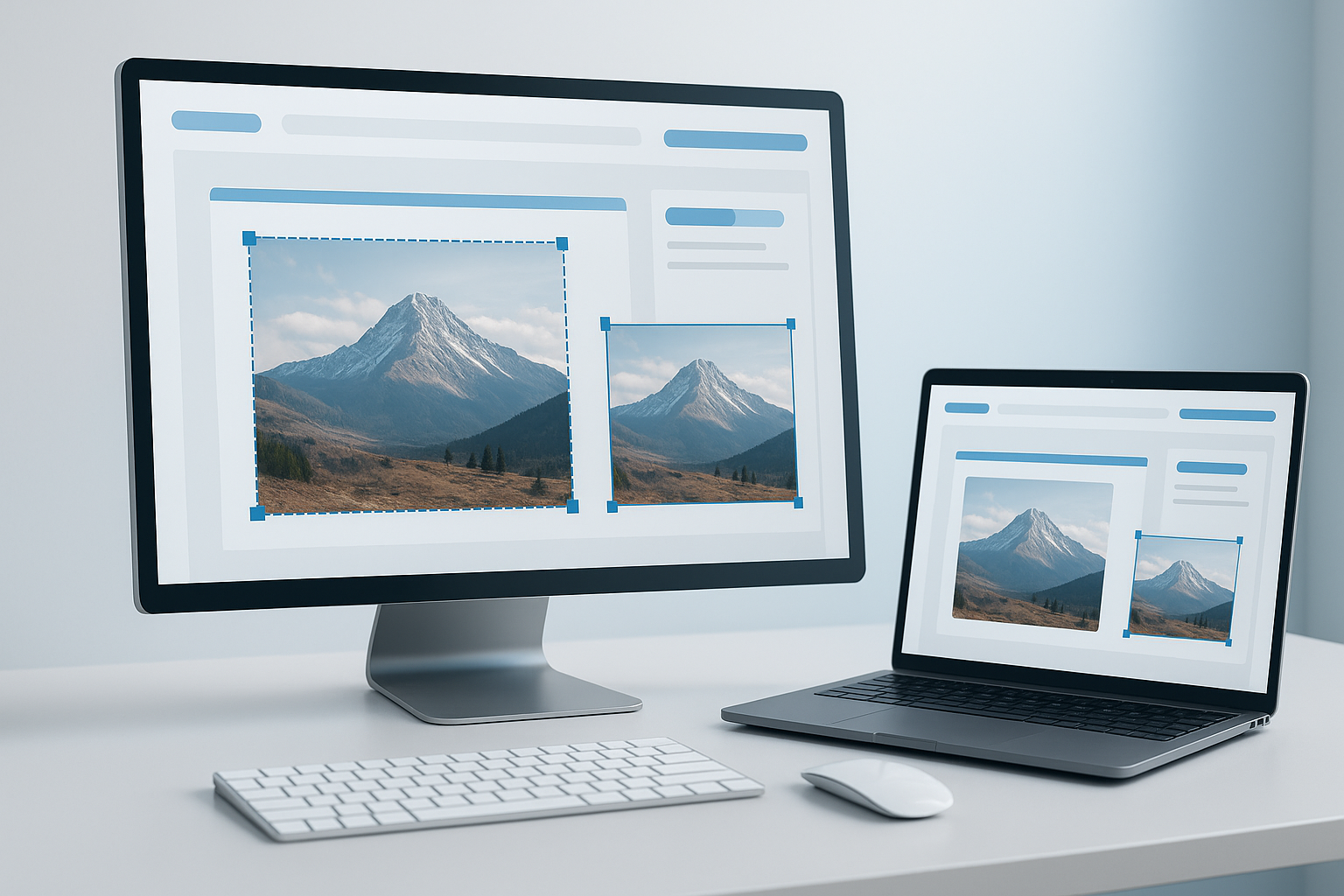
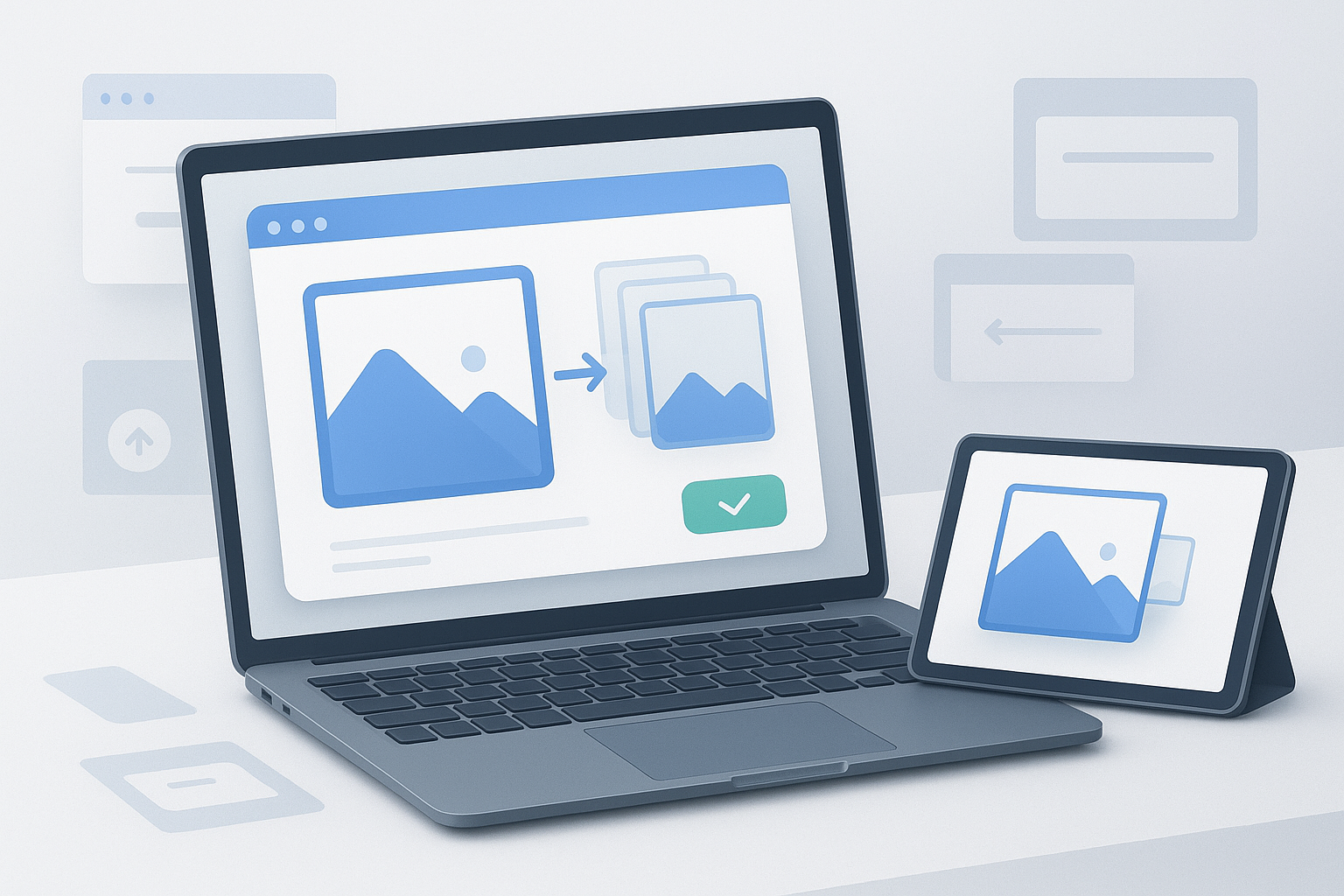
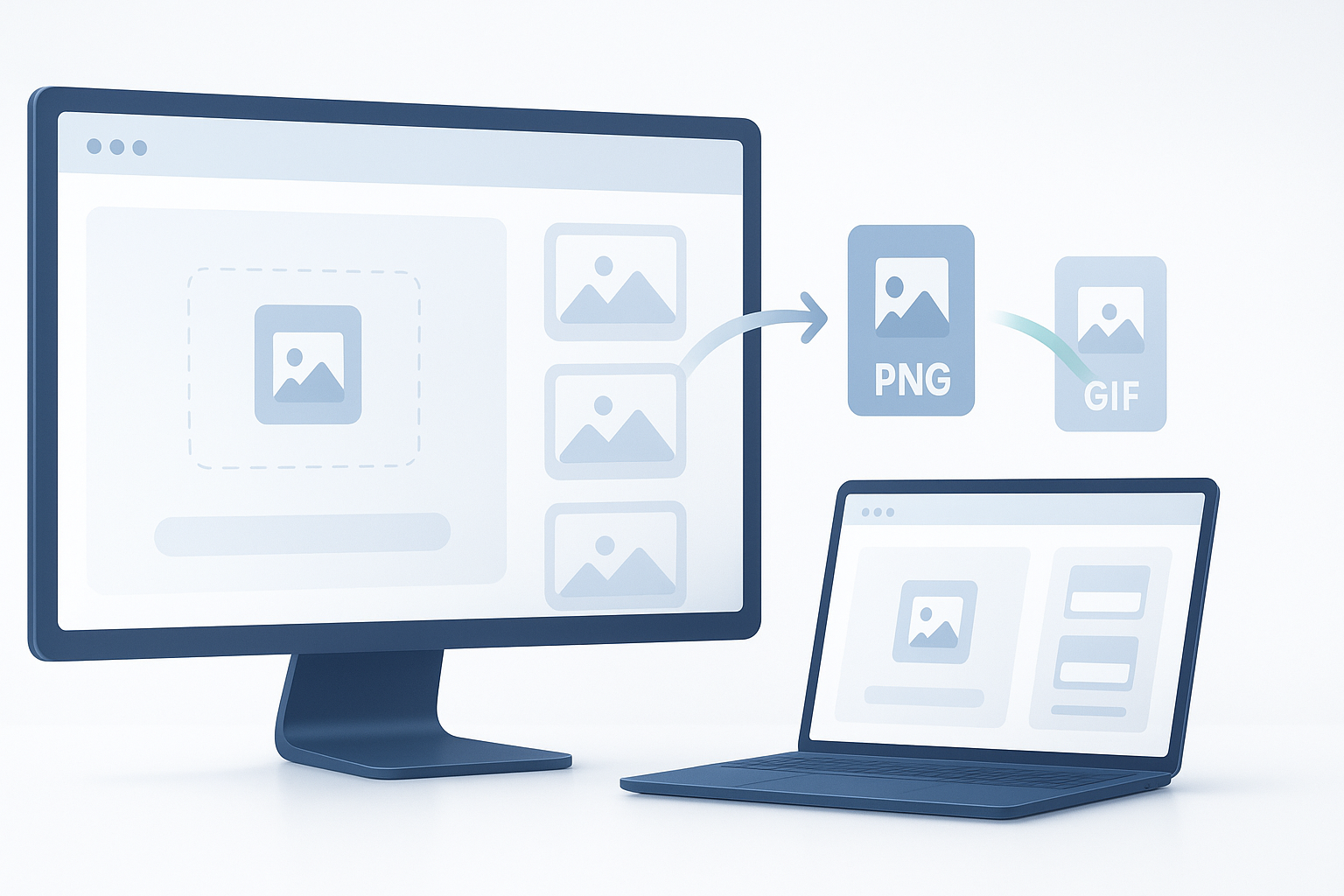
Suggested Image: Clean illustration showing one image being converted into JPG, PNG, WebP, and GIF formats in a browser.
Quick answer
To convert image formats online, upload your image to a trusted browser-based converter, choose the output format such as JPG, PNG, or WebP, adjust any available quality settings, and download the converted file. The best results come from selecting the right format for your goal, checking file size, and avoiding repeated conversions that reduce quality.
What does it mean to convert image formats online?
Converting an image format online means changing a file from one type to another in your web browser instead of using desktop software. For example, you might turn a PNG into a JPG, a JPG into a WebP, or a BMP into a PNG.
The format controls how image data is stored. That affects file size, quality, transparency support, animation support, and compatibility with websites, apps, and devices. The image may look similar after conversion, but the file behaves differently depending on the output type.
The right image format is not just about appearance. It also affects upload success, loading speed, editing flexibility, and compatibility.
Why image format conversion matters
If you pick the wrong output type, you can end up with larger files, weaker image quality, or missing features like transparency. Converting to the right format helps you match the file to the task.
- For websites: Smaller, efficient formats can improve page speed.
- For forms and uploads: Some platforms accept only specific file types.
- For design assets: Transparency may need PNG or WebP instead of JPG.
- For email and messaging: Smaller files are easier to send.
- For archiving or editing: You may want a format that preserves more detail.
Google’s image best practices for the web also emphasize choosing the right file type and keeping images optimized for performance and usability. You can review that guidance in Google Search Central documentation for images.
Common image formats and when to use them
The easiest way to understand image conversion is to start with the most common formats. Each one is useful for different reasons.
| Format | Best For | Strengths | Limitations |
|---|---|---|---|
| JPG / JPEG | Photos, general sharing, smaller file sizes | Widely supported, compact | No transparency, repeated saves can reduce quality |
| PNG | Logos, graphics, screenshots, transparent backgrounds | Supports transparency, sharp edges | Often larger than JPG |
| WebP | Modern web publishing | Efficient compression, can support transparency | Older workflows or software may not handle it well |
| GIF | Simple animations | Animation support, broad compatibility | Limited color range, inefficient for many static images |
| BMP | Legacy workflows | Simple raster format | Very large file sizes |
| SVG | Icons, logos, vector graphics | Scales without blur | Not ideal for regular photos |
Simple format recommendations
- Use JPG for photographs when file size matters.
- Use PNG for screenshots, logos, and graphics with transparent backgrounds.
- Use WebP for web images when supported by your platform.
- Use GIF only when you need basic animation.
- Use SVG for vector artwork, icons, and logos that need to scale cleanly.
How online image conversion works
Most online converters follow the same pattern. You upload a file, the tool processes it on a server or in the browser, and then it generates a new downloadable version in your chosen format.
Here is the important part: conversion changes the container and encoding method, but it cannot magically create detail that was not in the original file. For example, converting a low-quality JPG into PNG does not restore lost image data. It only places the existing image into a different format.
For technical background on formats used on the web, MDN’s guide to web image file types is a useful reference.
How to convert image formats online step by step
If your goal is to change a file quickly and safely, this workflow will cover most situations.
- Choose a trusted online image converter. Use a reputable tool, especially if your image contains personal or business-sensitive content. Check whether the site explains file handling, storage, or deletion practices.
- Upload your original image. Supported formats often include JPG, PNG, WebP, GIF, BMP, and sometimes TIFF or SVG. Make sure you upload the highest-quality original you have.
- Select the output format. Pick the format based on your goal, not just habit. JPG is common for photos, PNG for graphics, and WebP for many web uses.
- Adjust settings if available. Some tools let you control compression, quality, image dimensions, or transparency handling. If you are unsure, use default settings first and compare results.
- Start the conversion. The tool processes your file and creates a new downloadable version.
- Preview or inspect the output. Check sharpness, colors, file size, transparency, and any text elements that may have become blurry.
- Download and rename the file clearly. Use a descriptive filename so you do not confuse the converted version with the original.
- Keep the original file. This gives you a clean source if you need a different format later.
How to choose the right output format
The best format depends on what you want the image to do. Many quality problems come from choosing a format that is technically valid but poorly matched to the task.
For photos
Choose JPG when you want broad compatibility and smaller files. Choose WebP when your website or platform supports it and you want efficient compression.
For logos and transparent graphics
Choose PNG or WebP if transparency must be preserved. If you convert a transparent PNG to JPG, the transparent area usually becomes a solid background color.
For screenshots and interface images
Choose PNG when you need crisp text and sharp edges. JPG compression can make small text and interface details look fuzzy.
For animated images
Choose GIF only if simple animation is required and your workflow specifically needs it. For many modern web cases, video or newer formats may be more efficient, but support depends on the platform.
For scalable graphics
If the image is a vector logo or icon, SVG is often better than converting to a raster format. SVG scales more cleanly because it is based on shapes and paths rather than fixed pixels. The W3C SVG overview explains how SVG works on the web.
How to avoid quality loss when you convert image formats online
Many people assume all conversions damage an image. That is not always true, but quality loss is common when moving into compressed formats or repeatedly converting the same file.
- Start with the best original file available. A high-quality source gives the converter more detail to work with.
- Avoid repeated JPG-to-JPG conversions. Each lossy save can remove more detail.
- Do not enlarge low-resolution images during conversion. Bigger dimensions do not create more real detail.
- Use PNG for text-heavy screenshots. This helps preserve crisp lines.
- Check compression settings. Smaller files are useful, but high compression can create visible artifacts.
- Compare before and after. Zoom in on edges, text, faces, and gradients.
The easiest way to understand this is to separate lossy and lossless compression. Lossy formats, such as JPG, reduce file size by discarding some visual data. Lossless formats preserve data more accurately, though they may result in larger files.
Lossy vs lossless compression explained simply
If you are converting image formats online, this is one of the most useful concepts to know.
| Type | What It Means | Example Formats | Best Use |
|---|---|---|---|
| Lossy | Removes some image data to reduce size | JPG, some WebP settings | Photos, web sharing, smaller files |
| Lossless | Keeps image data more intact | PNG, some WebP settings | Logos, screenshots, transparency, editing |
In practice, this means JPG is often convenient, but it is not automatically the best choice.
Practical examples
Here are a few realistic situations where online image conversion is useful.
Example 1: A website upload requires JPG
You have a large PNG photo from your phone, but the upload form accepts JPG only. Converting to JPG usually reduces file size and improves compatibility, which helps the upload succeed more easily.
Example 2: A logo needs a transparent background
You have a logo in JPG, but you need it on a colored website header. JPG does not support transparency, so converting it to PNG alone will not remove an existing background. You need a source image with transparency or background removal before conversion.
Example 3: A blog image needs better performance
You are preparing article visuals and want smaller files for faster loading. Converting suitable images to WebP can be a practical option if your site supports it. Google also provides web performance guidance through web.dev image optimization resources.
Example 4: A screenshot looks blurry after conversion
You converted a PNG screenshot to JPG to save space, but the text became fuzzy. That happens because JPG compression is not ideal for fine interface text and hard edges. In that case, PNG is usually the better choice.
Common mistakes when converting image formats
Most conversion problems are not tool failures. They come from choosing the wrong settings or expecting the new format to fix issues in the original file.
- Converting to PNG to “improve” a low-quality JPG. This does not restore lost detail. It only changes the format.
- Using JPG for transparent graphics. Transparency is lost, which can create white or colored boxes around the image.
- Compressing too aggressively. Smaller files are useful, but visible artifacts can make images look cheap or hard to read.
- Overwriting the original file. Always keep the source image in case you need another format later.
- Ignoring dimensions. File format and image size are different things. A huge JPG can still be unnecessarily large.
- Uploading sensitive files to unknown services. Convenience should not replace basic privacy caution.
Safety and privacy considerations
Online converters are convenient, but you should think about privacy before uploading any image. Photos, scans, ID documents, client assets, or internal business graphics may contain sensitive information.
- Review the tool’s privacy or file-retention policy if one is available.
- Avoid uploading confidential images to services you do not trust.
- Check whether metadata matters. Some tools may remove or alter embedded data.
- Use secure connections. A legitimate tool should load over
https://. - Download the converted file and inspect it before sharing it publicly.
If a link to a tool comes from an unfamiliar source, verify the URL before opening it.
Limitations of online image converters
Browser-based conversion is practical, but there are important limits to understand.
- Upload limits: Some tools restrict file size or daily usage.
- Format support varies: Not every service handles every image type.
- Quality controls differ: Some tools offer detailed settings, while others only provide basic conversion.
- Transparency and animation may not carry over well: This depends on the source and target formats.
- Browser and device performance can vary: Large files may take longer on slower devices or networks.
- Conversion cannot add missing detail: It changes encoding, not the original image quality.
Troubleshooting common conversion problems
If the output does not look right, the fix is often simpler than it seems.
The converted image looks blurry
This often happens when text screenshots are converted to JPG or when compression is too strong. Try PNG instead, or repeat the conversion with a higher quality setting.
The file size is still too large
The format may not be the only issue. Check the image dimensions as well. A 5000-pixel-wide image can remain large even after conversion.
Transparency disappeared
You likely converted into a format that does not support transparency, such as JPG. Use PNG or WebP if the tool and destination platform support it.
The website will not accept the converted file
Check the platform’s requirements. Some systems restrict both file type and maximum file size. Others may also require specific dimensions.
Colors look slightly different
Some tools may handle color profiles differently. If exact color appearance matters, compare multiple outputs and keep the original file.
Best practices for better results
A simple workflow can save time and reduce avoidable quality issues.
- Keep an untouched original image.
- Decide your goal before choosing a format.
- Use the smallest format that still looks good for the task.
- Test a sample image before converting a large batch.
- Rename files clearly, such as
product-photo-web.jpgorlogo-transparent.png. - Check the final image on the actual device or platform where it will be used.
If you are reviewing many image pages, file URLs, or upload targets across multiple websites, organizing your browser workflow matters too. For repetitive research tasks, OpenMultiURL can help you open multiple URLs at once instead of loading them one by one.
When online conversion is especially useful
Online tools are often the best option when you need speed, convenience, and no software installation.
- Students: Converting scanned images for assignments or submission portals.
- Small business owners: Preparing product images for marketplaces and websites.
- Marketers: Creating smaller image files for landing pages, ads, or email campaigns.
- Content creators: Adjusting blog or social media visuals for platform compatibility.
- Everyday users: Making phone images easier to upload or share.
Frequently asked questions
1. What is the best format to use for photos?
For most photos, JPG is still a practical choice because it offers broad compatibility and relatively small file sizes. WebP can also work very well for website use when your platform supports it. If your top priority is web performance, WebP is often worth considering. If your top priority is universal compatibility, JPG is usually the safest option.
2. Can I convert PNG to JPG without losing quality?
You can convert PNG to JPG successfully, but some quality loss is possible because JPG often uses lossy compression. The result may still look perfectly fine for photos, but screenshots, logos, and text-heavy images may appear softer. Also remember that JPG does not support transparency, so any transparent background will be replaced with a solid color.
3. Does converting JPG to PNG improve image quality?
No. Converting JPG to PNG does not restore detail that was already lost in the JPG file. It simply changes the file format. This is one of the most common misunderstandings. PNG may prevent further quality loss during future saves, but it cannot reconstruct original pixels that were removed during earlier compression.
4. Is WebP better than JPG and PNG?
WebP is not always better, but it is often more efficient for web use. It can provide smaller files while still maintaining good visual quality, and it can support transparency. The tradeoff is compatibility with older tools or legacy workflows. If your website, CMS, or app supports WebP properly, it is often a strong option for online images.
5. Is it safe to convert image formats online?
It can be safe if you use a reputable tool and avoid uploading sensitive files to unknown services. Before using any converter, check that the website uses HTTPS and review any available privacy information. If the image contains personal, legal, medical, financial, or confidential business content, think carefully before uploading it to a third-party service.
6. Why is my converted image larger than the original?
This can happen when you convert to a less efficient format or use lossless output for an image that was previously compressed. For example, a JPG photo may become larger when converted to PNG. File size is affected by more than format alone. Image dimensions, color complexity, transparency, and compression settings all play a role.
7. Which format is best for screenshots and graphics with text?
PNG is usually the best choice for screenshots, diagrams, and graphics with sharp lines or small text. It preserves edges more cleanly than JPG in many cases. If you convert a screenshot to JPG to save space, the text may become fuzzy or show compression artifacts. For crisp interface visuals, PNG is usually the safer format.
8. Can I convert multiple images online at once?
Some online converters support batch processing, while others handle only one file at a time. Availability depends on the specific tool. If you are working across many web pages, media libraries, or image URLs while researching or checking outputs, keeping those links organized matters. For browser productivity, OpenMultiURL can help you open multiple URLs at once when you need to review several pages quickly.
Conclusion
If you need to convert image formats online, the best approach is simple: start with the highest-quality original, choose the output format based on the job, and check the final result before using it. JPG works well for photos, PNG is better for screenshots and transparency, and WebP is often a smart format for modern websites.
Keep your originals, be careful with sensitive files, and avoid assuming conversion can fix quality problems that already exist. If your workflow also involves checking lots of image pages, uploads, or asset URLs across multiple sites, OpenMultiURL can make that browser work easier by helping you open multiple URLs at once.