Have you ever copied a list of links into a note, email, spreadsheet, or document and then opened them one by one? It works, but it is slow, repetitive, and easy to mess up when you are juggling research, shopping comparisons, client work, or everyday browsing. If you need to open multiple websites in separate tabs, the right method depends on how many links you have and how often you repeat the task.
This guide explains the simplest ways to do it, from built-in browser options to bulk workflows for larger URL lists. You will learn when manual tab opening is enough, when bookmarks make more sense, and when a multi-URL tool is the easier option. We will also cover browser limits, safety checks, and practical tips for keeping a large tab session manageable.
Quick answer
To open multiple websites in separate tabs, you can middle-click links, use a bookmarks folder with “open all,” paste a list of URLs into a bulk URL opener, or restore a saved session depending on your browser. For repeated tasks or long URL lists, a tool like OpenMultiURL can help you open several web addresses at once in separate tabs more efficiently.
What does it mean to open multiple websites in separate tabs?
It simply means launching several different URLs so that each website opens in its own browser tab instead of replacing the page you are currently viewing. This is useful when you want to compare pages side by side, review several sources, or move through a repeatable workflow without reopening the same sites every time.
A “website” here usually means a full web address, such as https://example.com or a specific page like a product listing, article, dashboard, or search results page.
Why this matters for everyday browser productivity
Opening sites individually is fine for two or three pages. It becomes inefficient when you need ten, twenty, or fifty links. Repetitive browser work adds friction, especially when the list changes often or when you revisit the same pages every day.
- Researchers can open source material faster.
- SEO and marketing teams can review competitor pages, SERPs, or landing pages in batches.
- Students and teachers can open reading materials for a lesson or assignment.
- General web users can compare products, travel options, or service providers more easily.
A good tab workflow is not about opening more pages. It is about reducing repetitive clicks while keeping your research organized.
Ways to open multiple websites in separate tabs
There is no single best method for everyone. The best approach depends on whether you are opening a few visible links, a saved set of sites, or a large list of URLs from another source.
1. Open links manually from a page
If the links are already on a webpage, you can usually open each one in a new tab with a middle mouse click, Ctrl+click on Windows, or Command+click on Mac. Exact shortcuts can vary slightly by browser and device.
This method is best when you only need a small number of links and want to choose them one at a time.
2. Use a bookmarks folder
Most major browsers let you save several sites into one bookmarks folder and then open all of them at once. This is useful for recurring routines such as morning research, reporting dashboards, or a set of documentation pages you revisit often.
Browser interfaces change over time, but the general workflow is the same: create a folder, save the sites into it, then use the browser option to open the entire folder in tabs.
3. Paste a list into a bulk URL opener
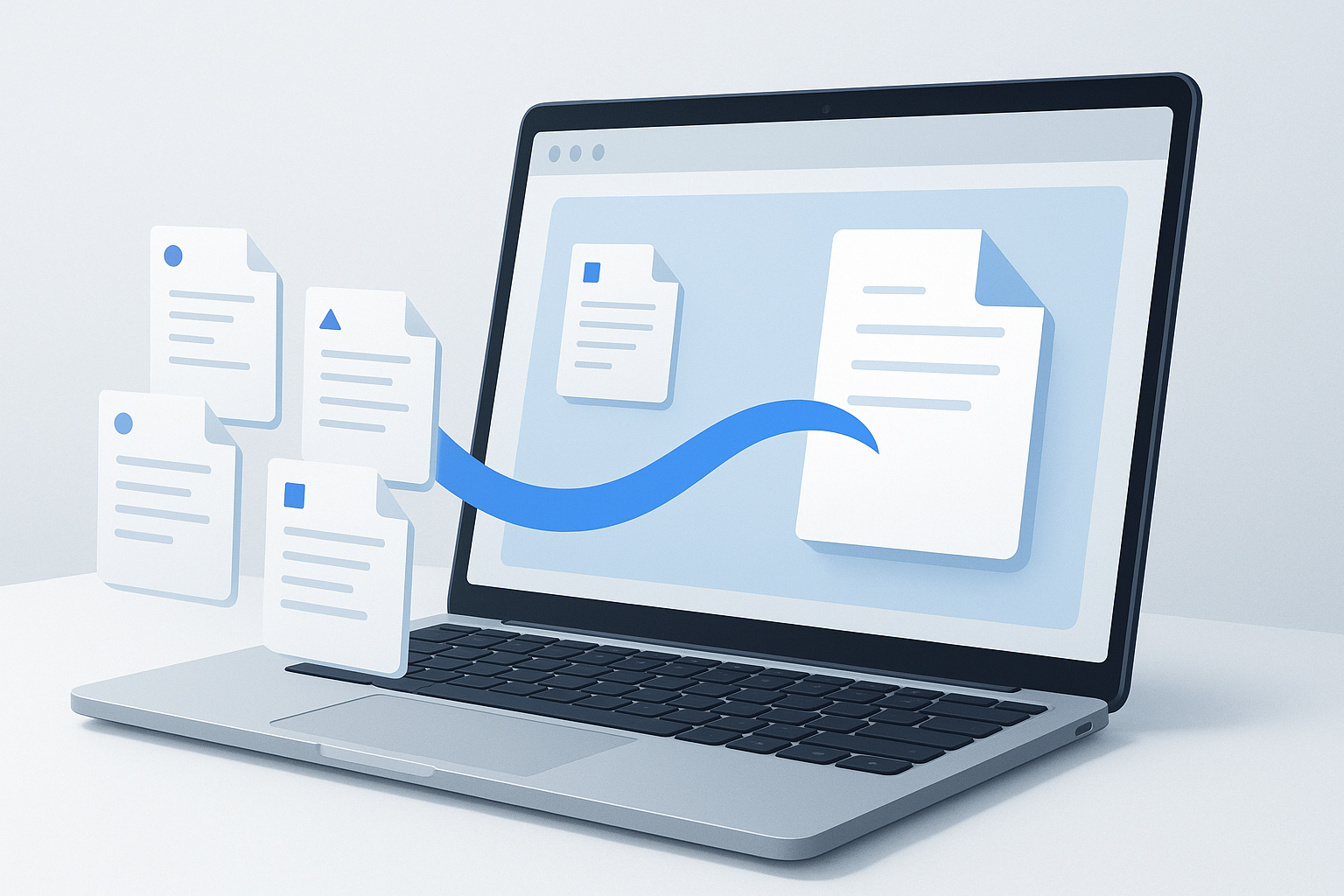
If you already have URLs in a spreadsheet, text file, project brief, or exported list, a bulk workflow is usually easier. A free online tool such as OpenMultiURL lets you paste multiple web addresses and open them at once in separate tabs.
This is often the simplest choice when:
- the list is too long to open manually
- you receive URLs from another person
- you repeat the same research process regularly
- you need to move from a list format directly into browser tabs
4. Restore a previous session
Some browsers can reopen tabs from your last session after a restart or crash. This is helpful for continuity, but it is not a true bulk-opening method because it depends on what was already open before.
Best method by use case
Here is a simple comparison to help you choose the right workflow.
| Method | Best For | Main Benefit | Main Limitation |
|---|---|---|---|
| Manual new-tab opening | 2 to 5 links | Simple and built in | Slow for larger batches |
| Bookmarks folder | Recurring site sets | Easy to reuse | Needs setup and maintenance |
| Bulk URL opener | Lists copied from docs or spreadsheets | Fast for many URLs | You still need valid and safe URLs |
| Session restore | Reopening unfinished work | Saves your prior tabs | Not ideal for fresh URL lists |
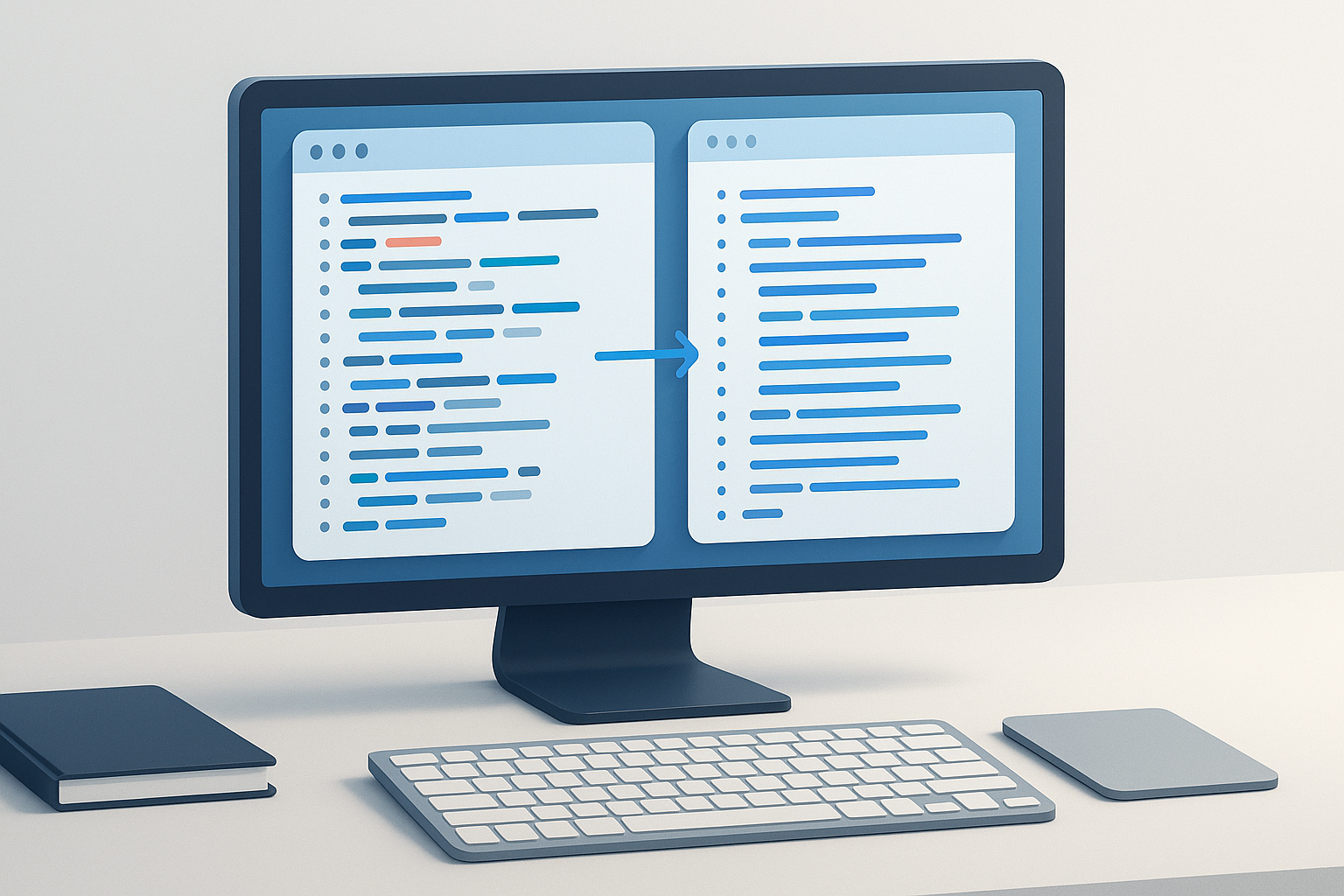
Suggested Image: Manual vs Bulk Browser Tab Workflow
How to open multiple websites in separate tabs step by step
If you already have a list of URLs, a bulk opener is usually the fastest route. Let’s break it down step by step.
- Collect the URLs you want to open. Put them in a clean list from a spreadsheet, document, email, or note. Ideally, use one full URL per line.
- Check the formatting. Make sure each address is complete and uses a valid format such as
https://example.com. This helps avoid failed tabs or accidental searches. - Verify unfamiliar links before opening them. If a URL looks suspicious, shortened, or unrelated to your task, inspect it first. Do not bulk-open links you do not trust.
- Paste the list into a multi-URL tool. OpenMultiURL is a free online tool designed to open multiple URLs at once from a list.
- Launch the URLs. The browser may ask for confirmation or block excessive pop-ups depending on settings and browser behavior.
- Review the opened tabs. Some sites may redirect, require sign-in, or fail to load if the address is outdated.
- Close unnecessary tabs and group the rest. If your browser supports tab groups, use them to keep the session manageable.
How to use a bookmarks folder for repeated website sets
If you open the same collection of sites every day, bookmarks are often better than copying and pasting a list each time. This method works well for dashboards, admin panels, reporting pages, reference sources, or competitor homepages.
- Create a new bookmarks folder. Name it something clear, such as “Daily Research” or “Client Review Tabs.”
- Save each website into that folder. Add the exact pages you actually use, not just the homepages.
- Open the folder in tabs. Most browsers offer an option similar to “Open All” or “Open All in Tabs.”
- Update the folder regularly. Remove outdated URLs and replace pages that now redirect or require a different path.
This method is especially practical when the list stays mostly the same over time.
Practical examples
The easiest way to understand this is to look at real-world uses.
SEO research
An SEO specialist may need to review category pages, blog posts, title tags, and search results for several competitors. Instead of opening each page one by one, they can prepare a list of URLs and open them in separate tabs for side-by-side analysis. For technical SEO concepts like crawling and indexing, Google’s official documentation is the most reliable source: Google Search Central SEO Starter Guide.
Content research
A writer comparing authoritative sources can open official documentation, studies, and reference pages in one session. This reduces context switching and makes it easier to compare wording, definitions, and examples.
Shopping comparison
If you are comparing prices across stores, opening several product or category pages in separate tabs is often faster than using the back button repeatedly.
Client or team workflows
A marketer may receive a spreadsheet of target landing pages, ad destinations, or published articles. Turning that list directly into tabs can save a lot of repetitive clicking during review.
What makes a URL valid enough to open?
Before you bulk-open anything, it helps to understand what a URL is. A URL, or Uniform Resource Locator, is the address used to locate a resource on the web. According to Mozilla Developer Network’s explanation of URLs, a web address usually includes the protocol, domain, and optionally a path, query string, and fragment.
In practice, a usable URL for browser opening usually includes:
- Protocol: such as
https:// - Domain: such as
example.com - Optional path: such as
/blog/article-name - Optional parameters: such as tracking or filtering values after a question mark
If a browser cannot interpret the address correctly, it may search for the text instead of opening the page, or it may fail entirely.
Important limitations to understand
Bulk-opening websites is useful, but it does not guarantee that every tab will behave the same way. There is an important limitation to understand: opening a URL is not the same as bypassing how a website works.
- Some pages require login. If a site needs authentication, the tab may open to a sign-in page instead of the target content.
- Some URLs redirect. A page may send you somewhere else, especially if links are outdated or if the site has changed structure.
- Pop-up protections may interfere. Browsers may limit bulk tab creation depending on settings or user actions.
- Heavy sessions can slow your browser. A large number of tabs uses memory and system resources.
- Some websites behave differently across browsers. Browser version, extensions, and privacy settings can change outcomes.
For background on how redirects work, MDN’s reference on HTTP redirections is helpful.
Best practices before opening a large list of URLs
If you are doing this regularly, there is a simpler workflow than just pasting everything and hoping for the best.
- Clean the list first. Remove duplicates, blank lines, and malformed addresses.
- Open in batches if needed. If you have dozens of links, consider opening 10 to 20 at a time to reduce browser overload.
- Separate URLs by task. Keep research pages, client assets, and general reading in different lists.
- Use browser profiles when appropriate. This helps separate work sessions, logins, and extensions.
- Check for redirects or dead pages. A bulk opener cannot fix outdated URLs.
- Be careful with tracking parameters. UTM parameters are useful for analytics, but they can make URLs longer and messier if your only goal is browsing.
Before opening a long list, spend one minute cleaning the URLs. That minute often saves ten minutes of tab cleanup.
Common mistakes when people open multiple websites in separate tabs
Here’s where many beginners get confused. The issue is rarely the tabs themselves. It is usually the input list or the browser workload.
Opening suspicious links without checking them
This happens when URLs come from unknown messages, copied documents, or unverified exports. It matters because bulk-opening a bad list can expose you to phishing pages or unwanted sites. Always inspect unfamiliar domains first.
Assuming every URL will load correctly
Some links redirect, expire, or point to content behind a login. A tab opening successfully does not mean the intended page is available. Review the results, especially for audits or research tasks.
Using too many tabs at once
Opening a huge list can slow down your browser, drain memory, and make navigation harder. In practice, smaller batches are often faster overall because they are easier to review and close.
Saving messy bookmark folders
Bookmarks are useful only if they stay maintained. If you throw every temporary page into one folder, the folder becomes cluttered and stops being helpful.
Troubleshooting: when URLs do not open properly
If a website fails to open in a separate tab, the cause is usually simple. Start with the URL itself before assuming the tool or browser is broken.
Problem: the browser opens a search instead of the site
Possible reason: The text is not a full URL. It may be missing the protocol or contain extra characters.
What to do: Make sure the address is formatted like https://domain.com and remove punctuation accidentally copied from a sentence.
Problem: the tab opens, but the page is not the one you expected
Possible reason: The URL redirects or the page moved.
What to do: Check the final destination and update your saved list if the redirect is permanent.
Problem: several tabs open to a sign-in page
Possible reason: The sites require authentication.
What to do: Log in first if you have authorized access. Bulk opening does not bypass account permissions.
Problem: nothing happens or only some tabs open
Possible reason: Browser tab or pop-up restrictions, resource limits, or extension conflicts.
What to do: Try a smaller batch, review browser permissions, or disable conflicting extensions temporarily if safe to do so.
Browser considerations
All major browsers support multiple tabs, but the exact shortcuts and menu options can differ. Browser interfaces also change over time, so avoid relying on one exact button label unless you have just verified it.
| Browser | Usually supports | What to keep in mind |
|---|---|---|
| Chrome | Tabs, bookmarks folders, session restore | Heavy tab sessions can consume memory quickly |
| Edge | Tabs, collections or bookmarks-style workflows | Interface details may vary by version |
| Firefox | Tabs, bookmark folders, restore options | Some settings and extensions affect tab behavior |
| Safari | Tabs and bookmark-based opening | Mac and iOS behavior may differ |
If you want official browser behavior details, check vendor documentation such as Google Chrome help for tabs and windows. Options can change, but the general tab workflow remains consistent.
When a bulk URL tool is the better option
Manual opening is fine for a few links. A bookmarks folder is better for repeated routines. But if your URLs live outside the browser, a bulk opener saves the most time.
OpenMultiURL is useful when you:
- copy links from a spreadsheet or CSV
- receive URL lists from clients or teammates
- open the same research set regularly but do not want to manage bookmarks
- need a quick one-time batch session
It is still important to use valid URLs, review the opened tabs, and understand that some pages may require a login or redirect elsewhere.
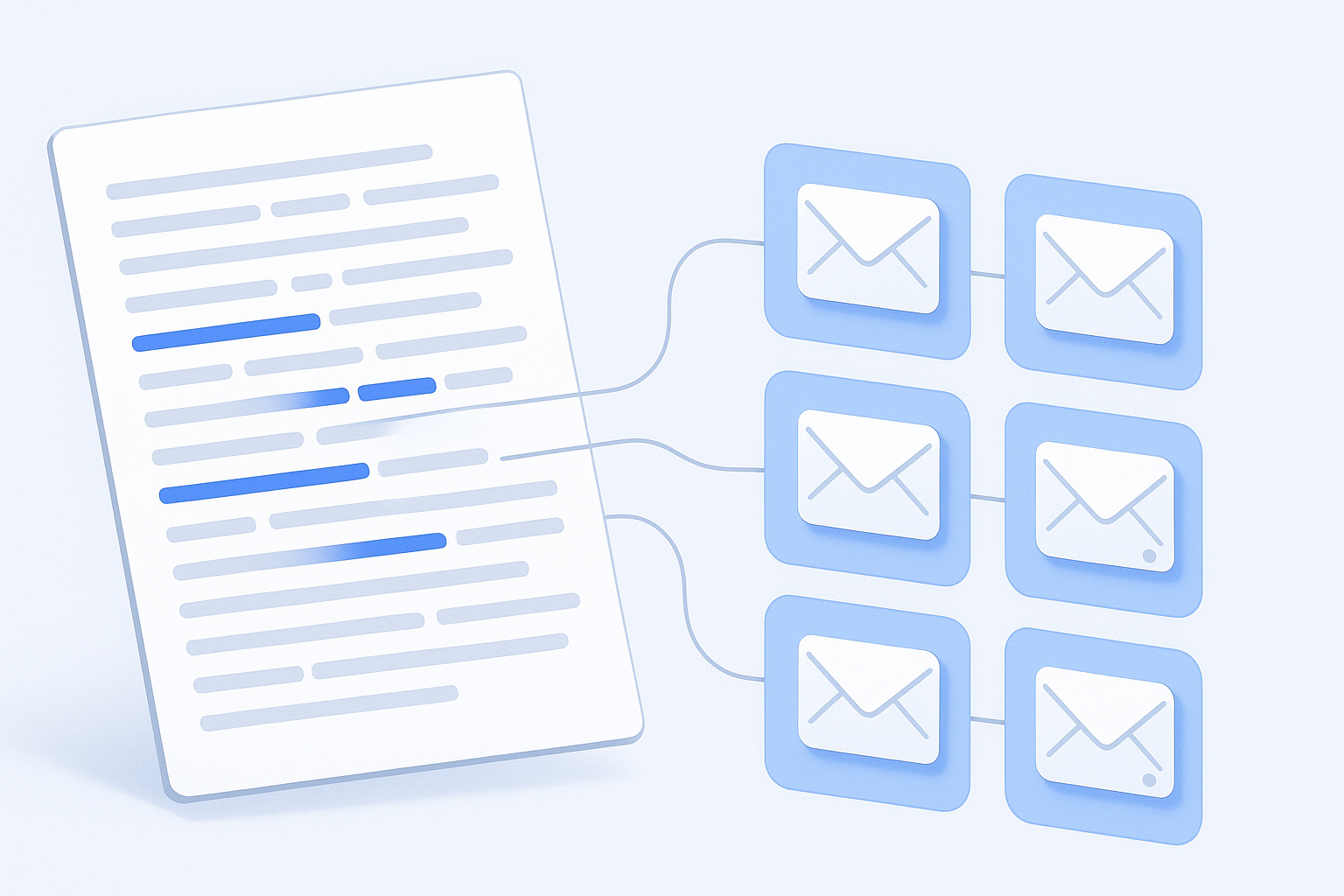
Suggested Image: Multiple URLs Pasted Into a Browser Productivity Tool
Tips for keeping large tab sessions manageable
Opening websites is only half the task. Managing the result matters just as much.
- Name your source lists clearly. For example: “Competitor category pages” or “Client QA pages.”
- Open by priority order. Put your most important URLs first so they appear in a useful sequence.
- Use tab groups if your browser supports them. This makes bigger sessions easier to review.
- Close finished tabs aggressively. Leaving everything open increases clutter and memory usage.
- Store reusable URL sets. Keep them in a document, spreadsheet, or bookmark folder depending on how often they change.
Frequently asked questions
Can I open multiple websites in separate tabs without installing anything?
Yes. You can use built-in browser features such as middle-clicking links, opening bookmarks folders in tabs, or restoring previous sessions. These methods work well for small or repeatable sets of websites. If you already have a long URL list outside the browser, a web-based tool can be easier, but it is not the only option.
What is the fastest way to open a large list of URLs?
If the URLs are already in a spreadsheet, text file, or email, the fastest method is usually to paste them into a bulk URL opener. That removes the need to click each link individually. Before doing that, clean the list first by removing duplicates, incomplete addresses, and anything you do not recognize.
Why do some websites open to a login page instead of the content I expected?
Many websites protect content behind authentication. If a page requires an account, the browser will open the site but redirect you to sign in first. This is normal behavior. Opening multiple tabs does not bypass access controls, account permissions, or subscription requirements.
Will opening many tabs at once slow down my browser?
It can. Each tab may use memory, processor resources, and network activity, especially if the pages are heavy or use a lot of JavaScript. If your browser becomes sluggish, open the list in smaller batches, close finished tabs sooner, or reduce the number of background tabs loading at the same time.
Is it safe to bulk-open a list of links?
It can be safe if you trust the source and verify unfamiliar domains first. It is not a good idea to bulk-open random, shortened, or suspicious URLs from unknown messages. A safer workflow is to scan the list, confirm the domains are expected, and remove anything questionable before launching the tabs.
Can I use this workflow for SEO or competitor research?
Yes. Opening multiple sites in separate tabs is a practical way to compare page titles, layouts, content structures, category pages, pricing pages, or search result landing pages. Just remember that opening tabs is only a browsing shortcut. It does not analyze SEO automatically, and it does not replace proper auditing tools or manual review.
What should I do if a URL in my list does not open?
Start by checking whether the URL is complete and correctly formatted. Then see if the page redirects, requires a login, or no longer exists. If the list came from a spreadsheet or exported file, confirm that line breaks, punctuation, or extra spaces were not copied into the address. Testing one problem URL manually often reveals the issue quickly.
Should I use bookmarks or a bulk URL opener?
Use bookmarks when you revisit the same set of websites regularly and want a reusable browser-native setup. Use a bulk opener when the list changes often, comes from outside the browser, or is too long to manage comfortably with manual clicks. Many people use both: bookmarks for stable routines and bulk opening for one-off batches.
Conclusion
If you need to open multiple websites in separate tabs, the simplest method depends on the size and frequency of the task. For a few links, built-in browser shortcuts are enough. For repeated website sets, bookmark folders work well. For larger copied lists, OpenMultiURL offers a practical way to launch several URLs at once without the repetitive clicking.
The key is to keep the workflow clean: verify the URLs, open manageable batches, and organize the resulting tabs so the session stays useful instead of overwhelming. If you regularly work from link lists, a lightweight multi-URL workflow can save time while keeping your browser research more structured and accurate.