


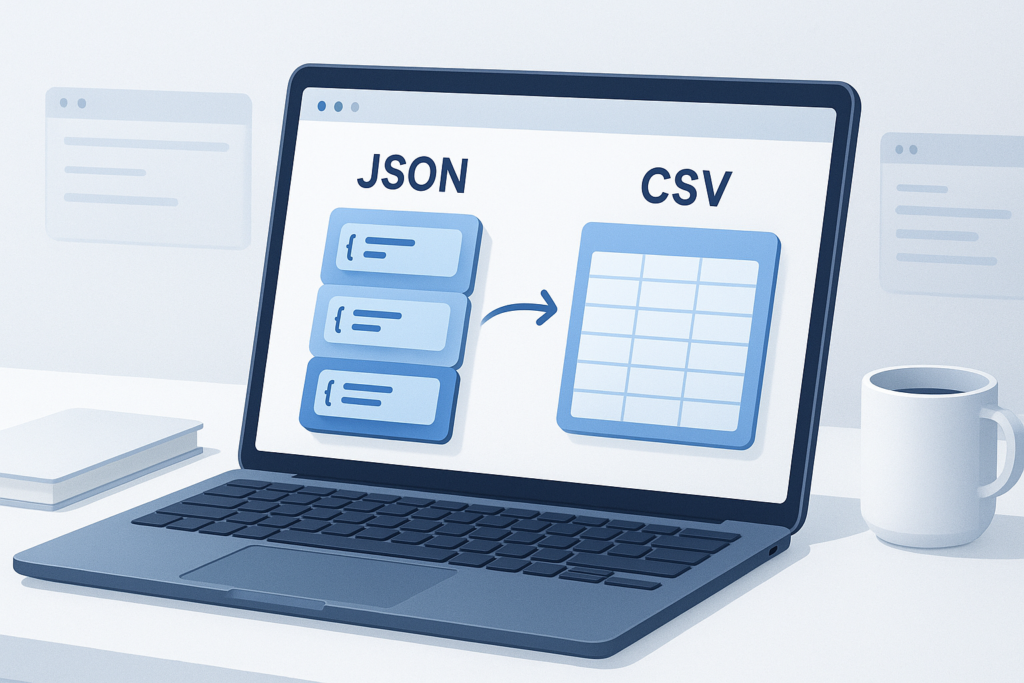
Messy JSON is great for applications, APIs, and logs. It is not great when you need to sort rows in a spreadsheet, send a file to a teammate, or import data into a reporting tool. That is why a JSON to CSV converter is so useful: it turns structured JSON data into a flat, spreadsheet-friendly format you can open almost anywhere.
This guide is for developers, analysts, marketers, and anyone working with exported API data. You will learn what JSON and CSV actually are, when online conversion makes sense, how to convert JSON to CSV online step by step, and how to avoid the formatting issues that usually cause broken columns or missing values. If your goal is to get clean tabular data fast, this is the workflow you need.
Quick answer
To convert JSON to CSV online, paste or upload valid JSON into a JSON to CSV converter, map nested fields if needed, run the conversion, then download the CSV file. The most important part is making sure your JSON is properly formatted first, especially if it contains arrays, nested objects, or inconsistent keys.
What is a JSON to CSV converter?
A JSON to CSV converter is a tool that transforms JSON data into comma-separated values, or CSV. JSON stores data in a structured format using objects and arrays. CSV stores data in rows and columns. The converter bridges that gap by flattening the JSON structure into fields that spreadsheet software and many reporting tools can read.
The easiest way to understand this is through a simple example. JSON might look like this:
[{"name":"Ava","email":"ava@example.com"},{"name":"Liam","email":"liam@example.com"}]
After conversion, the CSV version becomes a table with column headers like name and email, followed by one row per record.
JSON is designed for machines and structured data exchange. CSV is designed for tabular visibility and portability.
Why convert JSON to CSV online?
Online conversion is useful when you need a fast, no-install workflow. Instead of writing a script, opening a terminal, or transforming data manually, you can paste JSON into a browser tool and get a spreadsheet-ready file in seconds.
- Quick reporting: Turn API responses into something Excel or Google Sheets can open.
- Data review: Scan records row by row instead of reading nested JSON.
- Sharing: CSV is easier to pass to non-technical teammates.
- Importing: Many CRMs, databases, and analytics tools accept CSV uploads.
- Auditing: Review exported data for missing fields, duplicates, or formatting problems.
If you only need a one-off conversion, an online tool is often the simplest option. If you do this repeatedly in a larger pipeline, code-based transformation may be better.
JSON vs CSV: what is the difference?
JSON and CSV can both store data, but they serve different purposes. JSON supports nested structures and rich key-value relationships. CSV is flat. That difference matters because complex JSON does not always convert cleanly without decisions about how nested fields should be represented.
| Format | Best For | Strengths | Limitations |
|---|---|---|---|
| JSON | APIs, applications, structured exchange | Supports nesting, arrays, objects, data types | Harder to review in spreadsheets |
| CSV | Spreadsheets, imports, flat datasets | Simple, portable, widely supported | Does not naturally support nested structures |
According to RFC 8259 for JSON, JSON is built around objects and arrays. CSV, as documented in RFC 4180, is much simpler and row-based. In practice, this means conversion usually works best when your JSON is already shaped like a list of similar records.
When a JSON to CSV converter works best
A JSON to CSV converter works best when your data is a clean array of objects where each item uses the same keys. That gives the converter a clear way to build column headers and rows.
Good input for conversion
- An array of customer records
- API exports with consistent fields
- Product lists
- Form submissions
- Event logs with predictable keys
More difficult input
- Deeply nested JSON objects
- Arrays inside arrays
- Records with inconsistent key names
- Mixed data types in the same field
- Malformed JSON with missing commas, quotes, or brackets
Before you begin, keep this in mind: online tools can convert only what they can interpret. If the input structure is confusing or invalid, the output will usually be incomplete, broken, or misleading.
How to convert JSON to CSV online step by step
If your goal is to get a usable CSV file quickly, the safest workflow is to validate your JSON first, then convert, review, and export. Here is a simple step-by-step process.
- Prepare the JSON data. Make sure the content is valid JSON, not JavaScript object syntax or plain text that only looks similar. JSON requires double quotes around keys and string values.
- Check the overall structure. A list of records usually appears as an array, like
[{...},{...}]. This is the most spreadsheet-friendly format. - Paste or upload the JSON into the converter. Depending on the tool, you may paste raw text or upload a
.jsonfile. - Review how nested data is handled. Some converters flatten nested keys into column names such as
user.nameoraddress.city. - Run the conversion. The tool generates rows and columns based on the detected keys.
- Inspect the preview. Check whether columns are aligned properly and whether any values are missing or merged incorrectly.
- Download the CSV. Save the file and open it in spreadsheet software or import it into your target system.
- Verify encoding and delimiters if needed. If special characters look wrong or columns split unexpectedly, the import settings may need adjustment.
Suggested Image: Modern Developer Workflow Illustration Showing JSON Input and CSV Output
Common JSON structures and how they convert
Here is where many beginners get confused. Not all JSON converts the same way. The shape of the data determines how clean the CSV output will be.
Flat array of objects
This is the easiest case. Each object becomes one row, and each key becomes a column header.
[{"id":1,"name":"Desk"},{"id":2,"name":"Chair"}]
This typically becomes:
id,name1,Desk2,Chair
Nested objects
If an object contains another object, the converter has to flatten it. For example, user.name and user.email might become separate columns. Some tools do this automatically, while others may output the nested object as a JSON string inside one cell.
Arrays inside a record
This is more complicated. A field like "tags":["seo","tools","json"] may be joined into a single cell, split in a tool-specific way, or handled inconsistently. If you need cleaner output, you may need to decide whether to join array items with a separator before conversion.
Inconsistent records
If some records have different keys, the CSV will usually include all discovered columns, with blank cells where data is missing. That is normal, but it can make the file look uneven.
Practical examples of JSON to CSV conversion
Let’s look at where this matters in real work.
API response analysis
A developer calls an API and gets a JSON response containing user activity. Exporting that response to CSV makes it easier to filter events, count statuses, and share the file with operations or product teams.
Marketing data cleanup
A marketer exports campaign data from a platform that uses JSON. Converting to CSV allows the file to be uploaded into a spreadsheet, combined with UTM reporting, or reviewed for naming consistency.
SEO and content auditing
If you receive JSON output from a crawler, internal tool, or headless CMS, converting it to CSV can make it easier to review titles, slugs, status values, or content metadata in bulk.
Logging and debugging
Application logs often contain structured JSON. Converting selected records to CSV can help when sorting error types, timestamps, or request outcomes during troubleshooting.
Formatting issues that cause bad CSV output
Most conversion problems come from input quality, not the converter itself. If the source JSON is inconsistent or malformed, the CSV will reflect those problems.
- Invalid JSON syntax: Missing commas, unmatched braces, trailing commas, or single quotes where double quotes are required.
- Mixed record structures: Different objects use different keys, so columns become sparse or confusing.
- Nested arrays: CSV has no natural structure for arrays, so these values may be flattened poorly.
- Embedded commas or line breaks: These are valid in CSV if properly quoted, but some imports still misread them.
- Special characters and encoding issues: Non-ASCII characters may display incorrectly if the file is opened with the wrong encoding.
If you want a quick technical reference on how JSON is structured, the MDN JSON guide is a reliable place to start.
Best practices for cleaner JSON to CSV conversion
The best approach depends on what you are trying to accomplish. If you only need a quick export, basic cleanup may be enough. If the CSV will feed another system, spend a few extra minutes standardizing the data first.
- Use a consistent schema. Keep the same keys across records whenever possible.
- Flatten nested fields before conversion if necessary. This gives you more control over column naming.
- Normalize arrays. Decide whether arrays should be joined into one cell or expanded elsewhere before exporting.
- Use clear field names. Columns like
user_emailare easier to work with than vague labels. - Validate JSON first. Even one formatting error can stop the conversion.
- Review the CSV before sharing. Check blank fields, quotes, delimiters, and special characters.
- Preserve the original JSON file. If something goes wrong, you can reconvert without losing source data.
A good conversion workflow does not end when the CSV downloads. It ends when the output is accurate enough to use confidently.
JSON to CSV converter limitations you should know
Online tools are convenient, but they are not perfect for every dataset. There is an important limitation to understand: CSV is a flat format, so some JSON complexity will always be simplified or compressed during conversion.
- Nested relationships may be reduced. Parent-child structures are hard to represent in one row.
- Arrays may lose context. A list inside a record may be merged into a single cell.
- Large files may be slow. Browser-based tools depend on your device, browser, and available memory.
- Sensitive data requires caution. Do not upload private or regulated data to any online tool unless you trust the environment and understand the risk.
- Tool behavior varies. Different converters flatten fields differently or infer columns using different logic.
For very large, highly nested, or sensitive datasets, a local script or command-line workflow may be the safer option.
Troubleshooting conversion problems
If the output looks wrong, do not assume the CSV format is broken. Start by checking the JSON structure and the way the destination app opens the file.
The converter says the JSON is invalid
This usually means there is a syntax issue. Check for missing commas, unmatched braces, single quotes, comments, or trailing commas. Pure JSON does not allow comments.
Columns are misaligned in the CSV
The file may still be valid, but your spreadsheet app may be using the wrong delimiter or encoding. Some systems expect commas, while others use semicolons depending on locale settings.
Nested fields are missing
The tool may not flatten deeply nested objects automatically. In that case, simplify the JSON first or use a structure with clearer top-level keys.
Some rows have blank cells
This often happens when not every object has the same keys. Blank cells are normal in that situation. The fix is to standardize the source records if possible.
Special characters look broken
Try reopening the file with UTF-8 encoding. CSV is simple, but text encoding still matters. CSV handling can also differ between applications, as described in the Microsoft support documentation for spreadsheet imports and exports.
Online conversion vs script-based conversion
If you do this occasionally, online conversion is usually enough. If you process files regularly, automation may save time and reduce mistakes.
| Method | Best For | Advantages | Trade-offs |
|---|---|---|---|
| Online converter | Quick one-off tasks | Fast, simple, no setup | Less control, privacy considerations, browser limits |
| Script-based conversion | Repeatable workflows | More control, automation, scalable | Requires coding and setup time |
Who benefits most from using a JSON to CSV converter?
This workflow is not just for backend developers. Anyone who handles structured exports can benefit.
- Developers: For inspecting API responses and logs.
- Data analysts: For quickly moving records into spreadsheet tools.
- SEO professionals: For reviewing structured exports from tools or CMS platforms.
- Digital marketers: For campaign data cleanup and reporting workflows.
- Product teams: For reviewing user events or structured feature data.
- Content teams: For auditing metadata, slugs, or publishing records.
Where this fits into a broader web productivity workflow
Converting data is often just one step. After you turn JSON into CSV, you may review the results, extract links, or investigate rows that contain URLs. That is where broader browser productivity practices matter.
For example, if your converted CSV includes landing pages, product URLs, or competitor pages to review, opening them one by one becomes repetitive. In that situation, OpenMultiURL can help by letting you open multiple URLs at once from a list, which is useful for audits, research, and content checks. It does not bypass login requirements or site restrictions, but it can reduce manual browser work when dealing with legitimate public links.
If bulk link workflows are part of your research process, OpenMultiURL is a practical companion after data cleanup.
Common mistakes to avoid
Most errors are preventable once you know where they come from.
- Assuming all JSON is spreadsheet-ready. Deeply nested data often needs cleanup first.
- Ignoring validation. A converter cannot reliably process malformed JSON.
- Uploading sensitive data casually. Use extra caution with personal, financial, private, or regulated information.
- Skipping output review. Downloading the CSV is not the same as verifying it.
- Forgetting about encoding. Broken characters can make a usable export look corrupted.
- Expecting arrays to map perfectly into columns. CSV is flat, so some structure must be simplified.
A simple workflow looks like this: validate, convert, preview, download, then verify in the destination app.
Frequently asked questions
1. Can I convert nested JSON to CSV online?
Yes, but results depend on how the converter handles nested objects and arrays. Nested objects are often flattened into dot-style columns such as user.name. Arrays are harder because CSV has no built-in nested structure. Some tools merge array items into one cell, while others may not handle them cleanly. If the output matters for reporting or importing, review the preview carefully before downloading.
2. Why does my CSV open with all data in one column?
This usually happens because the spreadsheet application is using the wrong delimiter or locale settings. The file may use commas while the app expects semicolons, or vice versa. It can also happen when importing by double-clicking instead of using the app’s import function. Try importing the file manually and selecting the correct delimiter and text encoding.
3. Is it safe to use an online JSON to CSV converter?
It can be safe for non-sensitive data, but you should be careful with anything private, regulated, or confidential. Before uploading data, consider whether it contains personal information, credentials, internal business records, or customer details. If it does, a local conversion method may be more appropriate. Responsible handling matters more than convenience.
4. What is the best JSON format for CSV conversion?
The best format is usually an array of objects where each object uses the same set of keys. That structure maps naturally to rows and columns. For example, a list of products where every item includes id, name, and price will convert much more cleanly than a deeply nested object with mixed record shapes.
5. Can I convert JSON to CSV for Excel or Google Sheets?
Yes. CSV is widely supported by spreadsheet applications, including Excel and Google Sheets. After conversion, open or import the CSV file into the spreadsheet tool. If columns do not appear correctly, check the delimiter, encoding, and line-break formatting. In most cases, the issue is with import settings rather than the CSV itself.
6. Why are some values missing after conversion?
Missing values often appear when records do not all share the same keys, or when nested fields are not flattened as expected. Blank cells usually mean the source record did not include that field. It can also happen when the converter ignores unsupported nested structures. Compare several records in the original JSON to see whether the data is actually present.
7. Should I use an online converter or write a script?
Use an online converter for quick, occasional tasks and small to medium datasets that are not sensitive. Write a script when you need repeatable automation, stronger privacy control, large-file handling, or custom logic for flattening nested data. If this is part of a recurring process, scripting often becomes the more efficient long-term solution.
8. Can JSON to CSV conversion help with SEO or website audits?
Yes, especially when SEO data is exported in JSON from a CMS, API, crawler, or internal tool. Converting that data to CSV makes it easier to filter URLs, titles, metadata, or content fields in a spreadsheet. If the file includes many URLs you need to review manually, a bulk-opening workflow can help once the data is cleaned and organized.
Conclusion
A good JSON to CSV converter saves time by turning structured data into a format that is easier to read, sort, share, and import. The key is not just running the conversion. It is understanding your JSON structure, checking for nested data issues, and reviewing the final CSV before you use it.
If you regularly work with exported web data, this can become part of a much larger productivity workflow. And if that workflow includes reviewing many links from your converted files, OpenMultiURL can help you open multiple URLs at once without the repetitive step of opening each page manually.
The better your input structure, the better your CSV output will be. Start there, and the rest of the process becomes much easier.