


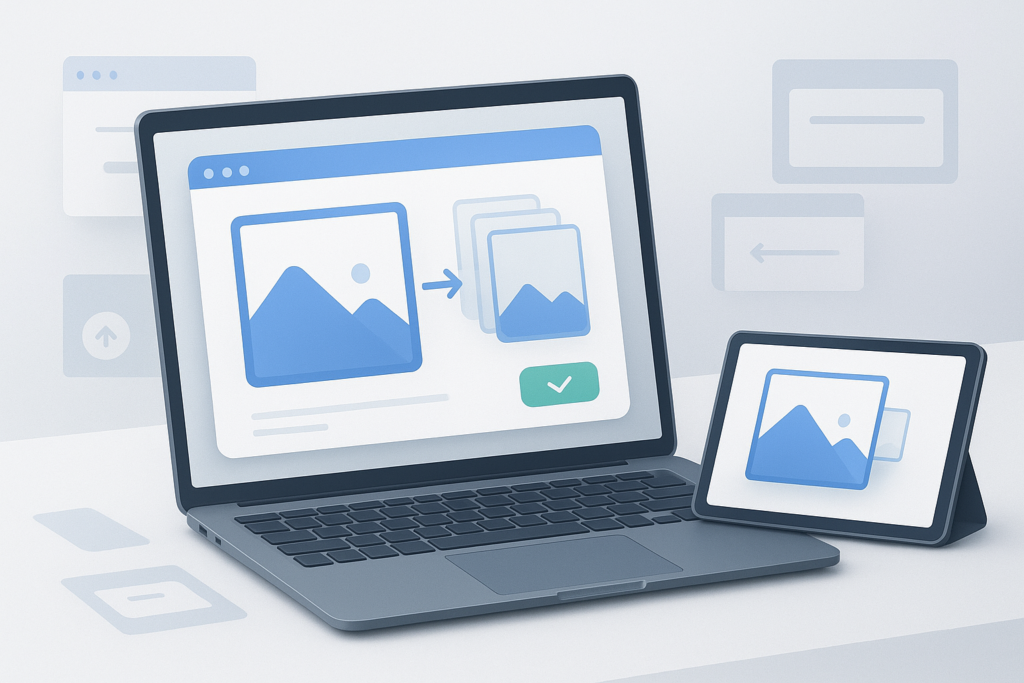
Large image files are one of the most common reasons uploads fail, emails bounce back, and web pages load more slowly than they should. If you have ever tried to send product photos, attach pictures to a form, or publish images on a website, you have probably run into file size limits. That is exactly why people search for how to compress images online: they want smaller files without turning a sharp photo into a blurry mess.
This guide explains what online image compression does, when to use it, how to reduce image size without noticeable quality loss, and which settings matter most. You will also learn the difference between file formats, common mistakes to avoid, and a simple workflow you can reuse for personal, business, and website images.
Quick answer: how to compress images online
To compress images online without losing much quality, upload your image to a trusted image compressor, choose an appropriate format such as JPEG, PNG, or WebP, apply moderate compression, preview the result, and download the optimized file. The best results come from balancing file size, image dimensions, and export format instead of using maximum compression.
What image compression actually means
Image compression reduces the amount of data in an image file so it takes up less storage space and uploads faster. In simple terms, it removes unnecessary information or stores the image more efficiently.
There are two main types:
- Lossy compression: reduces file size more aggressively by removing some image data. This is common with JPEG and often gives the smallest files.
- Lossless compression: keeps all original image data while reorganizing it more efficiently. PNG often uses this approach.
Here is the important part: compressing an image is not always just about quality settings. File format, image dimensions, and the type of image also play a major role.
Why compress images online in the first place?
Smaller images are easier to upload, share, store, and publish. For most people, online compression is useful because it solves a practical problem quickly without requiring design software.
- Faster website loading: smaller files usually load faster in browsers.
- Easier email sharing: attachments are less likely to exceed limits.
- Quicker uploads: forms, marketplaces, and social platforms often reject oversized images.
- Less storage use: compressed files take up less space on your device or cloud storage.
- Better user experience: website visitors do not have to wait as long for visuals to appear.
Google has long emphasized page performance as part of a healthy web experience. If you publish images online, resources such as Chrome Lighthouse guidance on optimized images and web.dev image optimization documentation are useful references.
A smaller image is only better when it still looks good enough for its real purpose.
How to compress images online without losing quality
If you want the best visual result, think of compression as a balance. Your goal is not the lowest possible file size. Your goal is the smallest file that still looks right for where it will be used.
Step-by-step image compression workflow
- Start with a clear source image. If the original image is already blurry or heavily compressed, compressing it again can make it worse.
- Choose a trusted online image compressor. Use a reputable tool and avoid uploading sensitive images to unknown websites.
- Select the right file format. JPEG works well for photos, PNG is better for graphics or transparent backgrounds, and WebP often provides strong compression with good quality.
- Resize the image if needed. If the image will only appear at 1200 pixels wide on a website, there is usually no reason to keep a 5000-pixel-wide original.
- Apply moderate compression. Start in the middle rather than choosing the strongest setting immediately.
- Preview the result closely. Check text, faces, edges, gradients, and detailed areas where artifacts are easiest to notice.
- Download and compare. Look at the original and compressed versions side by side before replacing the file everywhere.
- Rename the file clearly. Use descriptive names such as
team-photo-web.webporproduct-front-1200.jpgso files stay organized.
Suggested Image: Before-and-after online image compression preview with file size comparison
Choosing the best format before you compress
Many people focus only on the compression slider, but format choice often has a bigger impact. The best approach depends on the image itself.
| Format | Best for | Strengths | Watch out for |
|---|---|---|---|
| JPEG / JPG | Photos and realistic images | Small file sizes, widely supported | Repeated saving can reduce quality |
| PNG | Logos, screenshots, graphics, transparency | Sharp edges, lossless support, transparent background | Can be much larger than JPEG for photos |
| WebP | Web images | Often smaller than JPEG and PNG at similar quality | Some older workflows or software may not handle it well |
| AVIF | Modern web delivery | Very efficient compression | Compatibility and workflow support can vary |
For official format details, Google provides a helpful overview of WebP image format, and MDN documents modern browser image support at MDN image file type guidance.
When quality loss is acceptable and when it is not
Not every image needs pixel-perfect quality. A large blog header, a marketplace product image, and a scanned document all have different requirements.
Good candidates for stronger compression
- Blog post feature images
- Social media graphics
- Images sent in email
- Photos uploaded to forms with strict limits
- General website content where slight changes are hard to notice
Images that need more caution
- Text-heavy screenshots
- Logos with sharp edges
- Design mockups
- Print files
- Medical, legal, or archival images
A simple rule helps here: if viewers need to zoom in, read fine text, or inspect details closely, use lighter compression and keep dimensions appropriate.
The easiest way to reduce file size without making images look bad
If you are learning how to compress images online, the most effective method is usually a combination of resizing and compression, not compression alone.
- Reduce dimensions first. A 4000-pixel-wide image is often unnecessary for web use.
- Pick the right format. Do not save a photo as a large PNG unless you have a specific reason.
- Compress gradually. Moderate compression often gives a major size reduction with minimal visible change.
- Check at normal viewing size. An image may look imperfect at 300% zoom but perfectly fine on a webpage.
In practice, this means a 6 MB phone photo might become a much smaller web-ready file simply by resizing it to a sensible width and saving it in an efficient format.
Practical examples of online image compression
Here is how different users might approach the same task.
Website owner uploading blog images
A website owner takes a 5000-pixel image from a camera, resizes it for article use, converts it to JPEG or WebP, applies moderate compression, and checks that it still looks sharp in the page layout. This helps page speed and improves visitor experience.
Student submitting a form with file size limits
A student has to upload a scanned image that exceeds the allowed size. Instead of taking a lower-quality screenshot, they compress the original carefully and verify that names, dates, and text still remain readable.
E-commerce seller listing product photos
A seller wants images that load fast but still show product detail. They compress multiple storefront images while keeping stronger quality on close-up shots where texture matters.
Digital marketer managing many image assets
A marketer often reviews many landing pages, graphics, and uploads in one session. In that larger workflow, using a simple browser productivity tool such as OpenMultiURL for opening batches of related pages can reduce repetitive tab work, while a separate image compressor handles the image optimization itself.
Best practices for compressing images online
The best results usually come from a repeatable workflow rather than trial and error on every file.
- Keep a backup of the original image. Never overwrite the only high-quality copy.
- Compress from the original, not from a previously compressed file. Re-compressing can stack visible artifacts.
- Resize for actual use. Match the image to the approximate display size.
- Use descriptive filenames. This improves organization and can help with media management.
- Check transparency before changing formats. JPEG does not support transparent backgrounds.
- Preview on both desktop and mobile screens. Some issues become more obvious on one device than another.
- Be careful with sensitive images. For private documents or personal information, review a tool’s privacy practices before uploading.
Suggested Illustration: File format decision tree for JPEG, PNG, and WebP
Common mistakes people make when compressing images
Most quality problems come from a few predictable errors. Once you know them, they are easy to avoid.
Using maximum compression immediately
This happens because people want the smallest possible file. The problem is that aggressive compression often creates visible artifacts, especially around faces, edges, or text. Start with moderate compression and adjust only if needed.
Ignoring image dimensions
Many users try to compress a huge image file without reducing width or height. That often leaves unnecessary data in the file. If the image only needs to display at web size, resizing first usually helps more.
Choosing the wrong format
Photos saved as PNG can stay unnecessarily large. Screenshots with text saved as JPEG can become fuzzy. Match the format to the content.
Compressing an already compressed image again and again
Every lossy re-save can reduce quality further. Always go back to the original file when possible.
Uploading private images to unknown tools
This is a practical safety issue, not just a quality issue. If an image contains personal, financial, legal, or internal business information, use only trusted services and review their privacy terms.
Limitations of online image compression tools
Online tools are convenient, but they are not perfect for every situation.
- Upload limits may apply. Some tools accept only certain file sizes or formats.
- Quality controls vary. Some tools give detailed settings, while others automate everything.
- Privacy matters. You may be uploading files to a third-party server.
- Internet connection affects speed. Large uploads can be slow on weak connections.
- Not every format is supported equally. Browser and tool support can change over time.
- Results are not magically lossless. If you need a dramatic size reduction, some quality trade-off is often unavoidable.
Before you begin, keep this in mind: online compression is excellent for everyday web use, but for highly sensitive content, print production, or advanced editing, dedicated offline software may be the better option.
Troubleshooting common image compression problems
If the first result is disappointing, the issue is usually easy to identify.
The image looks blurry after compression
Possible reasons include too much lossy compression, resizing too aggressively, or using JPEG for text-heavy graphics. Try lighter compression, larger dimensions, or a different format such as PNG or WebP.
The file size is still too large
The image may still be much larger than needed in pixel dimensions, or the selected format may be inefficient for that image type. Resize it further and test another format.
Transparent background disappeared
This usually happens when converting a PNG to JPEG. If transparency matters, use PNG or another format that supports it.
The website still loads images slowly
Compression helps, but it is only one factor. Caching, responsive image handling, lazy loading, and page design also affect performance. Google’s SEO Starter Guide and image best practices can help if you are publishing at scale.
The compressed image looks fine on desktop but poor on mobile
Small screens can hide some flaws, but mobile browsers may also display images in different sizes or compressed contexts. Test the image where real users will actually see it.
How image compression helps websites and SEO
Image compression does not directly guarantee rankings, but it can support better site performance and usability. Smaller image files can improve loading speed, reduce bandwidth use, and make pages feel more responsive.
From an SEO perspective, that matters because faster, cleaner pages create a better user experience. Image optimization also works best when combined with:
- descriptive file names
- useful alt text
- proper image dimensions
- responsive delivery
- efficient formats
If you regularly audit pages, image-heavy content, and competitor examples, organizing your browser workflow matters too. For broader research sessions, a tool like OpenMultiURL can help open multiple URLs at once for side-by-side review, while image compression helps prepare the actual media assets.
A simple workflow for people managing many images
If you compress images often, standardize the process. This saves time and reduces inconsistent results.
- Create an original files folder.
- Create a web-ready export folder.
- Rename files consistently.
- Choose standard target widths for your website or workflow.
- Use one preferred format for each image type.
- Check a few samples visually before processing everything.
- Upload and test on the final destination.
If your broader workflow includes reviewing many pages before updating content, OpenMultiURL can be useful for opening batches of URLs related to image audits, landing pages, or content updates. It will not compress images for you, but it can reduce repetitive browser work during research and review.
Frequently asked questions
1. Can I compress images online without losing any quality at all?
Yes, but only in some cases. Lossless compression can reduce file size without removing image data, which is common with PNG and certain optimized formats. However, if you want a much smaller file, some quality trade-off is often necessary. For everyday web use, the practical goal is usually to reduce file size enough that visual changes are minimal or unnoticeable.
2. What is the best format for compressing photos online?
JPEG is still a common choice for photos because it creates relatively small files and works almost everywhere. WebP often gives even better compression for web use at similar visual quality. The best format depends on where the image will be used, whether transparency is needed, and how modern your publishing workflow is.
3. Should I resize an image before compressing it?
Usually, yes. Resizing often provides one of the biggest file size reductions because it lowers the total number of pixels in the image. If your website, form, or email only needs a smaller version, compressing a huge original without resizing first keeps unnecessary data. Resize carefully so the image still matches its intended display size.
4. Why do screenshots sometimes look bad after compression?
Screenshots often contain text, icons, hard edges, and flat color areas. JPEG compression can introduce visible fuzziness around those details. In many cases, PNG or WebP is a better choice for screenshots. If the screenshot includes important text, always zoom in and check readability before using the compressed version.
5. Is it safe to use online image compressors?
It can be safe, but you should be selective. Only use trusted services, especially for images containing personal, financial, medical, legal, or internal business information. Before uploading sensitive files, review the tool’s privacy and retention policies. If the image is highly confidential, an offline workflow may be the safer option.
6. Does image compression improve SEO?
Image compression can support SEO indirectly by helping pages load faster and improving user experience. It does not automatically increase rankings on its own. Stronger results usually come from image optimization combined with good page structure, relevant content, efficient coding, and clear technical SEO practices.
7. How much should I compress an image?
There is no single perfect number because it depends on the image type, format, and use case. Start with moderate compression, then preview carefully. If faces, text, or sharp edges begin to look distorted, reduce compression or switch formats. The best setting is the smallest file that still looks right where users will actually view it.
8. Can I compress multiple images for a website workflow?
Yes. Many online tools support batch processing, although available features vary. If your work involves many pages as well as many images, it helps to separate tasks: use an image tool for optimization and a browser productivity tool for opening related pages in bulk. That keeps your publishing and review process more organized.
Conclusion
Learning how to compress images online is really about making smarter trade-offs. The best result is not the tiniest file. It is the smallest file that still looks good for its actual purpose. If you choose the right format, resize before compressing, and preview carefully, you can usually cut file size dramatically without obvious quality loss.
For one-off uploads, this process is simple. For ongoing website, content, or marketing work, creating a repeatable workflow saves even more time. And if your image tasks involve reviewing many web pages along the way, OpenMultiURL can help you open multiple URLs at once and make that broader browser workflow easier to manage.