


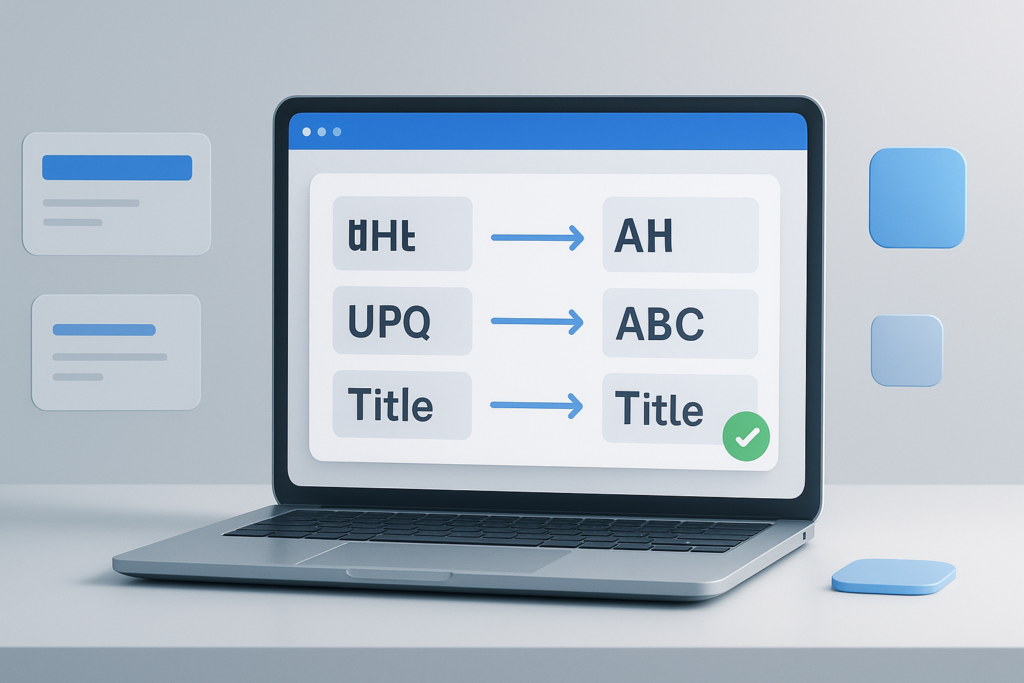
Copied text rarely arrives in the format you need. A heading might be all caps, a paragraph might be in lowercase, or a list from a spreadsheet might use inconsistent capitalization. If you are trying to clean up titles, emails, essays, product names, or pasted notes, learning how to change text case online can save a surprising amount of time.
This guide explains what text case means, when different capitalization styles are useful, and how to convert text safely in a browser without manual retyping. You will also learn the difference between common case formats, how to avoid formatting mistakes, and when an online case converter is the simplest option for repeated text-editing tasks.
Quick answer: how to change text case online
To change text case online, paste your text into a case conversion tool, choose the format you want, and copy the updated result. Common options include lowercase, UPPERCASE, Sentence case, and Title Case. This is useful when fixing copied text quickly without editing every word by hand.
What changing text case online means
Changing text case online means using a browser-based tool to convert how letters are capitalized in your text. The words stay the same, but the capitalization pattern changes. For example, hello world can become Hello World or HELLO WORLD depending on the format you choose.
This is especially helpful when text comes from sources that strip formatting, such as PDFs, spreadsheets, forms, chat messages, or copied website content.
Common text case formats
Here are the capitalization styles most people use:
- lowercase: every letter is lowercased
- UPPERCASE: every letter is capitalized
- Sentence case: the first letter of a sentence is capitalized
- Title Case: major words are capitalized, often used for headings
- tOGGLE cASE: letters switch from upper to lower and lower to upper
The exact options can vary by tool, so it helps to review the output before using it in published content.
Why people need to change text case online
Most users do not search for a case converter because they want a writing lesson. They search because they need to fix text fast. The goal is usually accuracy, consistency, and less repetitive editing.
- Writers use it to clean headings and subheadings
- Students use it to repair copied notes and assignments
- Marketers use it for ad copy, email subject lines, and content drafts
- Business users use it for product lists, spreadsheets, and documents
- Everyday web users use it when pasted text looks messy
A simple formatting tool is often faster and more accurate than manually fixing capitalization line by line.
How to change text case online step by step
If you want the fastest workflow, the process is very simple. You do not need advanced writing software or a desktop app for basic case conversion.
- Copy the text you want to fix. This could be a title, paragraph, email draft, spreadsheet row, or note.
- Open an online case converter. Paste your text into the input area.
- Select the case format. Choose lowercase, uppercase, sentence case, title case, or another available option.
- Review the result carefully. Check names, acronyms, branded terms, and punctuation before reusing the text.
- Copy the converted text. Paste it into your document, CMS, email, or browser form.
That is the core process for anyone learning how to change text case online. The extra step that matters most is reviewing the result, especially when your text includes initials, abbreviations, or custom capitalization.
Suggested Image: Clean illustration of pasted text being converted into lowercase, UPPERCASE, Sentence case, and Title Case
Which text case should you use?
The best format depends on what you are writing. Many formatting mistakes happen because users pick a capitalization style that does not match the context.
| Case Type | Best For | Watch Out For |
|---|---|---|
| lowercase | usernames, tags, informal notes, some data cleanup | can make headings and names look unfinished |
| UPPERCASE | labels, short warnings, visual emphasis | harder to read in long paragraphs |
| Sentence case | articles, emails, body text, plain-language headings | may not preserve intentional capitalization everywhere |
| Title Case | blog titles, page headings, presentations | style rules vary by guide and tool |
| tOGGLE cASE | specific editing tasks or corrections | rarely appropriate for final publishing |
Manual editing vs using a case converter
You can change capitalization manually, but it becomes inefficient once the text is longer than a few words. A tool is usually better when consistency matters.
| Method | Good For | Limitations |
|---|---|---|
| Manual editing | one or two words, quick corrections | slow, inconsistent, easy to miss mistakes |
| Online case converter | titles, paragraphs, repeated workflow tasks | still requires review for acronyms and proper nouns |
If you regularly clean copied text from multiple sources, an online tool is usually the more practical choice.
Practical examples of changing text case online
The easiest way to understand this is to look at real-world uses.
Fixing a blog headline
You paste a headline from a spreadsheet and it appears as HOW TO IMPROVE EMAIL OPEN RATES. If your style guide prefers normal readability, converting it to title case or sentence case gives you a cleaner draft immediately.
Cleaning copied notes
A student copies lecture notes from a PDF and gets inconsistent capitalization. Running the text through sentence case can make the content easier to read before saving it into a document.
Formatting product data
An e-commerce manager exports product names in all lowercase. Using title case can help prepare them for review, though branded terms should still be checked manually.
Repairing form entries
If a list of names, locations, or labels was entered in all caps, converting the text can speed up cleanup before uploading or reusing the data elsewhere.
Best practices when using an online case converter
Case conversion is simple, but a few habits make the result much more reliable.
- Review proper nouns: names, brands, places, and job titles do not always convert perfectly
- Check acronyms: terms like SEO, HTML, URL, API, and PDF may need manual correction after conversion
- Look at punctuation: some tools focus on letters only, so sentence structure still matters
- Use the right style for the platform: email subject lines, web headings, and article body text often use different capitalization rules
- Avoid pasting sensitive information into random tools: if text includes private or confidential data, be cautious about where you process it online
For web writing, consistency matters almost as much as grammar. Google’s helpful content systems reward clarity and user-first formatting, and that usually starts with readable text rather than distracting capitalization patterns. You can learn more from Google’s guidance on creating helpful, people-first content.
Common mistakes when changing text case online
Here is where many beginners get confused. A case converter changes capitalization patterns, but it does not always understand meaning.
Assuming the output is always publication-ready
This is the biggest mistake. A tool can convert letters, but it might not know whether apple should stay generic or become Apple as a brand name.
Using title case for everything
Title case is useful for headings, not for every paragraph. Body text should usually stay in sentence case for readability.
Forgetting style guide differences
Different organizations capitalize headings differently. Some capitalize most major words. Others prefer sentence case across page titles and interface labels.
Ignoring abbreviations
A word like api may need to become API, not Api. This is common in technical and marketing content.
Processing confidential text carelessly
If the text contains passwords, private customer details, or internal business information, do not paste it into unfamiliar websites. Basic web safety still applies to everyday formatting tasks.
Limitations of online case conversion tools
There is an important limitation to understand: text conversion tools work on patterns, not true editorial judgment. They can save time, but they cannot fully replace proofreading.
- They may not handle every acronym correctly
- They may not follow your company or publication style guide
- They may convert branded capitalization incorrectly
- They may not detect sentence boundaries perfectly if punctuation is inconsistent
- Some tools may behave differently on mobile devices or small screens
Browser behavior can also vary. Depending on the browser version, text selection, clipboard permissions, and pasted formatting may not behave exactly the same in Chrome, Edge, Firefox, or Safari.
For general browser behavior and web compatibility, MDN Web Docs is one of the most reliable references.
How text case affects readability and content quality
Changing text case online is not just about appearance. Capitalization affects readability, scanning, and perceived quality.
- Sentence case is usually easiest to read in long text
- Title Case helps headings stand out
- ALL CAPS can feel aggressive or visually heavy
- all lowercase may look casual but can reduce clarity in formal writing
For writers, editors, and marketers, good capitalization supports cleaner on-page structure. That matters for users first, but it also helps search engines interpret headings and visible content more clearly. Google’s SEO starter documentation emphasizes clear, useful content and understandable page structure over formatting tricks. See Google’s SEO Starter Guide for foundational guidance.
When a text case workflow becomes part of a bigger productivity system
If you are editing content regularly, changing text case is often one small step inside a larger browser workflow. You may gather titles, open research pages, compare competitor headings, or clean lists copied from search results and spreadsheets.
In practice, this means your writing process can benefit from a combination of small web tools rather than one large platform. If you regularly work with multiple research pages at once, OpenMultiURL can help you open multiple URLs from a list in one action, which is useful when reviewing headings, metadata, or source pages during editing and research.
Suggested Diagram: Content editing workflow showing copied text cleanup, source review, and multi-page research in browser tabs
Tips for safer and more accurate browser-based text editing
Before you begin, keep this in mind: simple tools are convenient, but careful habits protect your data and reduce formatting mistakes.
- Verify the site before pasting important text
- Do not paste passwords, financial data, or sensitive client information
- Keep a copy of the original text in case you need to compare versions
- Double-check capitalization for names, brands, and technical terms
- Test final formatting where it will actually appear, such as your CMS, document editor, or email platform
If you are using copied text in web publishing, it also helps to review how headings and page titles are used. Google’s documentation on title links explains why visible text and page titles should be accurate and descriptive. See Google Search Central’s title links documentation.
Troubleshooting common text case problems
If the converted text does not look right, the issue is usually easy to fix.
The output changed acronyms incorrectly
Manually restore terms such as SEO, HTML, CSS, URL, API, or PDF after conversion. Most general case tools do not reliably preserve every acronym.
Names or brands look wrong
Check custom spellings like iPhone, YouTube, OpenAI, or eBay. Brand capitalization often does not follow normal title case rules.
Sentence case looks incomplete
If the original text had missing punctuation or line breaks, the tool may not correctly detect where one sentence ends and another begins. Add punctuation first, then convert again if needed.
Pasted text includes strange formatting
Some copied content brings hidden spaces, line breaks, or unusual symbols. Try pasting as plain text first, then run the conversion.
Frequently asked questions
1. What is the easiest way to change text case online?
The easiest method is to copy your text, paste it into an online case converter, choose the format you want, and copy the result back out. This is faster than retyping capitalization manually, especially for headings, paragraphs, and long copied notes. It works best when you still take a few seconds to review proper nouns and acronyms afterward.
2. Can an online case converter fix grammar too?
No. A case converter changes capitalization, not grammar, spelling, or wording. It can turn lowercase text into sentence case or uppercase into title case, but it will not rewrite awkward sentences or correct factual mistakes. If your text also needs editing, use case conversion first and proofreading second.
3. Is title case the same as sentence case?
No. Title case capitalizes major words in a heading, such as How to Change Text Case Online. Sentence case typically capitalizes only the first word and proper nouns, such as How to change text case online. Both are correct in different contexts. Headings, interfaces, and editorial style guides often determine which one is preferred.
4. Why do acronyms sometimes convert incorrectly?
Most case tools apply general capitalization patterns rather than understanding every abbreviation. That means a term like SEO can sometimes become Seo in title case or sentence case. The same issue affects technical terms such as URL, HTML, API, and PDF. A quick manual review solves this in most cases.
5. Is it safe to paste text into an online tool?
It depends on the text and the website. For ordinary public writing, such as blog drafts or homework notes, browser-based tools are usually fine. But you should avoid pasting passwords, confidential company information, customer records, or anything sensitive into unfamiliar sites. Good security habits still matter, even for simple formatting tasks.
6. Can I change text case online on a phone?
Yes, in most cases. Many browser-based text tools work on mobile devices, tablets, and desktop browsers. The experience may be less comfortable on a small screen, especially with long text blocks, but the basic process is the same: paste, convert, review, and copy. Interface details may vary by browser and device.
7. Does text case matter for SEO?
Text case does not directly improve rankings by itself, but it affects readability, professionalism, and user experience. Clear headings and well-formatted page text are easier for visitors to scan and easier to maintain consistently across a site. For SEO, capitalization should support clarity rather than act as a ranking tactic.
8. When should I use an online tool instead of editing by hand?
Use an online tool when you are working with repeated text cleanup, long copied passages, inconsistent capitalization, or bulk content from spreadsheets and documents. Manual edits are fine for a few words. Once you are correcting the same issue across multiple lines, a converter is usually faster and less error-prone.
Conclusion
If you need to know how to change text case online, the simplest answer is to use a browser-based converter, choose the right capitalization style, and review the result before publishing or sharing it. It is a small task, but it can noticeably improve readability, consistency, and editing speed.
For occasional use, this is a quick formatting fix. For frequent content work, it becomes part of a smarter browser workflow. And if your process also involves opening groups of research pages, source lists, or review links, OpenMultiURL can help reduce repetitive tab-opening work alongside your text editing tasks.