


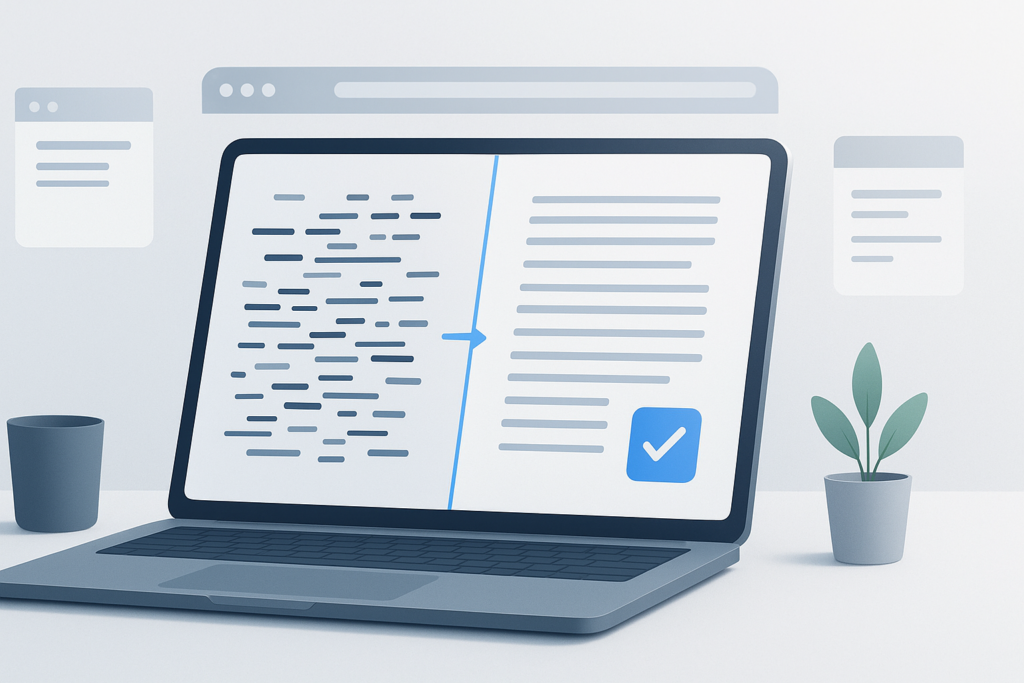
Copying text from websites, PDFs, spreadsheets, emails, or AI tools often creates a mess: extra spaces, broken line breaks, strange symbols, inconsistent quotes, and formatting that refuses to paste cleanly. If you need to clean messy text online, the goal is simple: turn hard-to-use text into plain, readable, reusable content without editing every line by hand.
This guide is for everyday web users, writers, students, marketers, researchers, and anyone who works with copied text. You’ll learn what text cleaning actually means, which problems it solves, how to do it step by step, and what to watch out for when using online tools. If you regularly move information between tabs, documents, and websites, a cleaner text workflow can save a surprising amount of time.
Quick answer
To clean messy text online, paste your text into a text-cleaning tool and remove unwanted spaces, line breaks, symbols, duplicate blank lines, or formatting. The best approach depends on what is wrong with the text: some cases need whitespace cleanup, while others need quote normalization, plain-text conversion, or line merging.
What does it mean to clean messy text online?
Cleaning messy text online means fixing text problems in a browser-based tool so the content becomes easier to read, edit, paste, search, or publish. Usually, this involves removing unwanted characters or inconsistent formatting rather than rewriting the meaning of the text.
Common text-cleaning tasks include:
- Removing extra spaces
- Deleting repeated blank lines
- Converting curly quotes to straight quotes
- Stripping formatting from copied content
- Fixing line breaks from PDFs or emails
- Removing tabs or nonstandard spacing
- Cleaning pasted text before reuse in forms, CMS platforms, or spreadsheets
The easiest way to understand this is to think of text cleaning as a reset. You are keeping the words, but removing the clutter around them.
Why messy text happens in the first place
Messy text usually comes from copying content between systems that handle formatting differently. A webpage, PDF, word processor, email app, spreadsheet, and browser form field do not always interpret spaces, line breaks, quotation marks, and hidden characters the same way.
Here are some of the most common causes:
- PDF copy and paste: words may break into separate lines or include irregular spacing.
- Web page copying: hidden formatting and non-breaking spaces can come along with the text.
- Email threads: replies often include inconsistent indentation and quoted lines.
- Spreadsheet exports: tabs, line breaks, and empty cells can affect text structure.
- AI-generated content: copied output may include inconsistent bullets, spacing, or quotation marks depending on the destination.
- OCR text: text extracted from scanned documents can contain strange character substitutions.
A good text-cleaning workflow removes noise without changing the intended meaning of the content.
When you should clean messy text online
You do not need a cleaning tool for every small paste job. But it becomes useful when manual editing starts taking longer than the actual work you are trying to do.
Typical use cases
- Preparing copied research notes for a report
- Cleaning text before pasting into a CMS or website form
- Fixing product descriptions copied from vendors
- Standardizing outreach lists or email templates
- Cleaning exported keyword lists or SERP notes
- Turning broken PDF text into editable paragraphs
- Removing formatting before publishing content
If you’re doing this regularly, there’s a simpler workflow: clean the text first, then move it into your final document, spreadsheet, or publishing system.
How to clean messy text online step by step
The exact interface varies by tool, but the process is usually straightforward. Start by identifying the problem before choosing what to remove. That helps avoid over-cleaning important content.
- Copy the source text carefully. Paste it first into a temporary note or directly into a browser-based text cleaner so you can inspect what came over.
- Look for the main formatting problem. Check whether the issue is extra spaces, broken lines, repeated blank lines, unusual quotation marks, pasted formatting, or stray symbols.
- Choose the right cleanup action. Remove only what is causing trouble. For example, if the text has too many line breaks, merge lines. If it has uneven spacing, normalize spaces.
- Preview the result. Read a few sections before copying the cleaned version. Make sure headings, lists, dates, names, and code-like text still look correct.
- Copy the cleaned text into the final destination. Paste it into your editor, spreadsheet, email draft, note-taking app, or content management system.
- Do one final formatting check. Some platforms handle pasted text differently, so verify spacing, paragraphs, and punctuation after pasting.
Suggested Image: Clean Online Text Tool With Before-and-After Text Example
Common text problems and the best cleanup method
Not every messy text problem should be fixed the same way. Some issues are visual, while others affect usability, searchability, or data consistency.
| Text problem | What it looks like | Best cleanup approach |
|---|---|---|
| Extra spaces | Uneven gaps between words or after punctuation | Normalize or collapse repeated spaces |
| Broken line breaks | Every sentence appears on a new line | Merge lines into paragraphs |
| Too many blank lines | Large gaps between paragraphs | Remove duplicate empty lines |
| Formatting from websites | Text pastes with fonts, colors, or odd spacing | Convert to plain text |
| Curly quotes or special punctuation | Quotes change style across platforms | Normalize punctuation and quotation marks |
| Tabs and hidden spacing | Indented or misaligned content | Replace tabs with spaces or remove them |
How to decide which cleanup actions to use
The best approach depends on what you’re trying to accomplish. Cleaning text for writing is different from cleaning text for spreadsheets, coding, SEO notes, or structured lists.
For writing and publishing
Usually you want clean paragraphs, normal spacing, and plain text. This helps when pasting into blog editors, email tools, social posts, or content briefs.
For spreadsheets and data entry
Be careful with line merging and punctuation cleanup. If your text contains product codes, prices, names, or columns, aggressive cleaning can change the intended structure.
For SEO and research notes
Plain text is often best. It makes copied search snippets, title tags, URLs, and page notes easier to sort, compare, and reuse. If you are collecting many page links during research, a separate workflow tool like OpenMultiURL can help you open multiple URLs at once after organizing your cleaned list.
For code or technical text
Avoid tools that automatically rewrite punctuation or spacing too aggressively. Some formatting is meaningful in code, commands, or structured config text.
Practical examples of cleaning messy text online
Let’s break it down with realistic situations.
Example 1: Cleaning PDF text for a document
You copy a section from a PDF and every line breaks in the middle of a sentence.
- Problem: hard line breaks after each line
- Fix: merge lines and keep paragraph breaks
- Result: readable paragraphs you can edit normally
Example 2: Cleaning webpage text before posting in a CMS
You copy content from a webpage and it pastes with strange spacing or hidden formatting.
- Problem: nonstandard spacing and pasted styling
- Fix: strip formatting and convert to plain text
- Result: cleaner content that behaves better in your editor
Example 3: Cleaning notes for SEO research
You collect page titles, meta descriptions, and copied snippets from search results and competitor pages.
- Problem: inconsistent line spacing, tabs, and blank rows
- Fix: remove duplicate blank lines and normalize spacing
- Result: a cleaner research file that is easier to scan and sort
Example 4: Cleaning a list before bulk URL work
You have a mixed list containing page labels, links, blank rows, and accidental spacing. Before opening the links, clean the text so only valid URLs remain in a tidy list. Once your list is organized, you can use OpenMultiURL to open multiple URLs at once more safely and efficiently.
Best practices when you clean messy text online
A cleaner result is not just about removing clutter. It is about preserving the text you actually need.
- Start with a copy, not the original. Keep the source text untouched in case you need to restore formatting or verify wording.
- Clean one problem at a time. If you apply too many changes at once, it is harder to spot mistakes.
- Preview before final use. Names, numbers, bullet points, and URLs can break if the wrong cleanup option is used.
- Use plain text when moving between systems. This reduces hidden formatting issues.
- Watch for smart punctuation changes. Quote normalization can be helpful, but not if exact characters matter.
- Recheck links after cleanup. If the text contains URLs, make sure spacing or punctuation cleanup did not alter them.
For official guidance on URL structure and syntax, MDN’s overview of what a URL is is a reliable reference.
Common mistakes to avoid
Here is where many beginners get confused: cleaning text is helpful, but over-cleaning can create new problems.
Removing line breaks that were actually meaningful
This often happens with lists, addresses, poetry, or structured notes. If you merge everything into one block, readability suffers. Always inspect the content type first.
Stripping symbols that belong in the text
Product codes, programming snippets, legal text, and citations may depend on exact punctuation. A general cleanup setting is not always appropriate.
Assuming all spacing problems are visible
Some copy-paste issues involve hidden characters such as tabs or non-breaking spaces. If text still behaves oddly after cleanup, that may be the reason.
Cleaning URLs without checking the result
Spaces, line wraps, or punctuation near a URL can make it invalid. If you plan to open or share links, verify unfamiliar URLs before using them.
Using a tool without reviewing privacy needs
If your text contains sensitive information, avoid pasting confidential material into any online service unless you understand its handling and trust the environment.
Important limitations to understand
Online text-cleaning tools are useful, but they are not perfect. There is an important limitation to understand: they can improve formatting, but they cannot always infer your intended structure.
- Context can be lost. A tool may not know whether a line break is accidental or intentional.
- Special characters may matter. Cleaning can affect code, formulas, citations, or multilingual text.
- Tool features vary. Some tools remove formatting only, while others normalize spacing or punctuation.
- Browser behavior can differ. Copy and paste can vary by browser, operating system, and source application.
- Privacy should be considered. Do not assume every browser-based tool is suitable for confidential content.
For broader web security and privacy basics, the MDN web security documentation is a good starting point.
Troubleshooting messy text that still looks wrong
If your text still behaves strangely after cleanup, the issue may be more specific than a simple spacing problem.
The text still pastes with strange formatting
Try converting it to plain text before pasting into the final destination. Some editors preserve styling from the clipboard unless you paste without formatting.
The paragraphs collapsed into one block
You may have removed all line breaks instead of only duplicate or broken ones. Go back and apply a lighter cleanup step that preserves paragraph spacing.
URLs no longer work after cleanup
Check whether spaces, punctuation, or line joins changed the address. According to Google’s documentation on URL structure and Google Search handling, URLs can contain different components, and small character changes may affect how they resolve.
Characters look incorrect after copying from a PDF
This may be an OCR or encoding issue rather than simple formatting. In practice, this means a text cleaner can tidy spacing, but it may not correctly restore misread letters.
The text is clean, but the layout still breaks in a website editor
The target editor may apply its own formatting rules. Paste the cleaned text into a plain-text editor first, then into the final platform, and review headings and lists manually.
Suggested Infographic: Common Text Cleanup Problems and Which Fix to Use
How text cleaning helps productivity
Cleaning text is a small step, but it supports larger workflows. It reduces friction when moving information between sources, especially during research, content creation, reporting, or admin work.
| Workflow | Without text cleanup | With text cleanup |
|---|---|---|
| Content writing | Broken formatting slows editing | Cleaner drafts are easier to publish |
| SEO research | Copied snippets and notes become hard to compare | Standardized notes are easier to scan |
| Data entry | Extra spaces cause inconsistency | Cleaner values reduce manual correction |
| Link workflows | Mixed text and broken URLs create confusion | Clean link lists are easier to validate and open |
If your workflow combines copied notes with many website links, cleaning the text first can make later browser tasks more manageable.
How this fits into research and browser workflows
Text cleaning is often part of a bigger process. For example, a marketer might copy search snippets, collect landing page URLs, remove blank lines, separate notes from links, and then open the final list for review.
A simple workflow looks like this:
- Collect text and links from search results, documents, or notes.
- Clean the content so spacing, line breaks, and formatting are consistent.
- Separate plain notes from the URLs you actually want to visit.
- Verify unfamiliar links before opening them.
- Open the validated URLs in bulk only if that makes the research easier to manage.
This approach supports accuracy as well as speed. The goal is not to process more clutter. It is to make the next step easier.
Frequently asked questions
1. What is the fastest way to clean messy text online?
The fastest method is to paste the text into a browser-based cleaner, identify the main problem, and apply only the needed fixes. If the issue is extra spaces or blank lines, cleanup is usually quick. If the text comes from a PDF or includes hidden formatting, you may need to review the result more carefully before using it elsewhere.
2. Can I clean text online without changing the words?
Yes. Most text-cleaning tasks focus on formatting, spacing, and punctuation rather than meaning. You can usually remove extra spaces, repeated blank lines, or pasted formatting without rewriting the content itself. Still, review the result if the text includes names, numbers, citations, code, or links, because even small formatting changes can matter in those cases.
3. Is it safe to paste text into an online cleaner?
It depends on the sensitivity of the content and your trust in the tool or environment. Avoid pasting passwords, confidential business information, personal records, or private legal or financial content into any online service unless you fully understand the privacy implications. For general public text or low-risk formatting tasks, browser-based cleaners are often convenient.
4. Why does copied PDF text have strange line breaks?
PDFs often store text based on visual layout rather than natural paragraphs. When you copy from them, each visible line may be pasted as a separate line. That is why PDF text often needs line merging or paragraph cleanup. If the PDF was created from scanned pages, OCR errors may also introduce unusual characters that a text cleaner cannot fully correct automatically.
5. Will cleaning text fix broken URLs too?
Sometimes, but not always. A cleaner can remove extra spaces around links or fix line-wrap issues in copied URL lists. However, it cannot guarantee that a malformed or outdated URL will become valid. After cleaning, verify each important link. If you plan to use a list for browsing, check unfamiliar domains before opening them.
6. Can I use cleaned text for SEO research?
Yes. Cleaned text is often easier to use in SEO workflows because page titles, copied snippets, headings, and notes become more consistent. That makes it easier to compare search results, review metadata, organize competitor notes, or prepare reports. For technical SEO guidance from an official source, Google Search Central’s documentation is usually the best place to confirm search-related details.
7. What is the difference between plain text and formatted text?
Plain text contains only characters, such as letters, numbers, punctuation, and line breaks. Formatted text includes styling or structure information like fonts, bold text, colors, spacing rules, or embedded links. Converting messy content to plain text is often the easiest way to remove hidden formatting problems before pasting into another tool or editor.
8. How does text cleaning help with bulk link workflows?
If you collect links from documents, notes, or spreadsheets, messy formatting can leave blank rows, split URLs, or mixed content in the list. Cleaning helps you isolate valid links and remove noise before using them. Once the link list is tidy, a bulk-opening workflow becomes much easier to manage. That is where a tool designed for opening multiple URLs at once can be useful.
Conclusion
If you need to clean messy text online, the most effective approach is to identify the exact problem first, then apply the lightest cleanup that fixes it. Extra spaces, broken line breaks, hidden formatting, and copied PDF clutter are all common, but they do not all need the same solution.
Clean text is easier to read, reuse, publish, and organize. It also supports better research and browser workflows when your notes include links alongside copied content. If you regularly prepare link lists after cleaning text, OpenMultiURL can help you open multiple URLs at once from a validated list, which reduces repetitive tab-by-tab work. The combination is simple: clean first, verify second, then move on with a more organized workflow.